Access your server using the web console
Last updated on
This page will guide you through the use of the web console in the STACKIT Portal for connecting to your server.
Keyboard layout and shortcuts
Section titled “Keyboard layout and shortcuts”Following vendor KB-articles will guide with setting up the keyboard layout on:
Windows 10/11: Manage the input and display language settings in Windows
macOS: Write in another language on Mac
If you decide otherwise, there are a few predefined keyboard shortcuts for the web console that simplify its use and makes your work more efficient. Below, you will find a list with most used keyboard shortcuts incl. examples:
For some special characters, the “Caps lock” key must be pressed instead of the “Shift” key (Caps lock can be pressed either at the same time or before).
- Example: Instead of “Shift” + “7” for ”/” you can press “Caps lock” + “7” in the web console (incl. another “Caps lock” afterwards to deactivate)
- Example: Instead of “Shift” + “0” for ”=” you can press “Caps lock” + “0” in the web console (incl. another “Caps lock” afterwards to deactivate)
- Example: Instead of “Alt gr” + “Q” for ”@” you can press “Caps lock” + “Shift” “2” in the web console (incl. another “Caps lock” again afterwards to deactivate
- Example: Instead of ”#” you can press “Caps lock” + “Shift” “3” in the web console (incl. another “Caps lock” afterwards to deactivate)
Access a server using the web console
Section titled “Access a server using the web console”The web console is an emulated console access to the respective virtual machine (VM). Use it to perform emergency actions via the console in the event of an error in the SSH configuration. The web console can be used as follows:
Assign user credentials for the VM
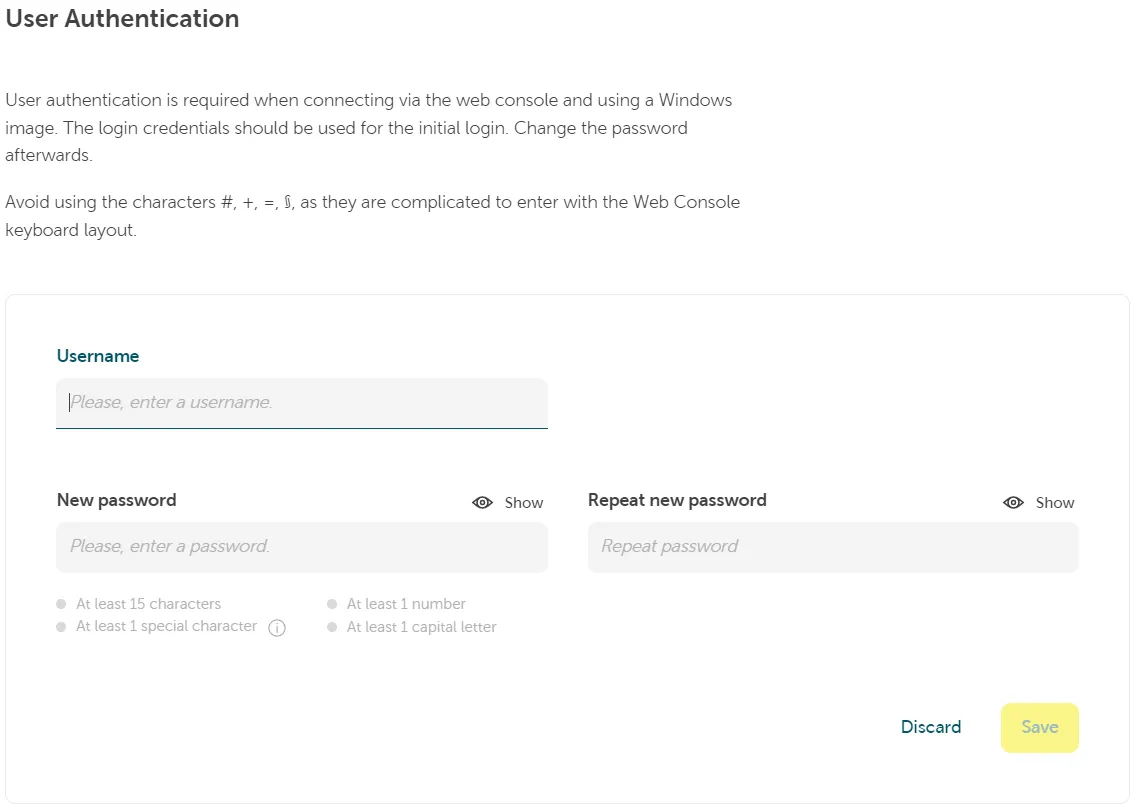
Section titled “Assign user credentials for the VM”In order to use the web console, appropriate credentials must be generated during server installation (or directly on the server): Creating a new VM. Note the information on password complexity and avoiding certain characters.
Open web console
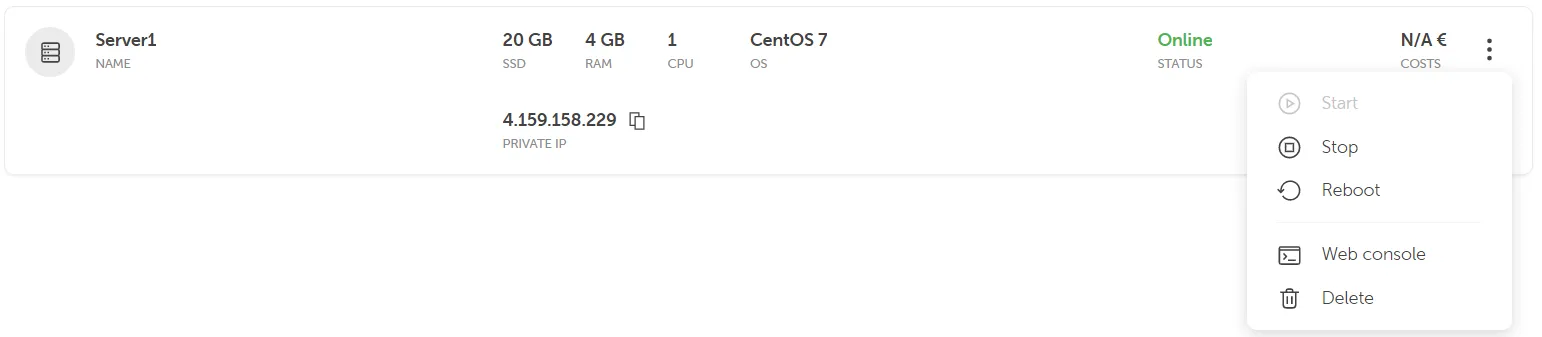
Section titled “Open web console”Use the STACKIT Portal to list all servers in your project and select the appropriate one. You can select the web console in the context menu of the server. You can be reach it via the function menu for the respective VM.
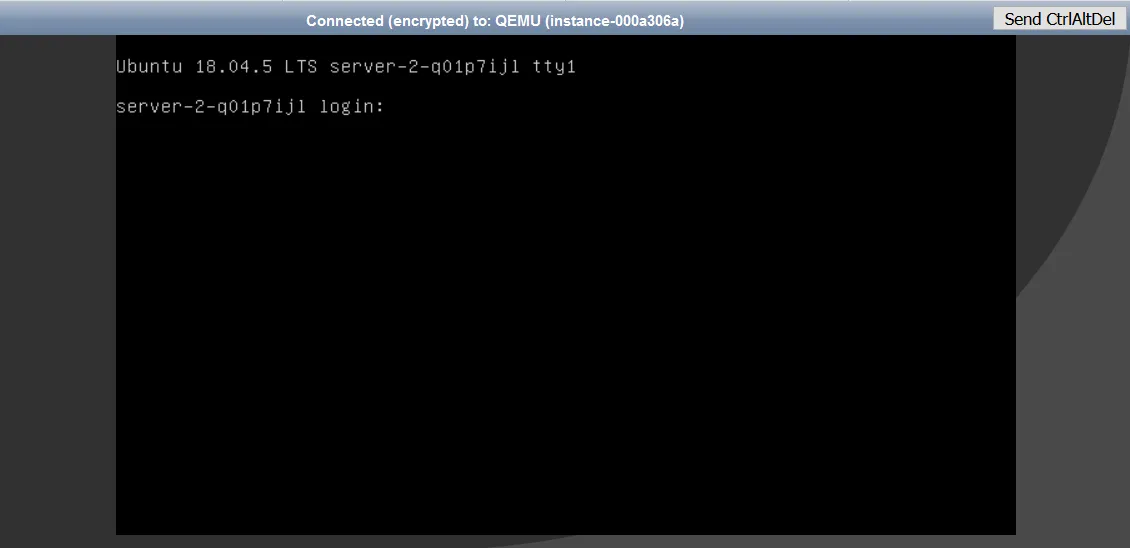
The web console then opens and can be used to log into the server. As login data, please use the username and password information provided during the server installation (see Create a new STACKIT Server instance).
After you finish your work, log off from the server for security reasons, to close the terminal session. For Windows, please use Log off button. For Linux / Unix systems, you can use the “exit” command.