Connecting to an existing Windows Server
Last updated on
Connect to the server
Section titled “Connect to the server”There are currently two main methods to connect to the newly created server:
Via web console
Section titled “Via web console”Once your server is available, you can navigate to its menu options (three vertical dots on the right) in the STACKIT Portal and choose the Web console to view its status (during reboot for example).
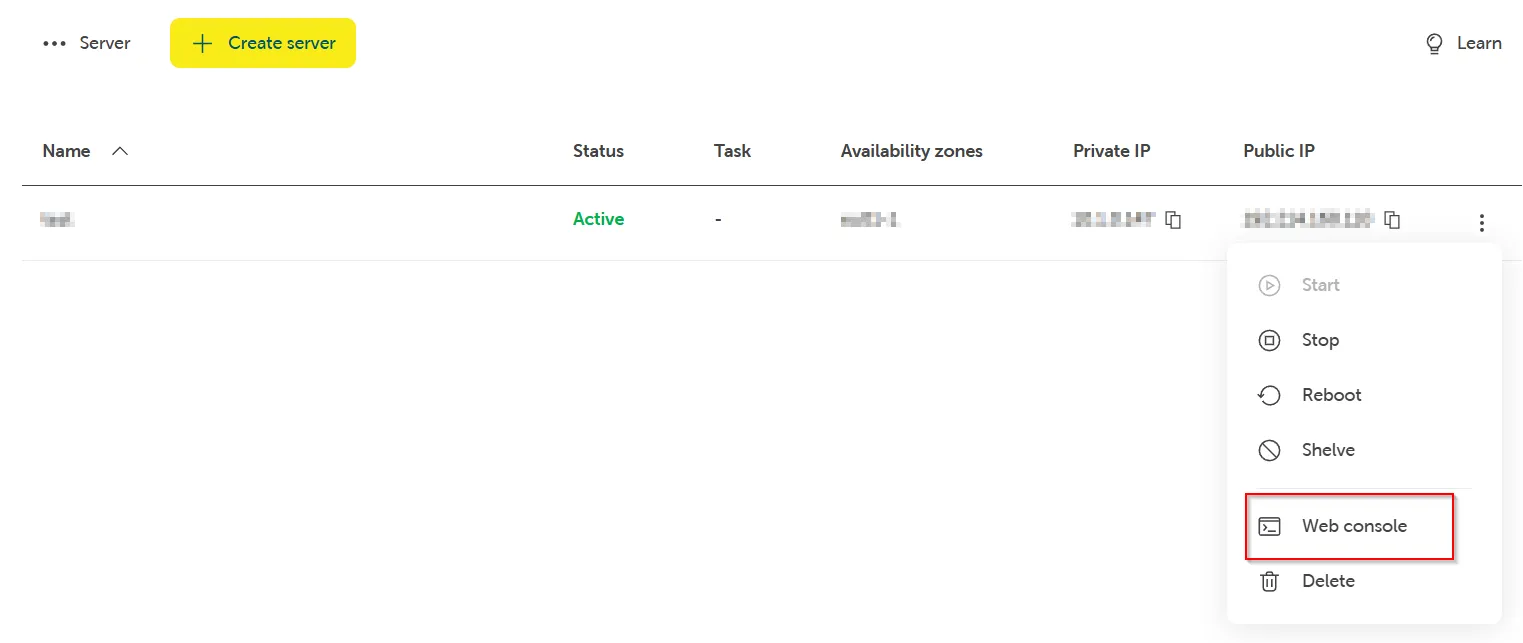
Alternatively, you can use the STACKIT IAAS API to retrieve the console URL. Ensure that you provide the correct projectId and serverId:
GET https://iaas.api.eu01.stackit.cloud/v1/projects/{projectId}/servers/{serverId}/consoleIf you just created the server, there is a chance that you have connected to its remote console before all post-installation tasks have been performed.
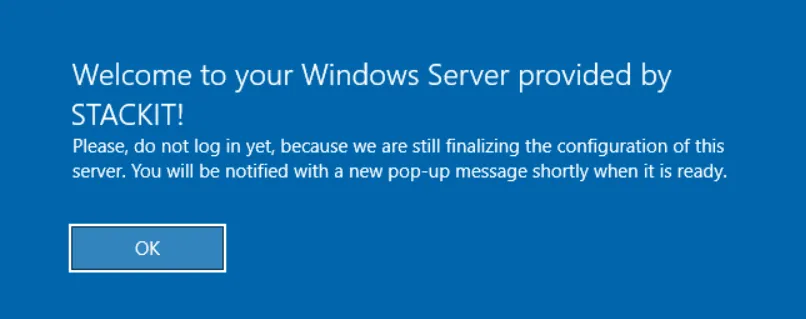
In this case, if you try to click the button Ctrl+Alt+Delete in the console window to login, you will be informed about the on-going finalization:
After a few seconds, a new pop-up will let you know that all required steps have been finished and you can safely log in to the server:
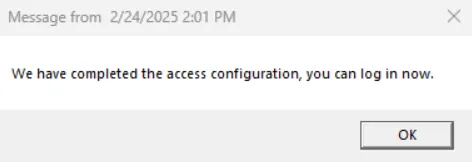
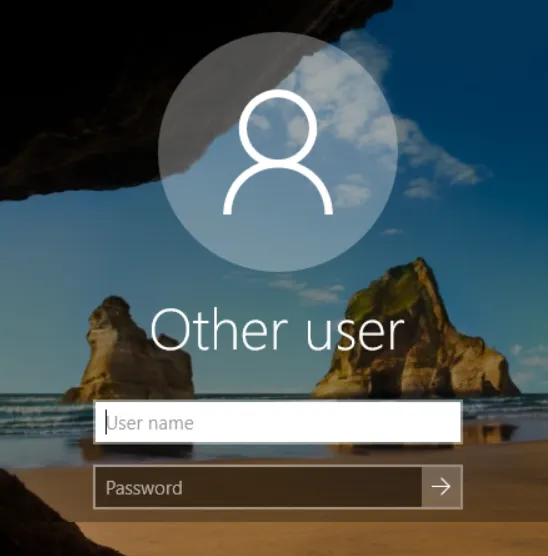
At this point, the server configuration is completed and you can start using the server:
Via standard RDP connection
Section titled “Via standard RDP connection”Remote desktop connections are already configured by default and internal network connections between hosts on the same local network are allowed.
However, if you want to access the server from the internet, first you need to create a public IP and attach it to your server. As second step, also the additional protection layer in form of security groups needs to be modified accordingly to allow access from the Internet.
Please check the page Create and manage security groups and rules for further details.
Depending on the network you are attempting the connection from you can either use the Private or Public IP address of the server.

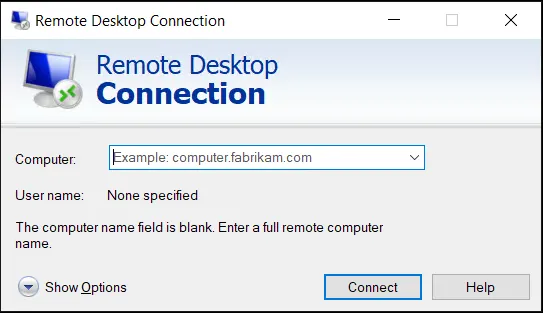
Once the prerequisites have been met, you can use a standard RDP client (i.e. Remote Desktop Connection) to log on to the server remotely: