Configure Dremio for STACKIT Intake integration
Last updated on
Overview
Section titled “Overview”This guide explains how to configure Dremio to work with STACKIT Intake. You will create a dedicated technical user and grant it the necessary permissions. This process provides the credentials required for Intake to write data to your Dremio catalog.
Prerequisites
Section titled “Prerequisites”Before you begin, please ensure you have the following:
- You have a user with administrative privileges in your STACKIT Dremio 25 or Dremio 26 environment
- You have access to the Dremio user interface
Step-by-Step configuration
Section titled “Step-by-Step configuration”-
Create the technical Dremio user
A technical user is a dedicated, non-human Dremio account created for programmatic access by an application or service. It is a security best practice that ensures services connect to Dremio with their own isolated identity and limited permissions.
In this case, the technical user will be used exclusively by the STACKIT Intake service. When an Intake receives data from a source stream, it will use this user’s identity and credentials to authenticate with Dremio and execute its primary function: writing the data into the target Iceberg table within the specified namespace.
- Navigate to the Users section in the Dremio administrative settings.
- Click on Add User (top right).
- Choose between a local or external user and fill in the account details. We recommend using a descriptive name, such as
intake_write_user. - Assign a password and save the user. Notice that roles will be granted at the catalog-level.
-
Grant catalog permissions
Next, give the new user the permission to create folders and write data to tables within your desired catalog.
-
From the Dremio UI, select the catalog where Intake will write data.
-
Click the Settings icon in the top-right corner.
-
Open the Privileges tab.
-
Find the user you just created (e.g., intake_write_user).
-
Grant the following privileges:
USAGE,CREATE FOLDER,COMMIT, andCREATE TABLE.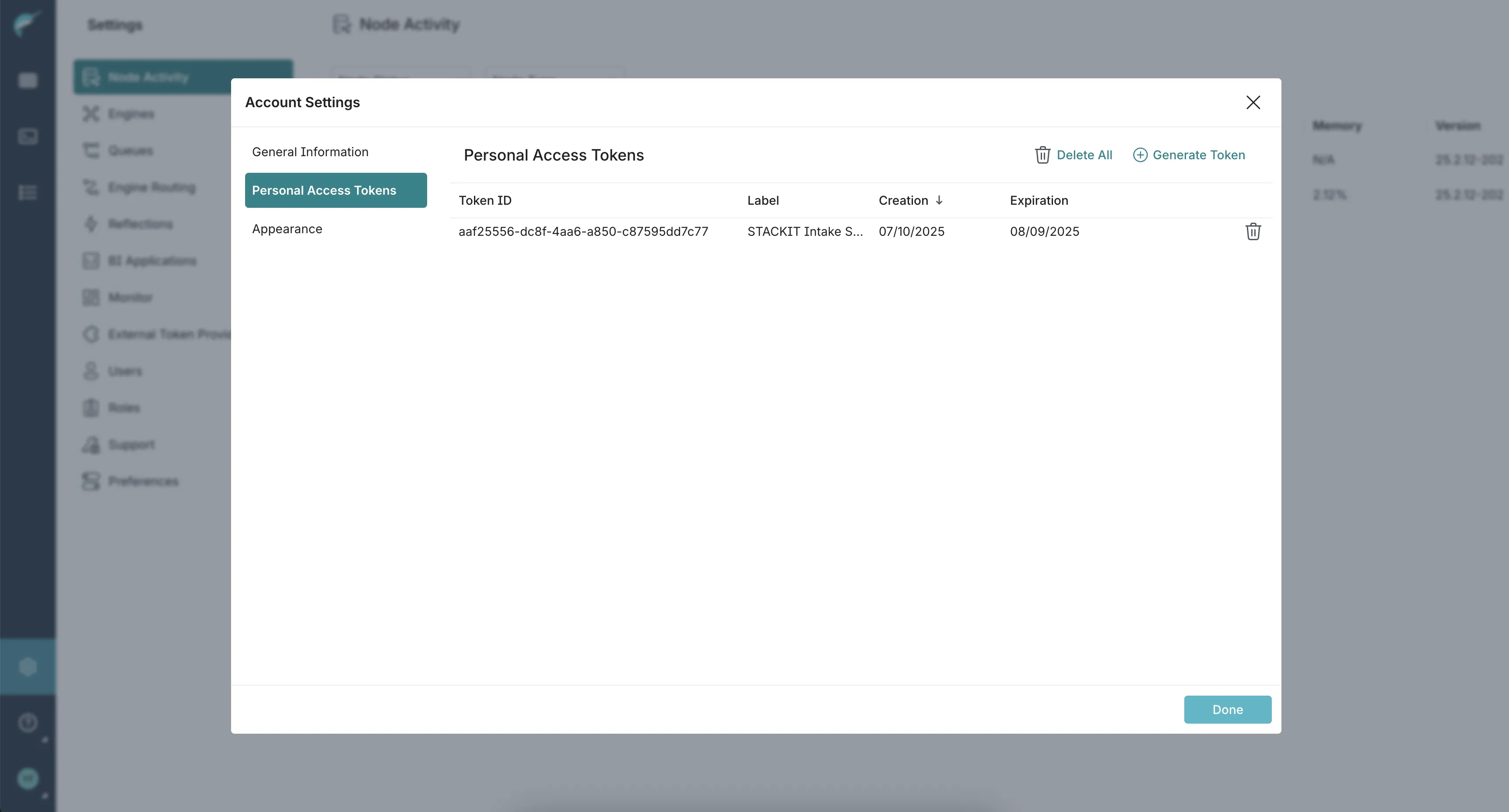
-
Click Save.
-
-
Generate a personal access token (PAT)
Once you have created your user and you provided the required configurations for the folder that you will work with. You will generate a secure token for the new user. This token will be used for authentication instead of a password.
-
Log out of from admin account and log in to Dremio as the new technical user (e.g.,
intake_write_user). -
Go to Account Settings in the bottom-left corner.
-
Select the Personal Access Tokens tab.
-
Click Generate Token.
-
Give the token a descriptive name (e.g
STACKIT Intake Service Access) and set an expiration time.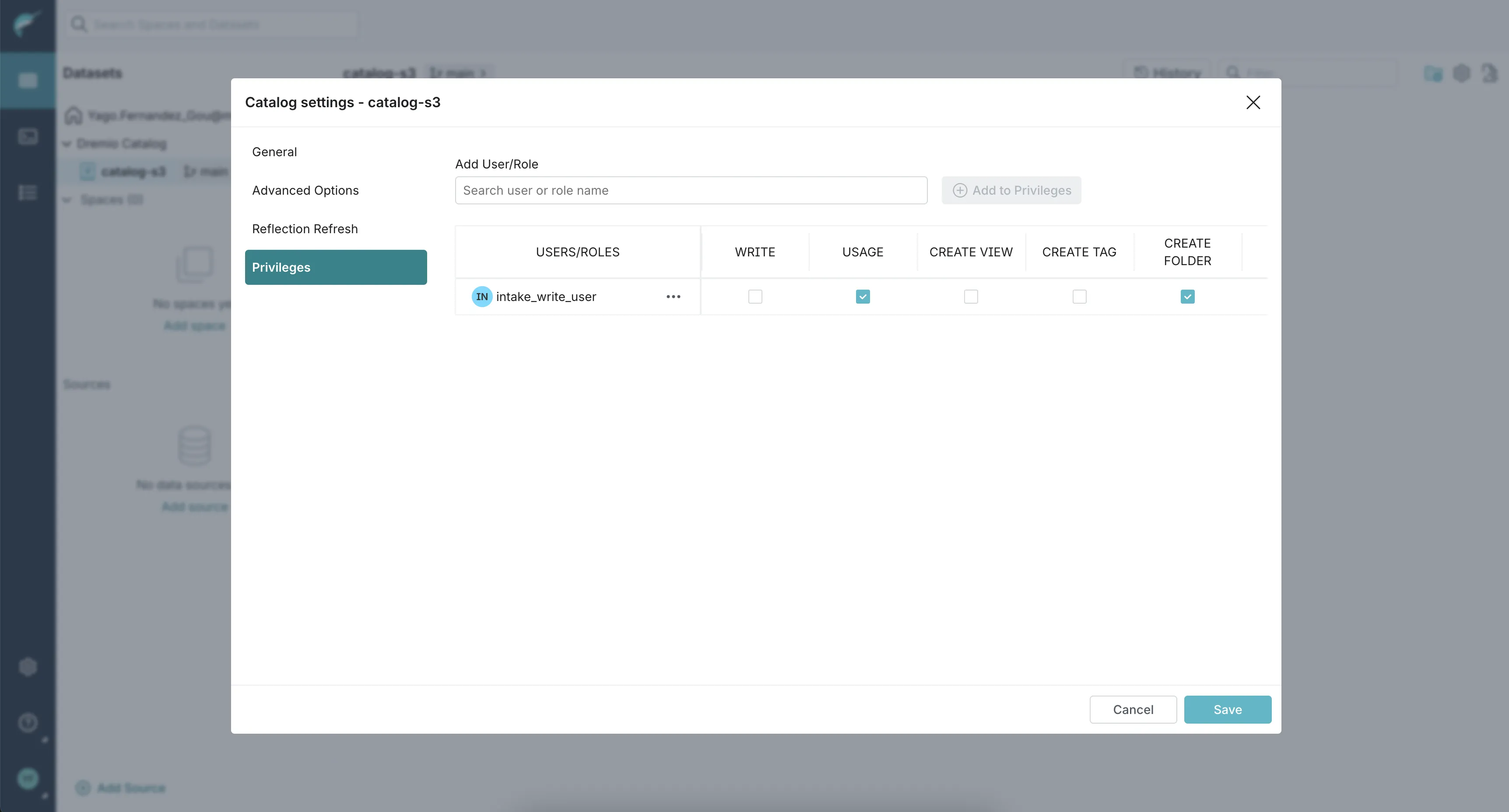
-
Now that you have a technical user for Intake and the PAT token, use Setting Up Intakes Via The API to create Intakes.
-
-
Connection parameter for Intake