Skip to content

Create an NLB via Portal

Creating a STACKIT Network Load Balancer is made very easy with our wizard. You can create a Network Load Balancer by clicking the Create Load Balancer button.
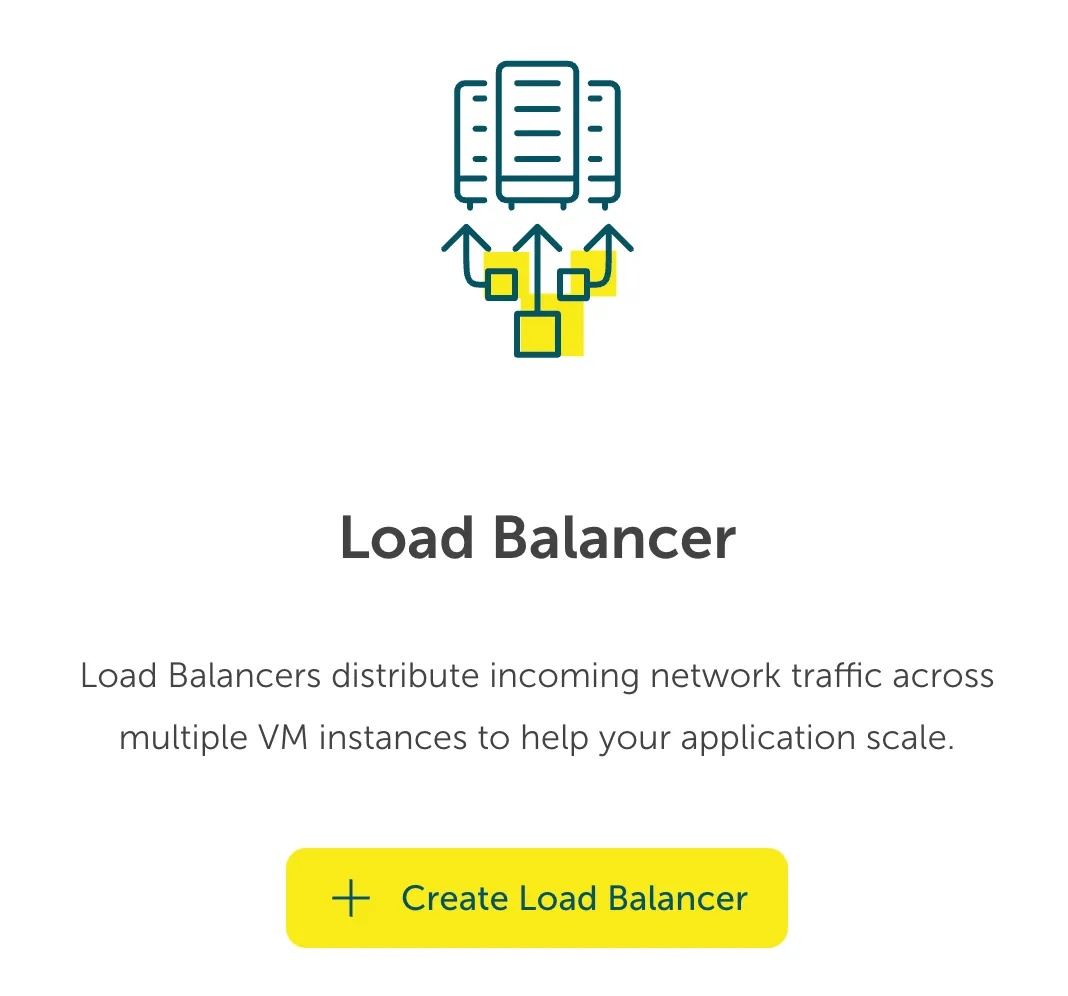
Load Balancer Introduction Screen. An illustration of a network of servers (three stacked racks) with arrows pointing from the bottom up, fanning out into three separate, smaller arrows, symbolizing the distribution of incoming traffic. Below the illustration, the title Load Balancer is displayed, followed by the explanatory text: "Load Balancers distribute incoming network traffic across multiple VM instances to help your application scale." A yellow button reads + Create Load Balancer.

On the following screen give your Network Load Balancer a name. The name must adhere to a DNS naming scheme, i.e. lower case, hyphens and numbers are allowed (check the info button for further information and examples).

You can have a public facing Network Load Balancer using a Public IP Address that you can attach from your previously allocated IPs or assign automatically. Or you might choose for your project that you need an internal Network Load Balancer with an automatically assigned private IP.
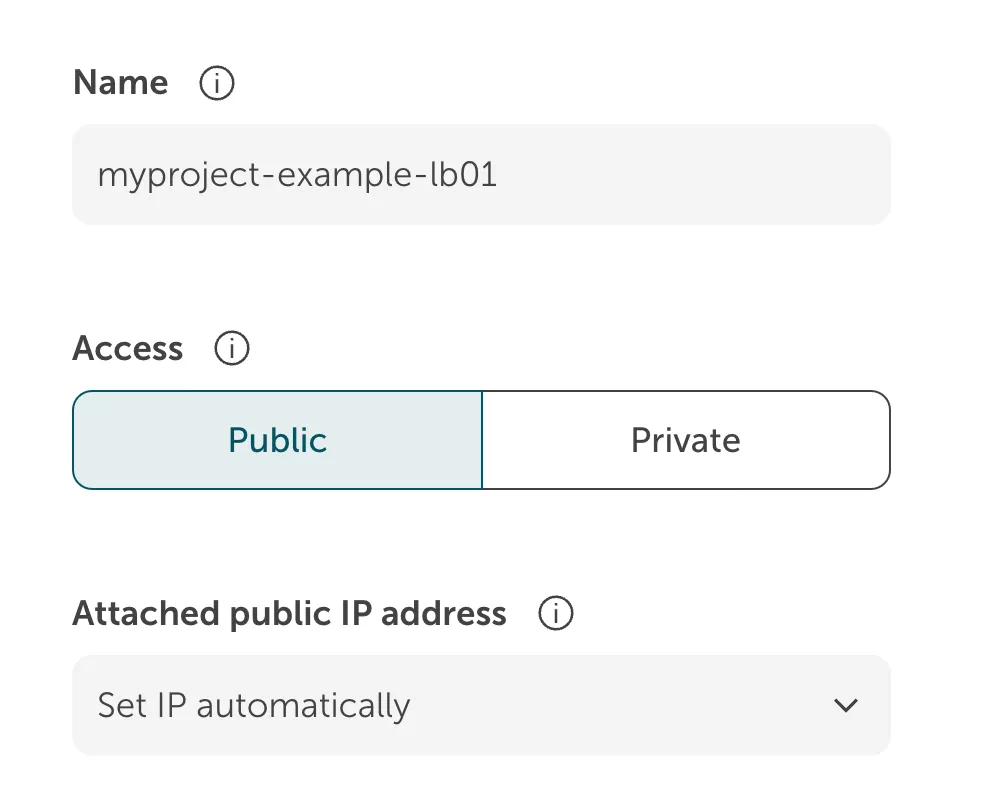
Load Balancer General Settings. This screen capture shows the configuration for the load balancer's general settings. Fields include: Name, pre-filled with myproject-example-lb01; Access, with a toggle selection between Public (currently selected) and Private; and Attached public IP address, with a dropdown menu pre-selected to Set IP automatically.

Choose your STACKIT Network where this new Network Load Balancer is going to be placed.
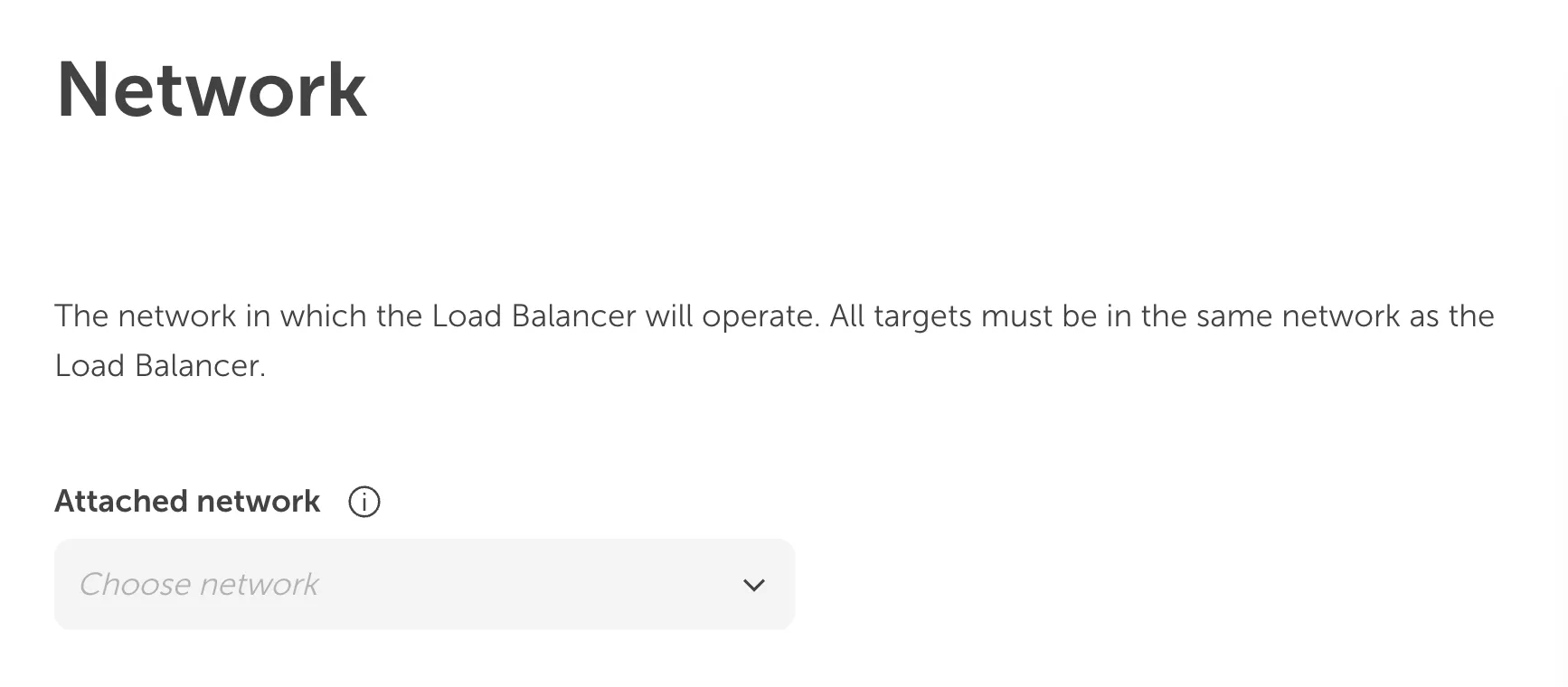
Load Balancer Network Configuration. This screen capture is titled Network. The explanatory text states: "The network in which the Load Balancer will operate. All targets must be in the same network as the Load Balancer." The field Attached network has a dropdown menu with the placeholder Choose network.

Afterwards you can decide on the listener ports you want to expose, the protocol you want to use for the listener, and of course a descriptive name.
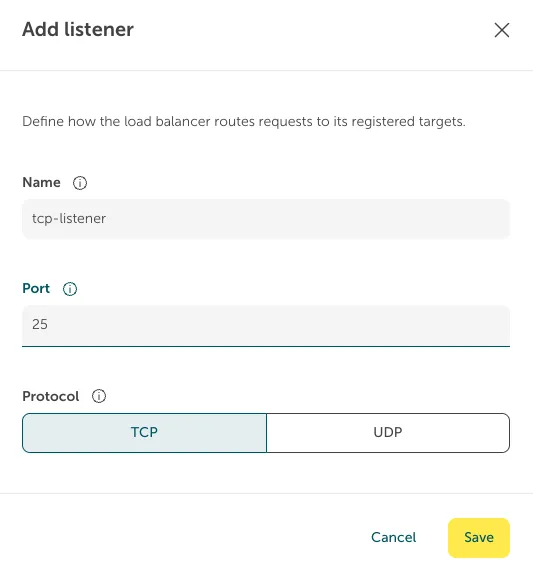
Add listener Dialog Box. A dialog box titled Add listener used to define how the load balancer routes requests. The fields are: Name, pre-filled with tcp-listener; Port, pre-filled with 25; and Protocol, with a toggle selection between TCP (currently selected) and UDP. A yellow button at the bottom reads Save.

You can repeat this for every listener you want to add. See the example below for a setup with a typical configuration.
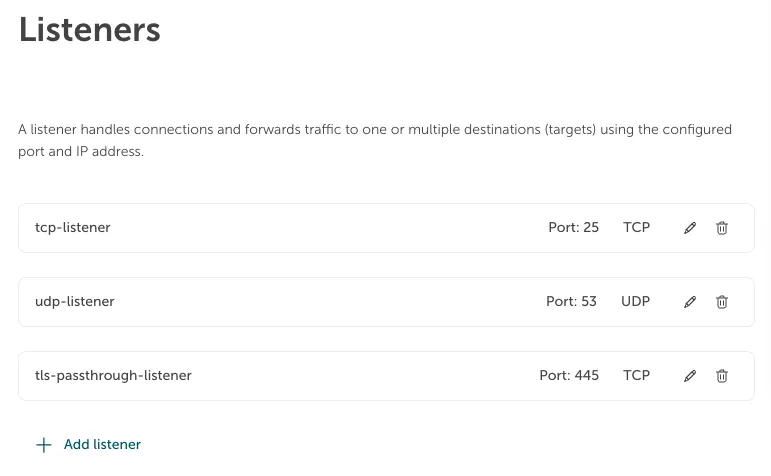
Load Balancer Listeners List. A list view under the heading Listeners. The introductory text explains: "A listener handles connections and forwards traffic to one or multiple destinations (targets) using the configured port and IP address." The list displays three configured listeners: tcp-listener (Port: 25, Protocol: TCP), udp-listener (Port: 53, Protocol: UDP), and tls-passthrough-listener (Port: 445, Protocol: TCP). Each listener has icons to edit or delete the configuration. At the bottom, a link reads + Add listener.

Your Network Load Balancer also needs a group of servers it can redirect the request to. We call this a target group where we attach a listener to a group of backend servers on a specific port.
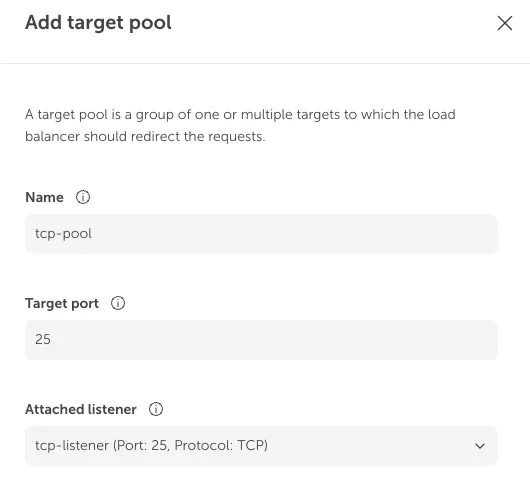
Add target pool Dialog Box (General Settings). A dialog box titled Add target pool. The introductory text defines a target pool. The fields shown are: Name, pre-filled with tcp-pool; Target port, pre-filled with 25; and Attached listener, with a dropdown showing tcp-listener (Port: 25, Protocol: TCP).

After creating the target pool you can add your servers to the pool.
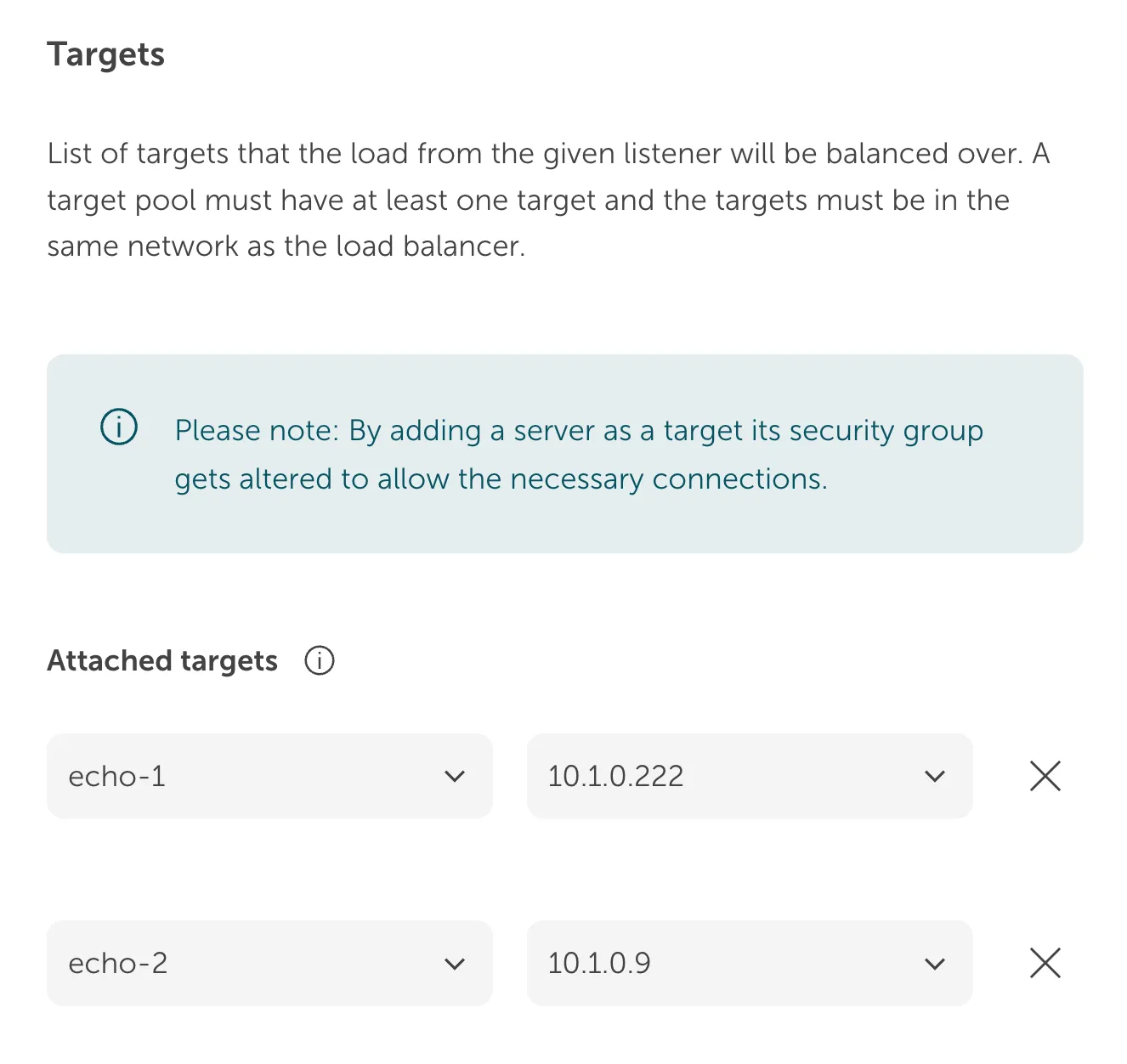
Target Pool Targets Configuration. This section, under the heading Targets, lists the servers that receive the load-balanced traffic. The explanatory text says the list contains "targets that the load from the given listener will be balanced over," and that a target pool must have at least one target in the same network as the load balancer. An information box notes that adding a server as a target alters its security group to allow necessary connections. Under Attached targets, two targets are listed: echo-1 with IP address 10.1.0.222, and echo-2 with IP address 10.1.0.9. Each target entry has a dropdown for the server name, a dropdown for the IP address, and an 'X' icon to remove the target.

Distributing requests across the targets in a target pool happens in a Round Robin policy. That means requests are distributed evenly between the targets. If your application needs to have their user’s requests coming to the same backend server, you might consider using session persistence which will use the Maglev policy.
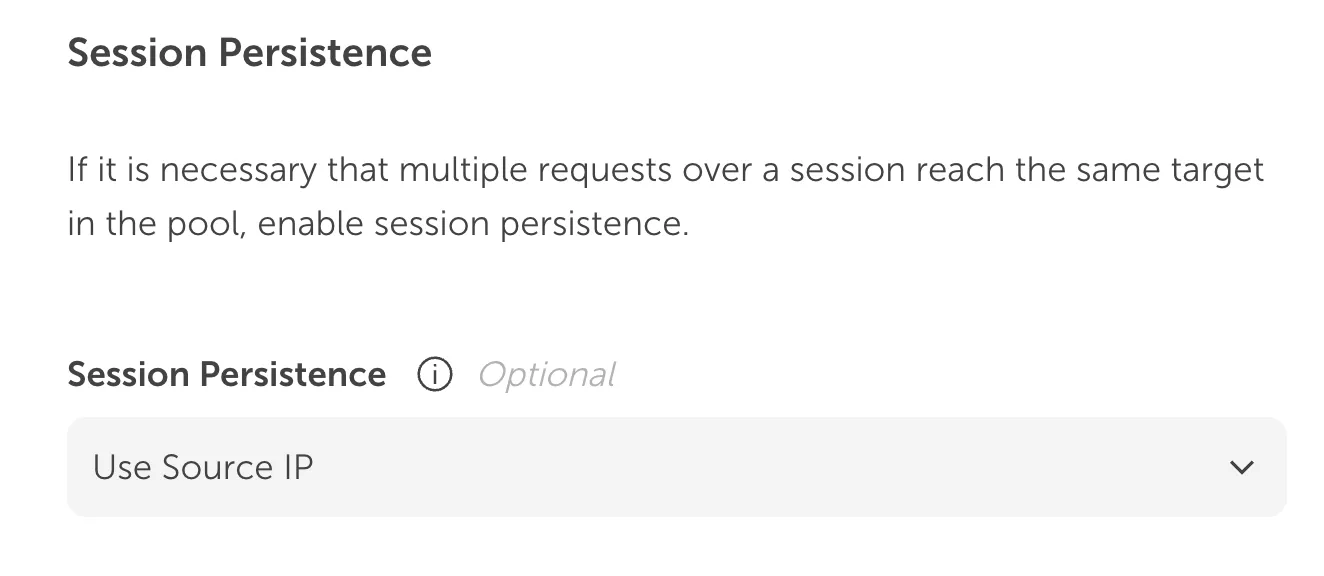
Target Pool Session Persistence Configuration. This section is titled Session Persistence. The explanatory text explains that session persistence should be enabled if multiple requests over a session must reach the same target in the pool. The optional field Session Persistence has a dropdown menu pre-selected to Use Source IP.

You can tweak how often a backend should be checked by the Network Load Balancer for its availability. We provided some sensible defaults for you.
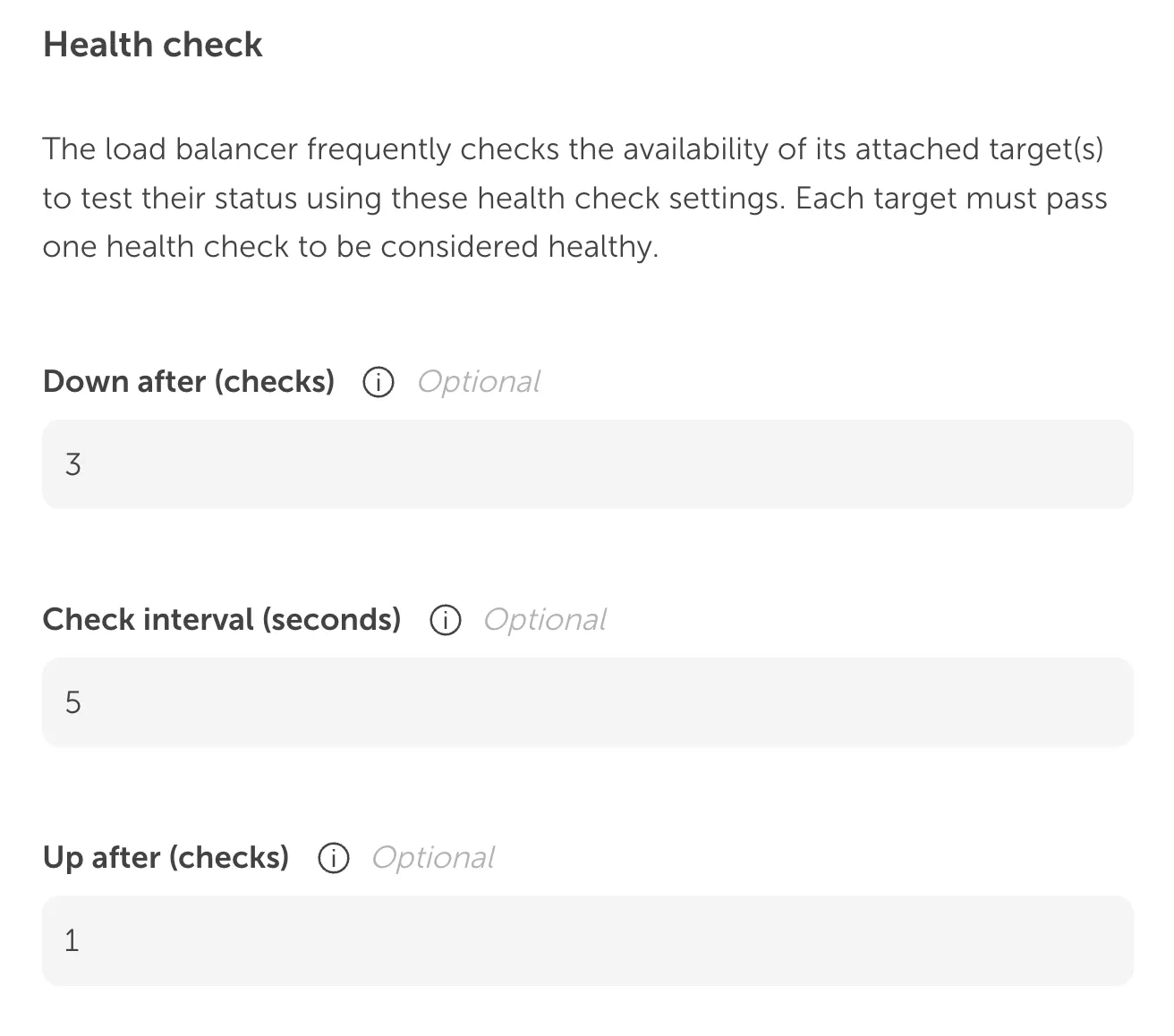
Target Pool Health Check Settings. This section is titled Health check. The introductory text describes the load balancer's frequent checks of target availability using these settings, noting that each target must pass one health check to be considered healthy. The optional configuration fields are: Down after (checks), pre-filled with 3; Check interval (seconds), pre-filled with 5; and Up after (checks), pre-filled with 1.

After adding multiple target pools and their targets our example configuration might look like this:
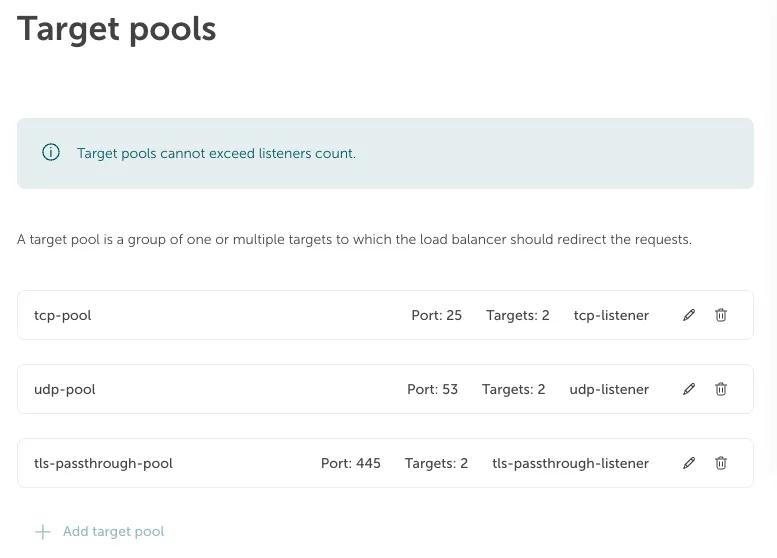
Load Balancer Target Pools List. A list view under the heading Target pools. An alert box at the top states: "Target pools cannot exceed listeners count." The explanatory text defines a target pool as "a group of one or multiple targets to which the load balancer should redirect the requests." The list displays three target pools: tcp-pool (Port: 25, Targets: 2, Listener: tcp-listener), udp-pool (Port: 53, Targets: 2, Listener: udp-listener), and tls-passthrough-pool (Port: 445, Targets: 2, Listener: tls-passthrough-listener). Each pool has icons to edit or delete the configuration. At the bottom, a link reads + Add target pool.

When you are happy with your configuration you can place your order and your Network Load Balancer will be provisioned. This could take a couple of moments. You can watch the status in the overview. From there you can also change your listeners and target pools using a similar interface like from above.

As a suggested step from here on, you could check the security groups which will be generated for you and will open up your public Network Load Balancer to the internet. If for example you have configured an admin port, you might want to choose to limit traffic to this port to your IP range.
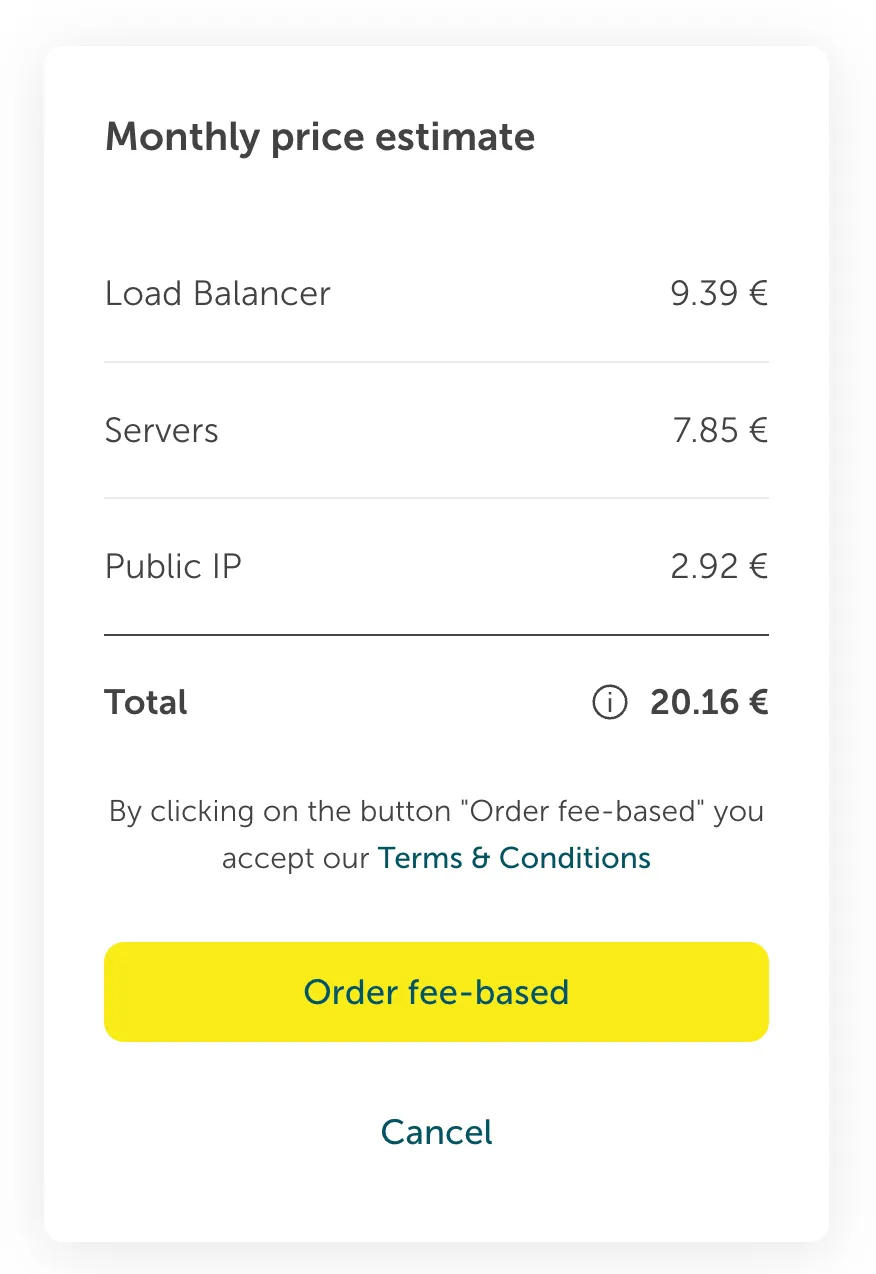
A mobile-friendly screen showing a "Monthly price estimate" breakdown for a cloud service configuration. The estimate is displayed in a vertical list format. The breakdown of costs is: Load Balancer at 9.39 €, Servers at 7.85 €, and Public IP at 2.92 €. A horizontal line separates the line items from the Total, which is displayed in bold as 20.16 €. An information icon (i) is next to the total. Below the estimate, there is a text sentence that reads, "By clicking on the button 'Order fee-based' you accept our Terms & Conditions." The link to the Terms & Conditions is highlighted in blue/teal. Finally, there are two call-to-action buttons: a prominent, bright yellow button for "Order fee-based" and a secondary, less prominent button for "Cancel". The entire card has a clean, minimalist design with light grey background and dark text.