Configuring an existing Windows Server
Service configuration
Section titled “Service configuration”Once your server is available - its status will change from Creating… to Active

At this point you can review or change additional properties as shown below.
Overview
Section titled “Overview”General information
Section titled “General information”Here you are given an overview of the current status of the server:
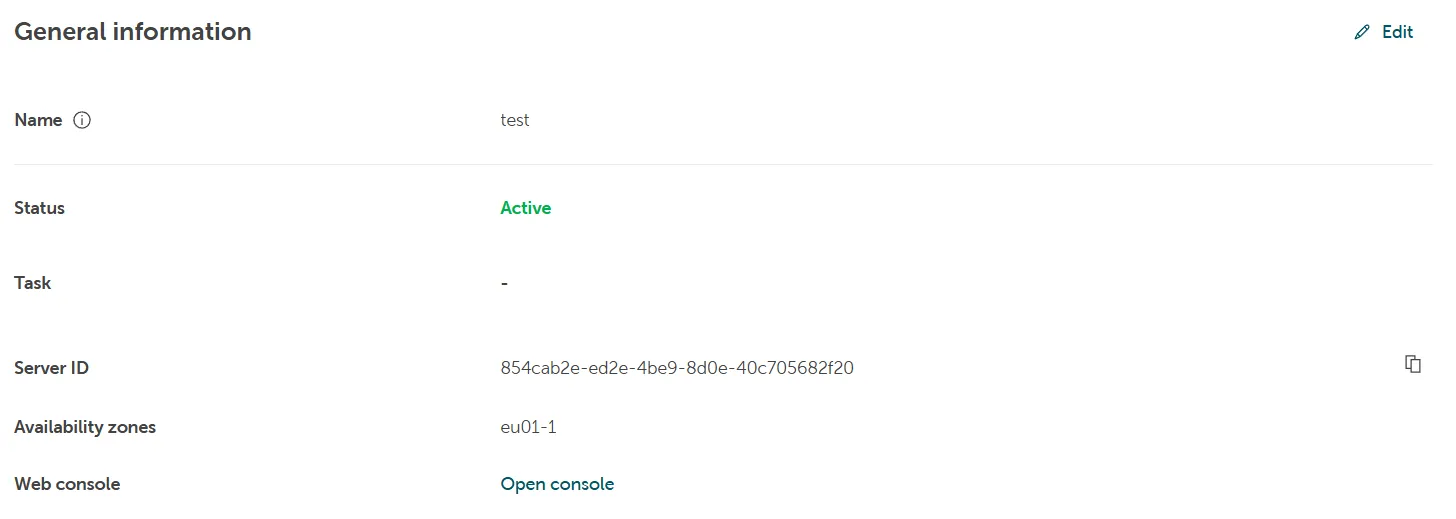
You can change the name of the server here.
Server ID
Section titled “Server ID”The ID in Openstack that is linked to this server.
Availability zones
Section titled “Availability zones”Shows the Availability Zone in which the server is hosted.
Web console
You can click on the hyperlink to open the STACKIT Web console to access your server
Machine setup
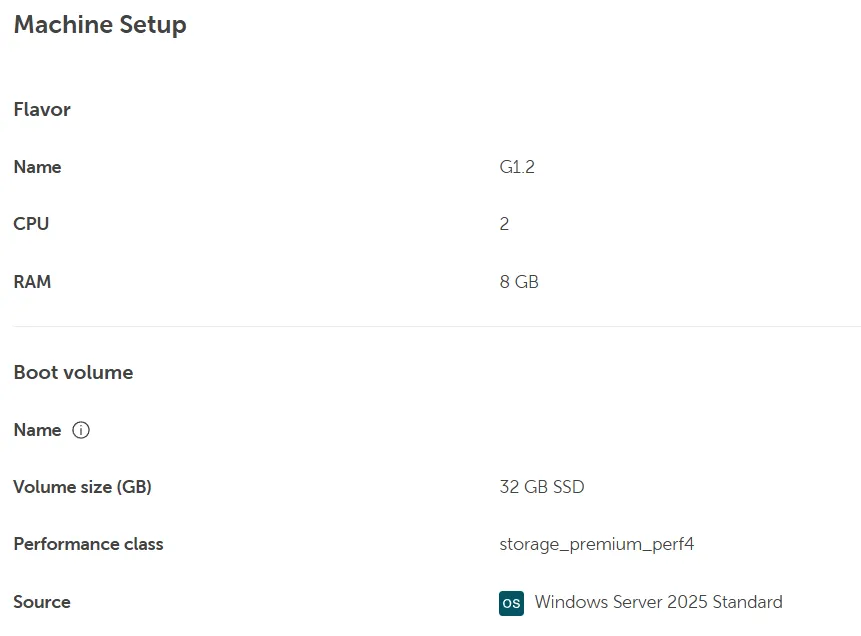
Section titled “Machine setup”This overview displays the technical configuration of your server.
Flavor
Section titled “Flavor”Here you can find the selected flavor and its underlying hardware specifications.
The configured performance values cannot be changed via the STACKIT portal. However, you have the option of adapting them accordingly by resizing the server to a different flavor via the STACKIT IAAS CLI/API.
Please find more information in the corresponding documentation: IaaS-API Tutorials
Boot volume
Section titled “Boot volume”Here you can find detailed information about the root volume, including the volume size and OS version.
Disk volume
Section titled “Disk volume”In this menu you can add or remove volumes from your server and have an overview of the currently attached volumes to your server.
If you click on the Attach disk volume button, you will have the option to choose from any unattached volumes that are currently available in your project.

In this case we have not created any additional volume yet apart from the root volume, where the operating system is installed on (default C: drive). Hence the button is greyed out.
Creating additional volumes
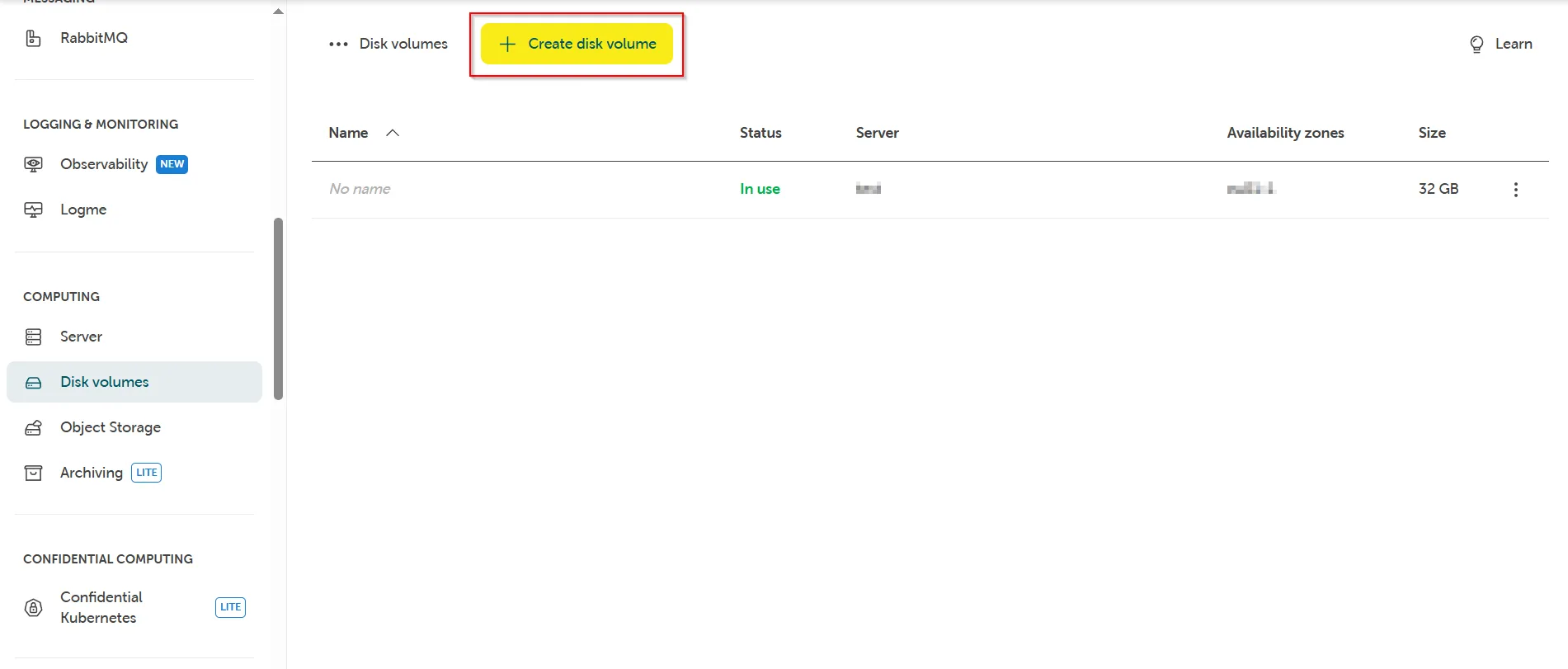
Section titled “Creating additional volumes”To create one or more additional volumes in your project, leave the server view and navigate to Computing on the left side. Then select Disk volumes and from there in the top center screen select Create disk volume.
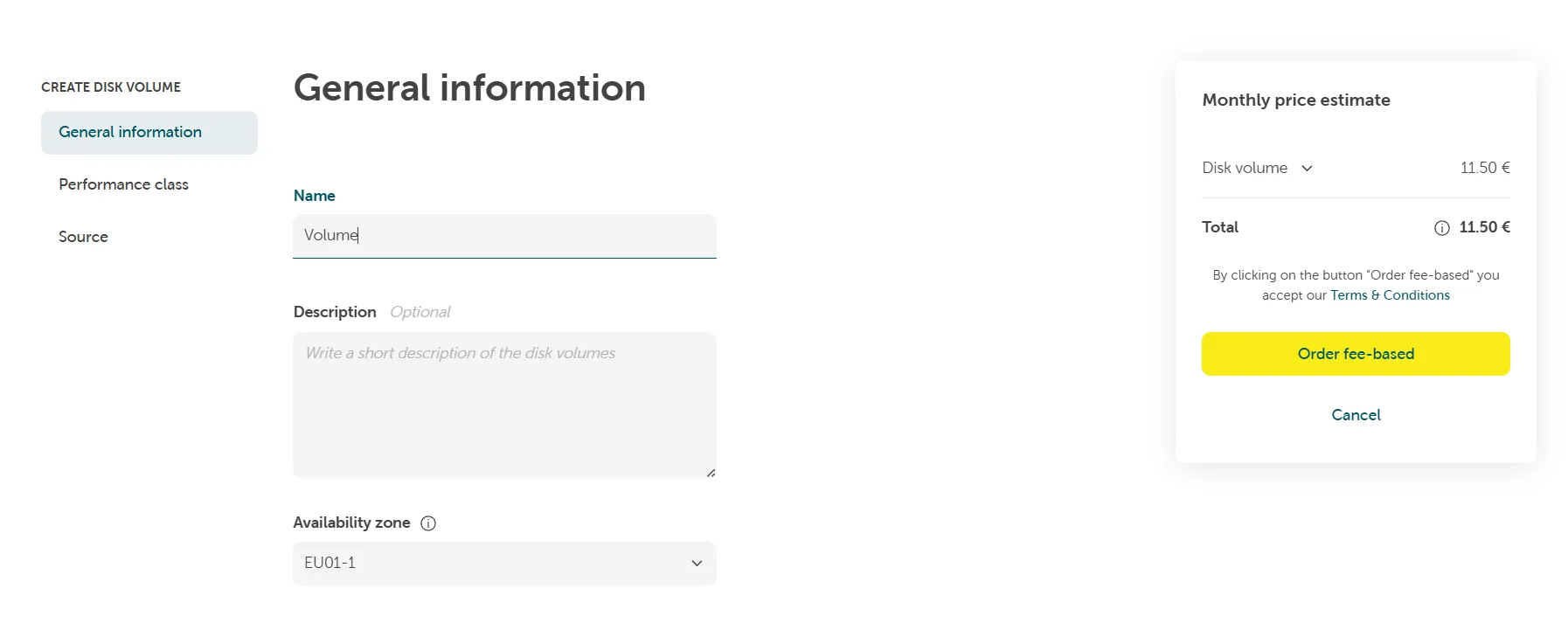
Enter the Name, Description, and select an Availability zone to define the deployment location of your resource and determine whether it should be redundantly available.
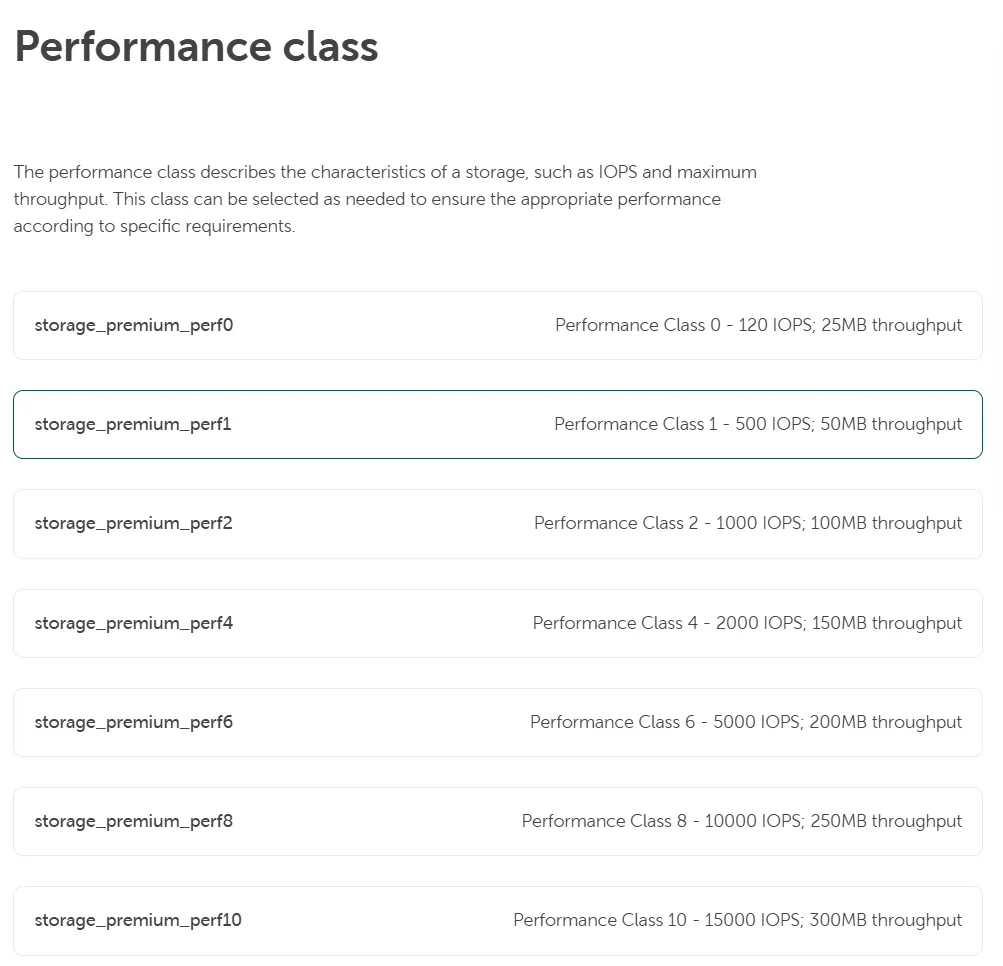
Choose the preferred performance class of your volume based on your requirements.
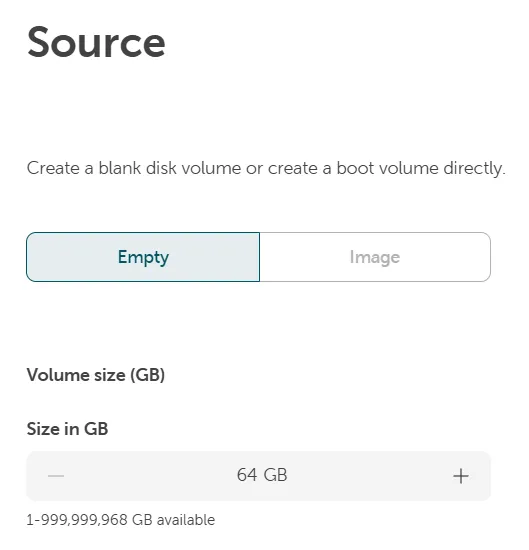
Specify whether a blank disk volume or volume from an image should be provided.
Press the +/- button to set the preferred volume size or enter the value directly in the corresponding field.
Once the volume is created, it will be available for selection in your server overview and can be attached to your server accordingly.
Afterwards you can manage this volume like any other virtual disk in Windows. Initialize, bring it online, partition, format and much more.
Network
Section titled “Network”Overview
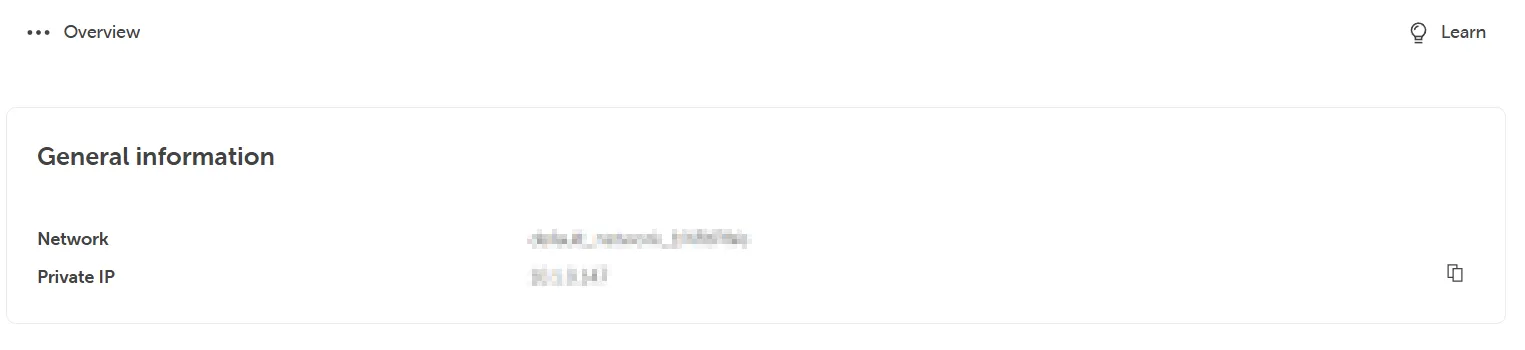
Section titled “Overview”Shows the current network configuration of your machine.
Network
Section titled “Network”The default network that was assigned to your server during creation.
Private IP
Section titled “Private IP”When the server is created, it receives a dynamic internal network IP address via DHCP. However, this address functions as a fixed IP lease until the server’s network adapter is removed, the server is deleted or recreated, or changes are made via the STACKIT IAAS API/CLI.
Public IPs
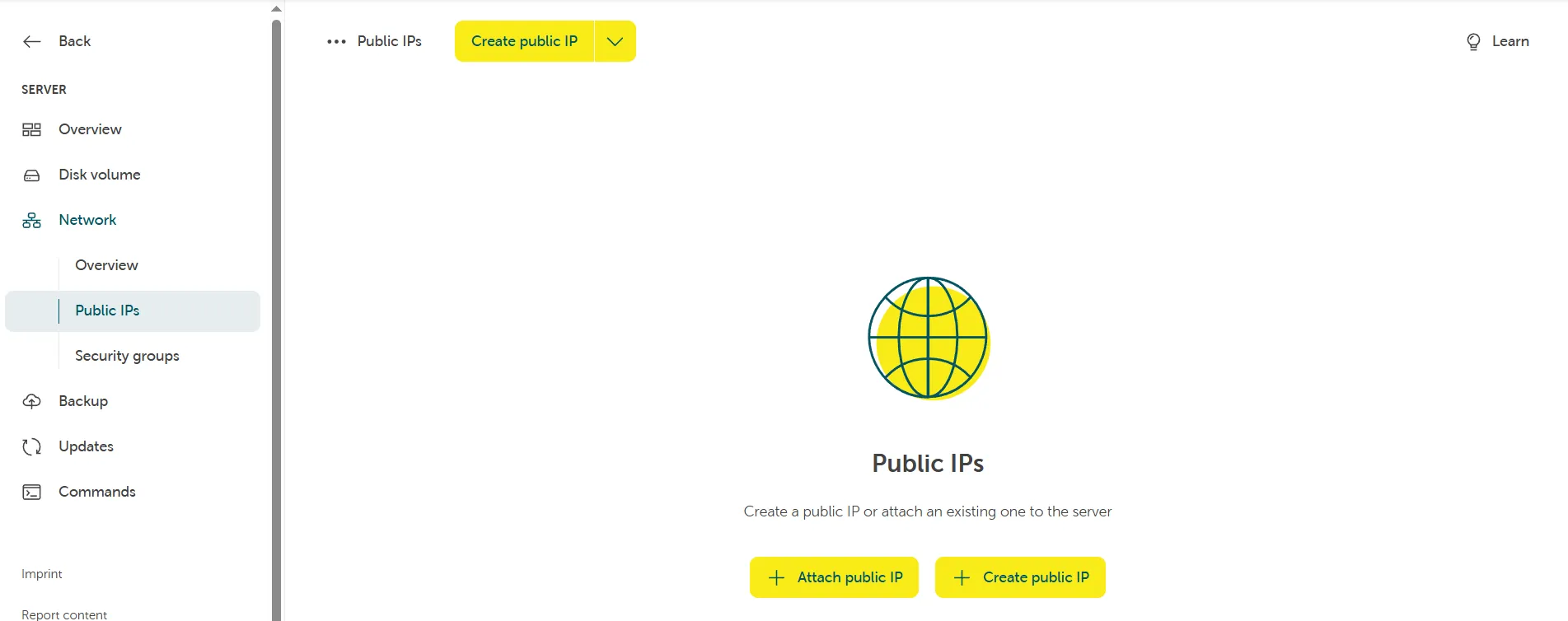
Section titled “Public IPs”You can add and/or remove a public IP address to your server.
Security Groups
Section titled “Security Groups”Editing Security Group(s)
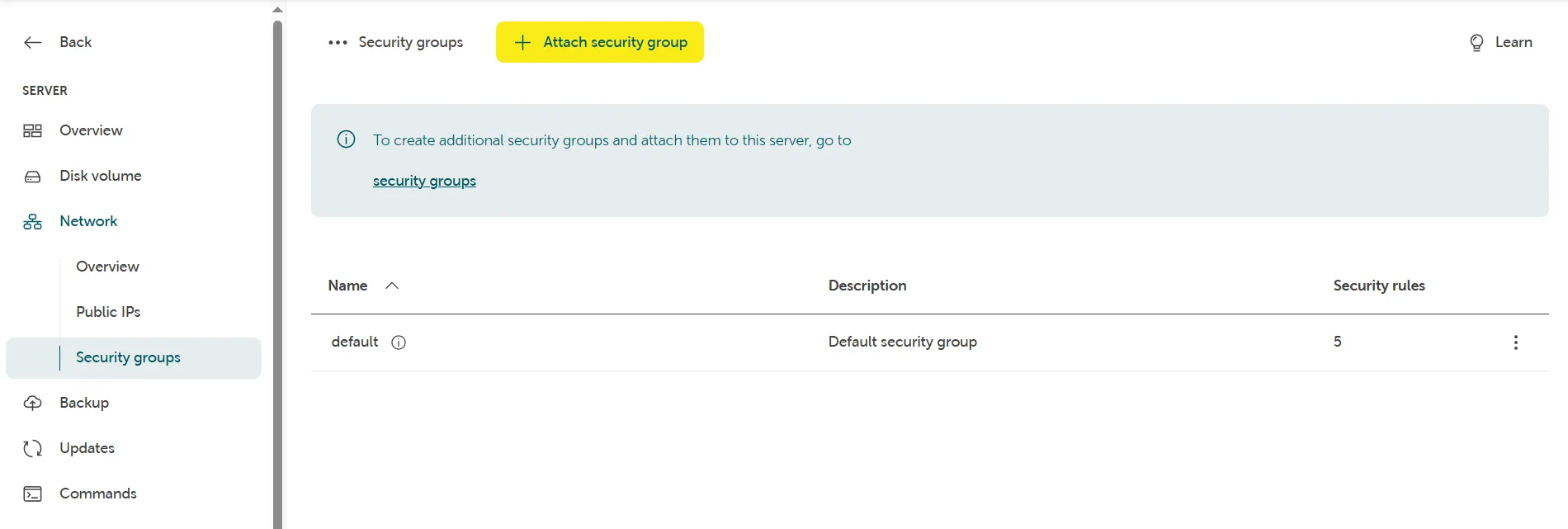
Section titled “Editing Security Group(s)”Once the server is created, a default security group will be assigned, functioning similarly to a virtual firewall.
For example, to enable RDP access to your server or any server the security group is attached to, you must either modify the rules of the security group or create additional security groups.
Be sure to name them appropriately and attach them to the relevant servers.
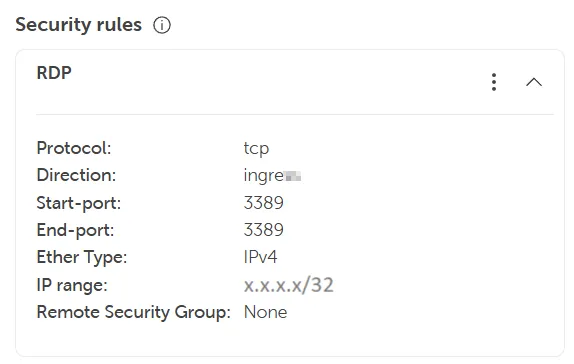
Whenever possible, it is recommended to limit port exposure to the internet and use per-host CIDR notation with a /32 mask.
Example: To allow RDP access (port 3389) for a single trusted IP address, use x.x.x.x/32.
Configuring additional management services for your server
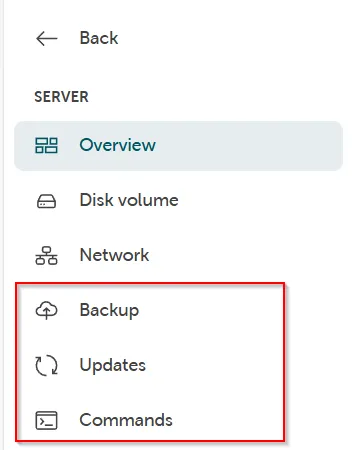
Section titled “Configuring additional management services for your server”The following management services are optional and can be enabled either during server creation or afterwards within the server configuration panel in the STACKIT portal.
Backup
Section titled “Backup”The Server Backup Management Service provides automatic backup management for your server. For further information refer to our documentation: Server Backup
Updates
Section titled “Updates”The Server Update Management Service allows for automatic management of Windows Updates on your server, ensuring that you receive the latest updates from Microsoft.
For further information refer to our documentation: Server Update Management Service
Commands
Section titled “Commands”The Commands Service enables you to use the Run Command feature, allowing you to manage your server remotely without the need to be logged in.
For further information refer to our documentation: Run Command (BETA version)
Please, read our FAQs & Known Issues Windows VM section for more information.