Manage an instance
Last updated on
Service Configuration
Section titled “Service Configuration”Once your server is available, its status will change from … Build to Active.
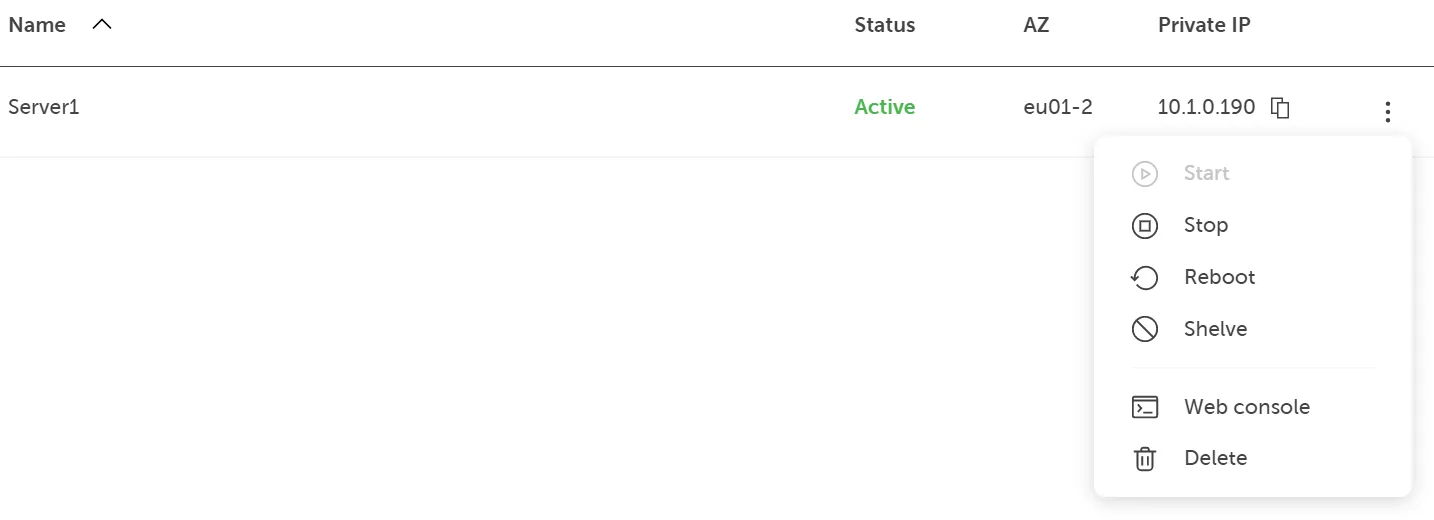
At this point, you could review or change some additional properties as follows:
Identification
Section titled “Identification”Displays the unique server ID that can be used to identify the instance:

General information
Section titled “General information”Here is an overview of the basic configuration of the server:
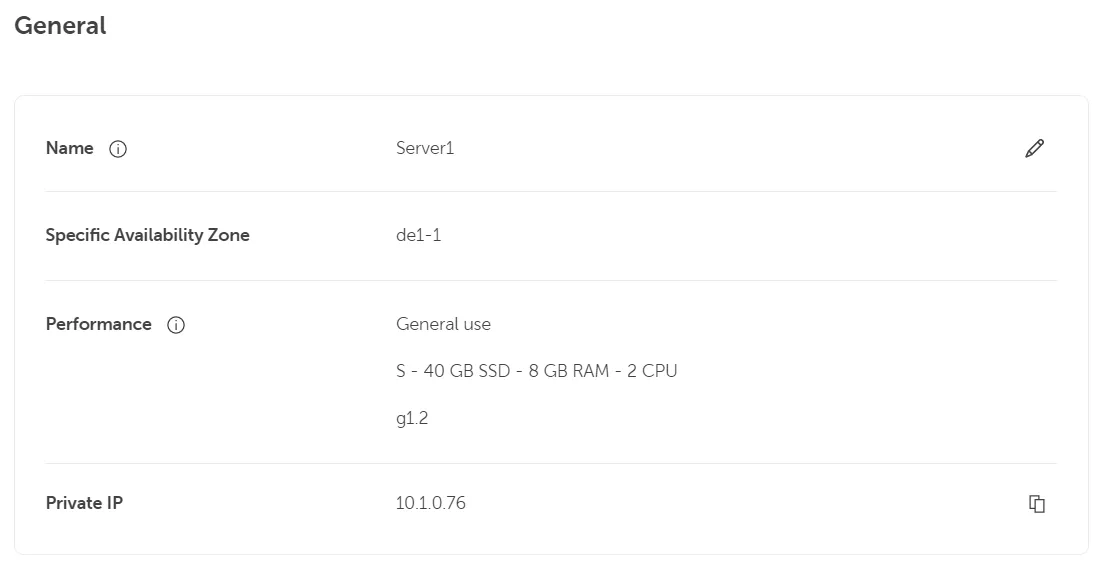
Here you can change the name of the server instance.
Specific availability zone
Section titled “Specific availability zone”Performance
Section titled “Performance”Here you can see the selected flavor. The configured performance values cannot be changed via the Portal. However, you have the option of adapting them accordingly via the CLI/API.
Find more information below:
Private IP
Section titled “Private IP”Once the instance is created, it is assigned a dynamic internal network IP address via DHCP, but this is used as a fixed IP/lease address until the instance’s network adapter or the instance itself is deleted/recreated or other changes are made via API/CLI.
The private IP can be copied to the clipboard.
Public IP
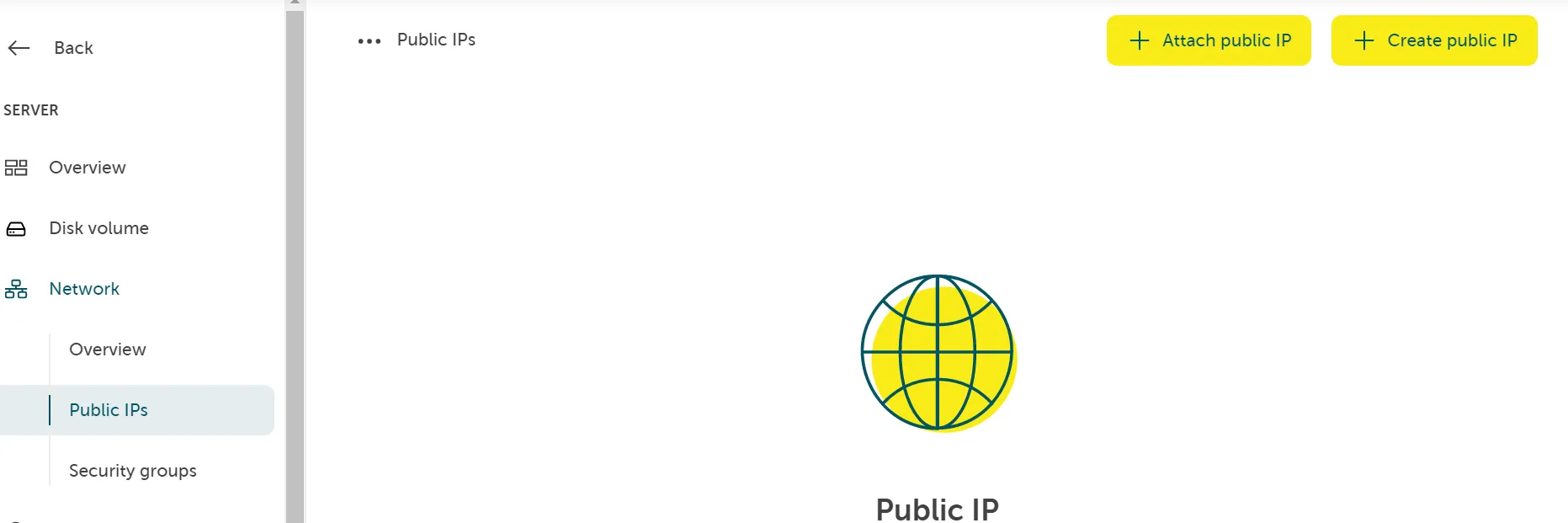
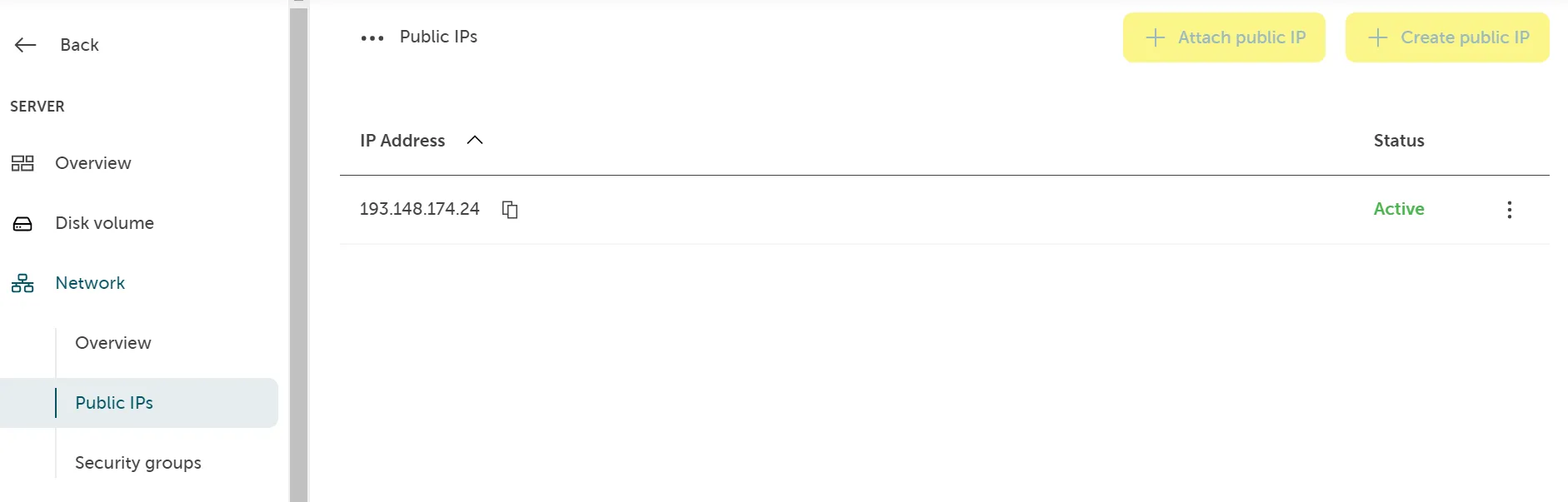
Section titled “Public IP”You can add and/or remove a public IP address to your server. Go to the Network section and attach an existing one or create a new one:
Root volume
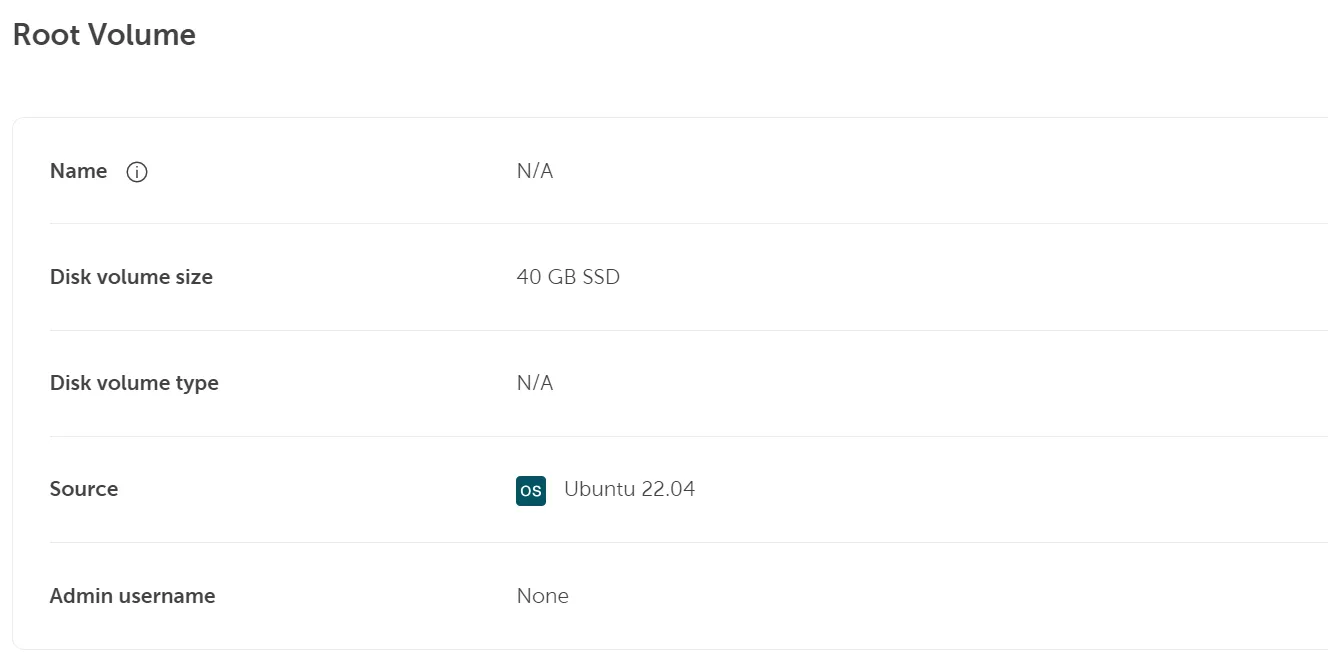
Section titled “Root volume”Here you can find detailed information about the boot volume, including the volume size and OS version.
Other options
Section titled “Other options”Additional storage volume, changing security group, generating of user access token
Section titled “Additional storage volume, changing security group, generating of user access token”- Creating additional storage volumes
- Create and manage security groups
- Generating a user access token
With the VM itself, you can also use functions that directly influence the behavior of the VM. These functions are described below.
Data carrier management can be found in the Portal under Components → Server.
Start / stop / restart functions
Section titled “Start / stop / restart functions”You can use the function menu to select your VM(s)
- Start (if they are switched off)
- Stop (if they are switched on)
- Restart (if they are switched on)
Functions of the web console
Section titled “Functions of the web console”- (Optional) Access your server using the web console
- (Optional) Delete an existing Linux instance