Generate and upload SSH keys
Last updated on
In this guide, you will lean how to generate an SSH key pair and upload the public one in the STACKIT Portal.
What is a SSH key?
Section titled “What is a SSH key?”SSH (Secure Shell) is a tool for system administrators to securely enable file exchange and other (e.g. administrative) communication over the internet. The SSH protocol is implemented using the open source software OpenSSH.
An asynchronous procedure is used for encryption, whereby two keys are required: a public key and a private key. The public key is used to encrypt the data connections and can be passed on to other services such as an OpenSSH server. These data connections can then be decrypted again using the private key. Do not pass on the private key, otherwise unauthorized users could access the data.
Generate a SSH key pair on macOS and Linux
Section titled “Generate a SSH key pair on macOS and Linux”Create a SSH key pair
Section titled “Create a SSH key pair”Open a terminal and enter the following:
$ ssh-keygen -t rsa -b 4096 -C "your\_email@example.com" > Enter a file in which to save the key (/home/you/.ssh/id\_rsa): [Press enter]The command prompt shows the default path of the key pair. To use this, you must press Enter or enter a different path.
In the next step, enter a secure password twice and confirm with Enter each time.
> Enter passphrase (empty for no passphrase): [Type a passphrase] > Enter same passphrase again: [Type passphrase again]The SSH key pair is now successfully created and the public key can now be uploaded to the STACKIT Portal.
$ cat \~/.ssh/id\_rsa.pub > ssh-rsa AAAAB3NzaC1yc2EAAAADAQABAAyFT1hOdXCfG3EVDPr5w== your\_email@example.comCreate a SSH config file (only required for Mac)
Section titled “Create a SSH config file (only required for Mac)”For macOS Sierra 10.12.2 or later, the ~/.ssh/config file needs to be edited to automatically to load the keys into the SSH agent and save the passwords to the keychain.
Open or create the ~/.ssh/config file and add the following if necessary:
Host * AddKeysToAgent yes UseKeychain yes IdentityFile \~/.ssh/id\_ed25519Add SSH key to SSH agent
Section titled “Add SSH key to SSH agent”Start SSH agent in the background:
$ eval "$(ssh-agent -s)" > Agent pid 1045343Add the newly created private SSH key to the SSH agent.
Enter passphrase for /home/you/.ssh/id\_rsa: > Identity added: /home/you/.ssh/id\_rsa (your\_email@example.com)Generate a SSH key pair on Windows
Section titled “Generate a SSH key pair on Windows”The program Putty can be used for generating the SSH key pair on Windows.
Putty is normally installed under C:\Programs\PuTTY\puttygen.exe and can be started from there.
After starting Putty, you can click on the Generate button to create a new SSH key pair.
During creation, choose a strong password to encrypt the SSH key pair and prevent unauthorized access.
Once the key pair has been created, the public key can be copied and uploaded to STACKIT. Finally, click on Save public key and Save private key in Putty to save both keys.
After the SSH key pair has been created and secured, you can upload the public key to the STACKIT Portal.
Username for SSH access
Section titled “Username for SSH access”Based on various VM images offered, user names may be required for the SSH login. These are listed below:
| VM-Image | Username |
|---|---|
| Ubuntu | ubuntu |
| CentOS 7 | centos |
| CentOS Stream 8 | centos |
| CentOS Stream 9 | centos |
| Debian | debian |
| Fedora | fedora |
| AlmaLinux | almalinux |
| Rocky Linux | rocky |
Upload the public SSH key to the STACKIT Portal
Section titled “Upload the public SSH key to the STACKIT Portal”The public SSH key can be uploaded to the STACKIT Portal at SSH key settings.
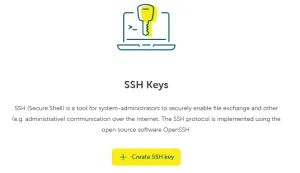
Click on the Create SSH key button, to open a dialog with 2 input fields:
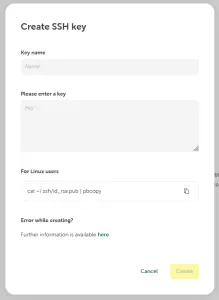
- Key name: The key label, such as “Laptop” or “Max Muster’s Computer”.
- Key: The public key previously created.
When the two fields are filled, click the Create button to save the key in the STACKIT Portal.