Recover access to your VM or do emergency troubleshooting
Last updated on
In case you lose your SSH key and your password or the server cannot boot, you still have the option to recover your VM.
Prerequisites
Section titled “Prerequisites”Linux operating system: Every Linux distribution uses another default user name and the ssh daemon name differs for EL- and Debian-derivatives. Please, see Operating system images.
Recover access to your Linux VM
Section titled “Recover access to your Linux VM”Reboot your VM from the web console.

Go to the STACKIT Portal and access the web console:

You will see your VM booting, press the Send CtrlAltDel button in the upper right corner.
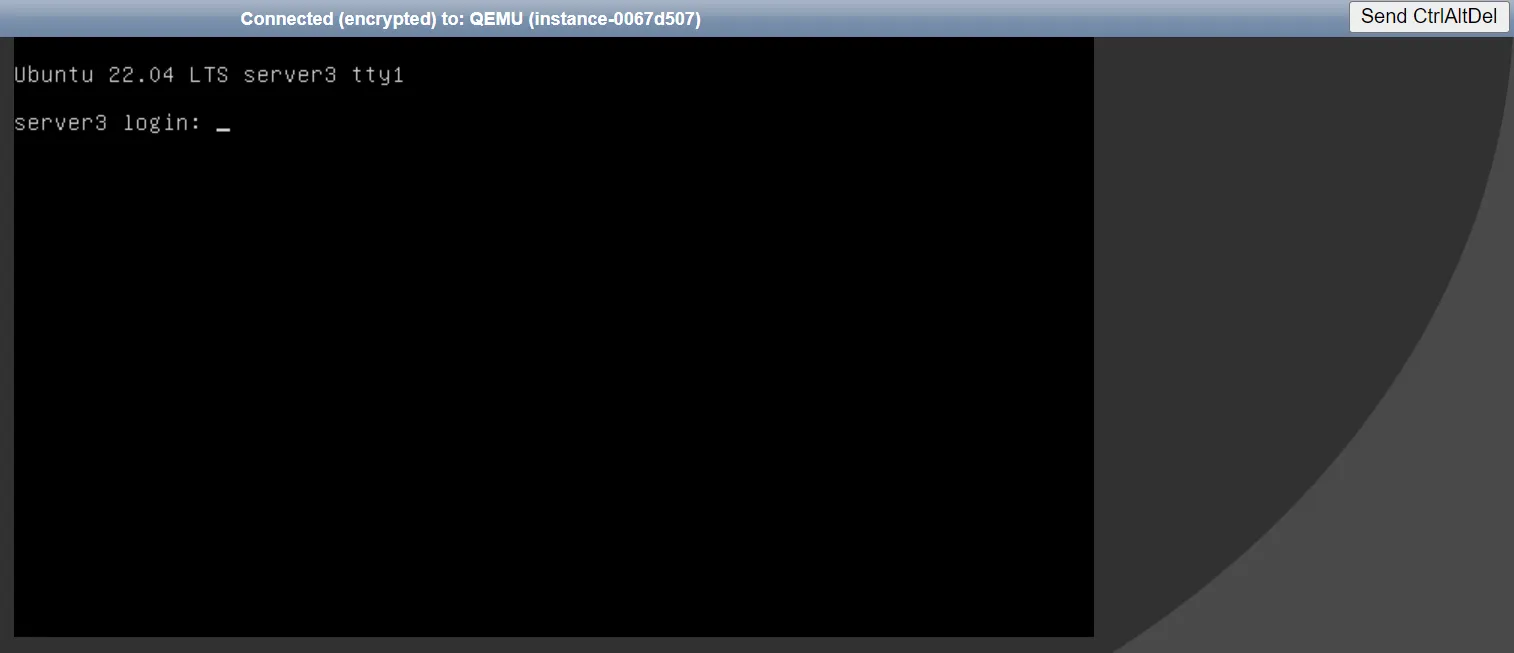
Press the arrow keys or press and hold Shift during loading Grub. If you boot using BIOS or if system boots using UEFI, press Esc to stop grub’s menu timeout - it is quite short. If you miss the moment, just press Send CtrlAltDel again. You should see something like this:
Press up and down.
Select the latest (uppermost) menu entry.
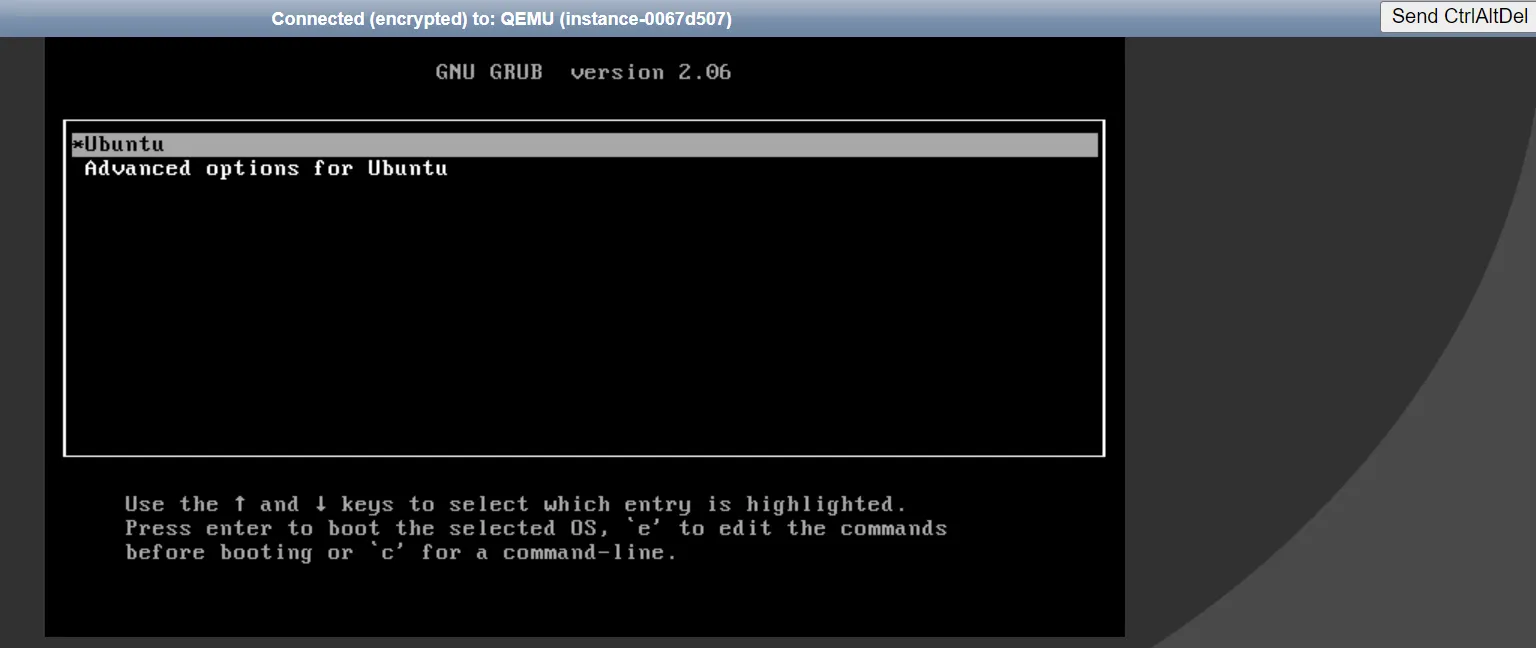
Now edit your menu (press the letter e on the keyboard) that will allow you to edit the menu.
You will see something like this:
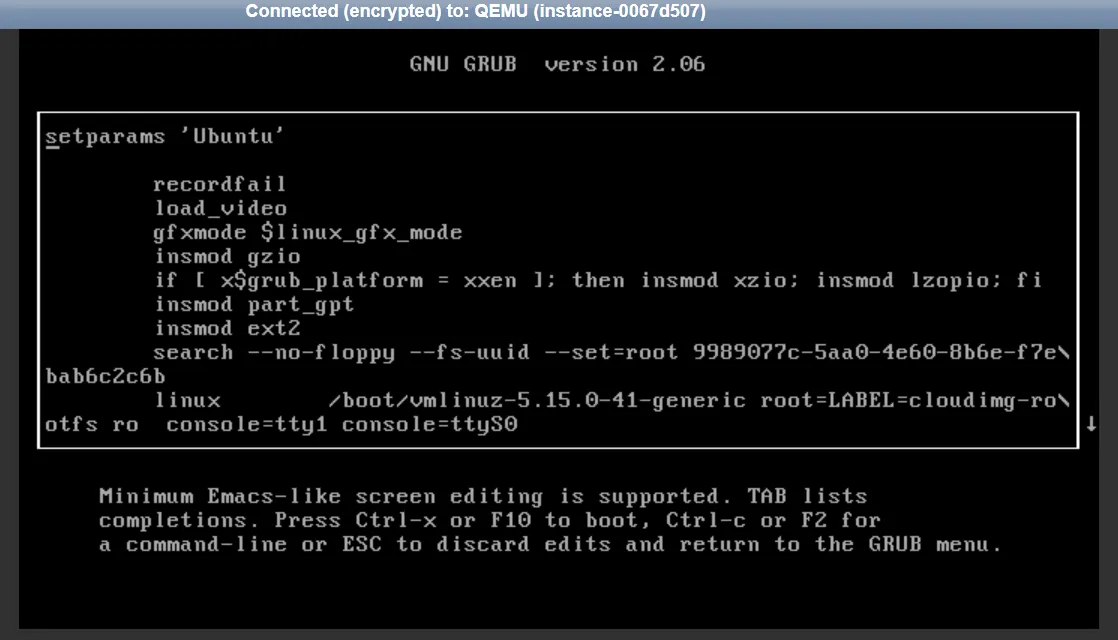
Now scroll down (use the arrow keys) to the line that starts with Linux, Linux16, or Linuxefi according to the different distributions:
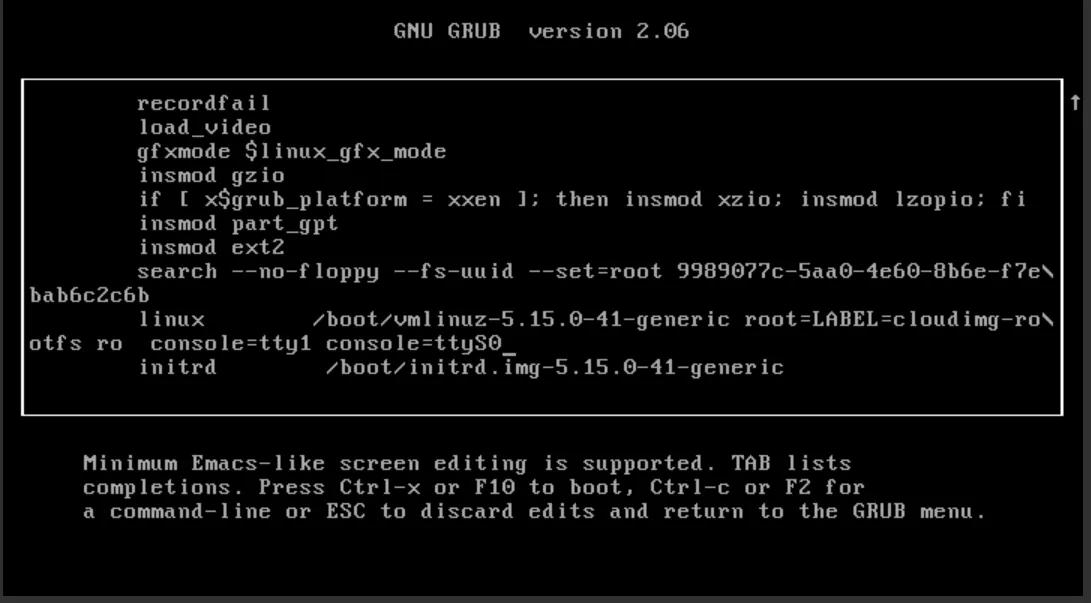
Now go to the end of this line and delete everything after ro, then change ro to rw and after that, add init=/bin/bash. For servers based on Fedora, you need to keep rootflags=subvol=root which is located after ro , for example rw rootflags=subvol=root init=/bin/bash.
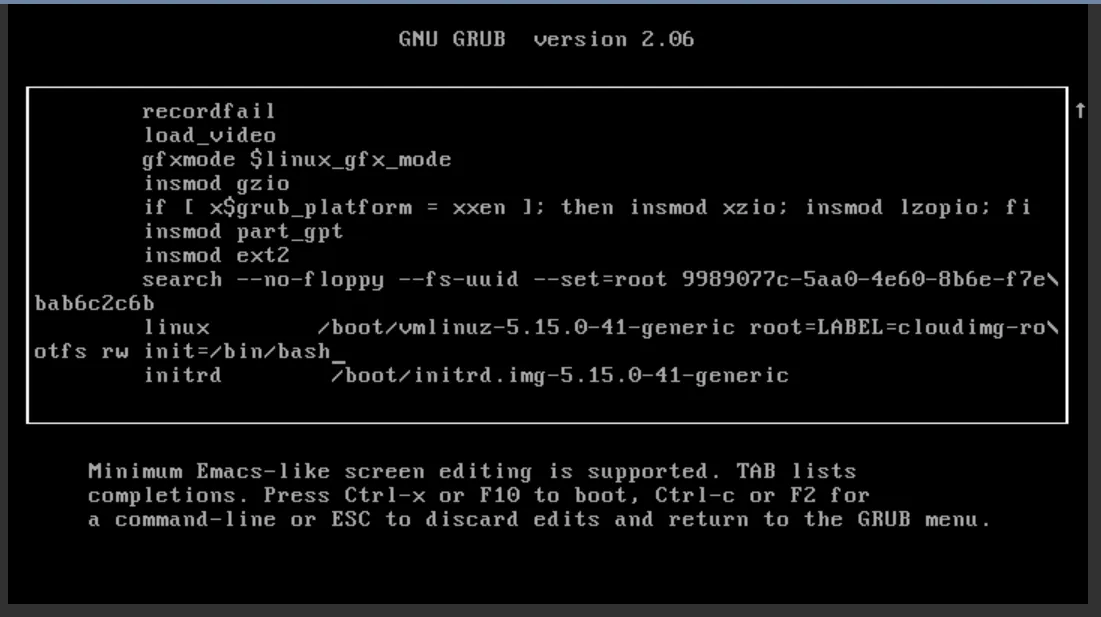
Now hold the Ctrl button on the keyboard and press x. The system will start to boot. It will reach something similar to:
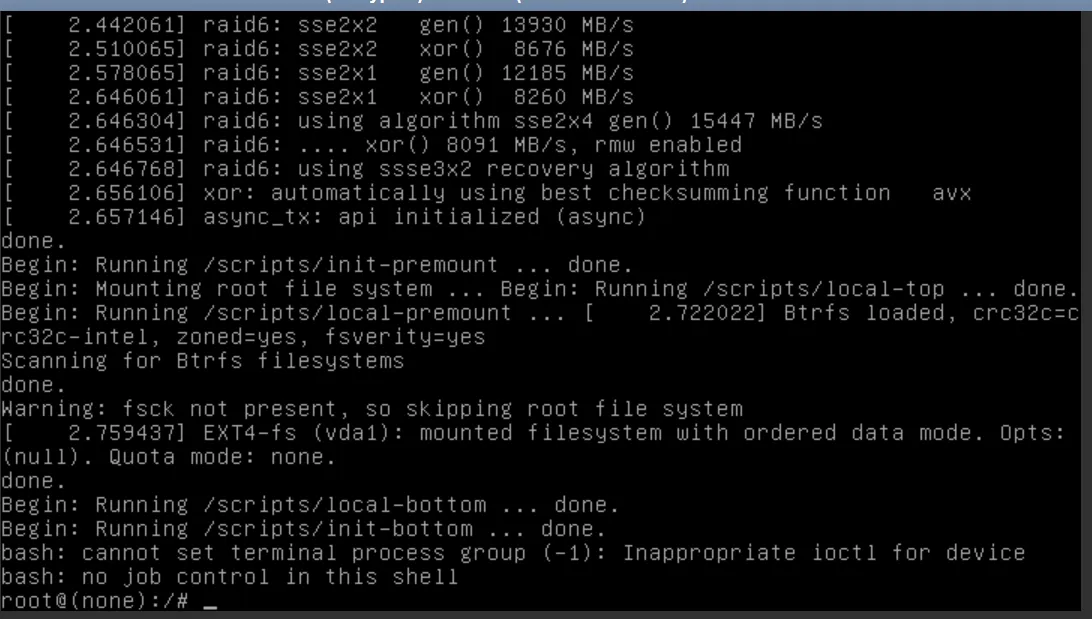
Now, you can do emergency troubleshooting or just recover your access to the server by entering the following in your console (copy and paste doesn’t work):
passwd rootNow change the root password, which you will use to log in.
For security reasons, you will change the root password later!
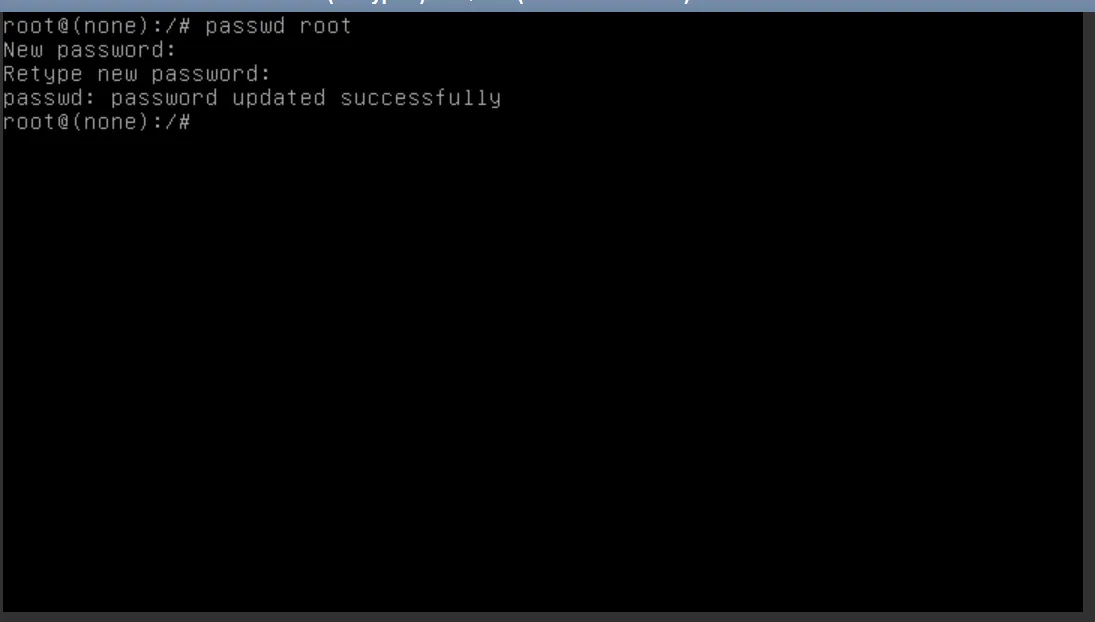
Repeat the step above for default users of your distribution.
Now you need to temporarily allow logging in via password. We will change that at a later stage.
Open /etc/ssh/sshd_config.
vi /etc/ssh/sshd\_configFind the line that looks like:
#PasswordAuthentication yesOnce the indicator is on top the # sign, press x to delete that character.
Press the following sequence of keys: Esc, :, w, q, Enter.
This sequence will save your modifications.
Verify your changes
Section titled “Verify your changes”sshd -t
Good output looks like:

Restart the sshd daemon.
This daemon controls remote access to the Linux server.
systemctl restart sshdOn EL-based systems (like CentOS), the daemon is called sshd, while on Debian and derivatives,
it’s called ssh.
Now, if your server is based on the Red Hat family (such as CentOS, CentOS Stream, Fedora,
AlmaLinux, Rocky Linux), you need to “relabel” SELinux security with the command
touch /.autorelabel. If your server is based on the Debian family (such as Debian, Ubuntu), you
don’t need that. After that, reboot the server with the command exec /sbin/init 6.
touch /.autorelabel exec /sbin/init 6Now you should be able to ssh with your password. Use the password you created:
ssh centos@4.159.97.5 Warning: Permanently added '4.159.97.5' (ECDSA) to the list of known hosts. centos@4.159.97.5's password: X11 forwarding request failed on channel 0 Last login: Thu May 21 09:15:14 2020 from 4.159.97.30 [centos@VM-1-fq4tx0z0 \~]$Edit your authorized_keys file to allow your new ssh key.
echo 'ssh-rsa AAAAB3NzaC1yc2EAAAADAQABAAACAQDMbC29mO0j9NnjTt/eSNQuwX0XPcFT77Fg20wUKCHFyJrC+yldMja8EEEo+LY2HRgu5mzDHdKG9nHW2yGtPt1kUfz6Icck/Of5uT5G9139IKdDd1VxdqDOKKQq6e+3cbtLe0JvAdEG/B7M0nIkpguVX2T2Lojsi7xF3sHjrg7vjYeFWmoBjWl7tilgu0eXTHFdmKvCJ05qjgU5OwXitE8YtxKd/iifs0YACan3PCFX4P4vAe/oBjmaIW2qCLaBTEI2COMl6/EVaIhiudplTFJV4ebbbidwhXkGWj8o0mMEv7umgIsU3Fv4UoUQ0fU7ZxqReApIBGLtKL6rG7NntTD6r6ROrh5VXfJfWRXQgBh+S/Ei9gvRBeu0qzqEiSIyIWT14+RsXjDuGBRch2GZmGjres7XEqtCRvpnDJ6A1gS8NFeHr9GcATUbBhS45iFCuDTvFfNgI7ydyOfWlB+/D8fvrfgXH7k1r5291oiNonVTmYkF3sDVWGmRvFoyZcSqBxftok4TCD9vEmqg7Uqa0eAkYIxyxffNmzUgY3UrxRLD+IyUFAoaXKMtkuxE5KrrBYSweIOa5pCvbJOjX/yP7R5SumvEOEJMSiu0bdd5UsP6ed8omax6FWcp3g+P4PMRMbaM/aMowAE+02TizdJ+PDfWD1+f6W4XMZHHyfwsfTeLKw== someuser@MYPC' >> \~/.ssh/authorized\_keysVerify access via key. It should log you in without password.
Undo your changes in the sshd config file.
As we are now able to copy / paste in the shell (not the web console), you can run:
sudo sed -i 's/PasswordAuthentication yes/#PasswordAuthentication no/' /etc/ssh/sshd\_configAgain, verify your changes and restart sshd if no errors are detected:
sshd -t systemctl restart sshdFix SELinux (CentOS and derivatives):
touch /.autorelabel restorecon -RFvv /etc/shadow restorecon -RFvv /etc/ssh/sshd\_config setenforce 1Now set the user’s passwords to something random:
cat /dev/urandom | tr -dc 'A-Za-z0-9!"#$%&'\\''()*+,-./:;<=>?@[\\]^\_`{|}\~' | head -c 25 | passwd --stdin root cat /dev/urandom | tr -dc 'A-Za-z0-9!"#$%&'\\''()*+,-./:;<=>?@[\\]^\_`{|}\~' | head -c 25 | passwd --stdin centosReboot:
reboot