Skip to content

Recover access to your VM

In case you lose your SSH key and your password, you still have the option to recover your VM.

Linux operating system: The steps in this guide apply to the CentOS operating system and should work on any other Red Hat Enterprise Linux-based system. For other Linux derivates, the description should work too, but some steps need to be adjusted. Examples: every Linux distribution uses another default user name and the SSH daemon name differs for EL- and Debian-derivatives.

Reboot your VM from the web console.
Cloud platform VM management interface showing VM-1 server details: Online status, del-1 location, 20 GB storage, 512 MB RAM, 1 CPU, CentOS 7 (deprecated), IP address 4.159.97.5, and monthly cost of 10.00 €. A dropdown menu displays management options including Start, Stop, Reboot (highlighted with cursor), Web console, and Delete.

Reach the Portal and access the web console. Cloud platform VM management interface for VM-1 showing server specifications: Online status, del-1 location, 20 GB storage, 512 MB RAM, 1 CPU, CentOS 7 (deprecated), IP address 4.159.97.5, and 10.00 € monthly cost. A dropdown menu displays options with ‘Web console’ highlighted by cursor hover, along with Start, Stop, Reboot, and Delete options.

You will see your VM booting, press the Send CtrlAltDel Button in the upper right corner.
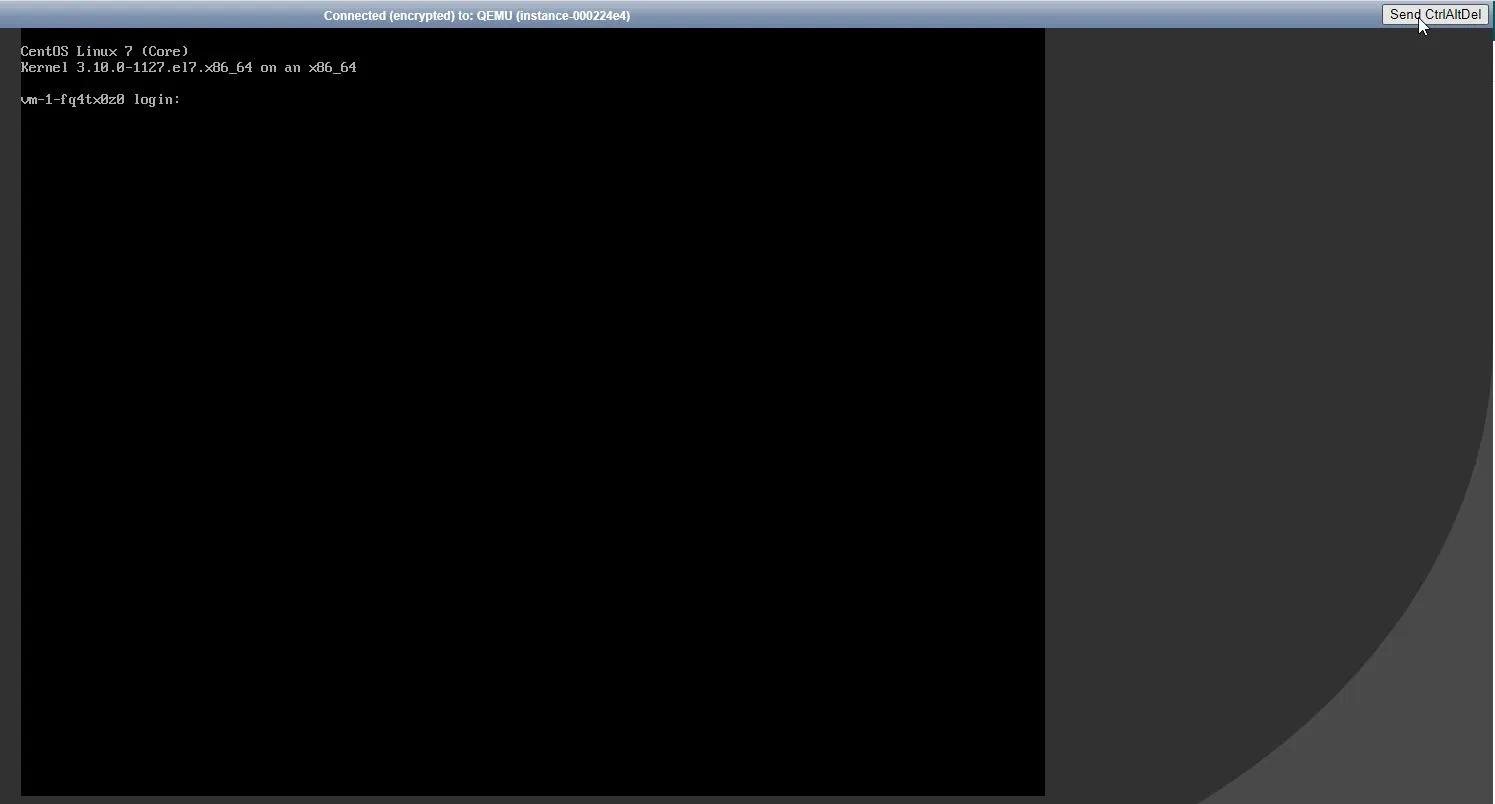
QEMU console connection window for instance-000a306a with encrypted connection status. The window shows a ‘Send CtrlAltDel’ button in the top-right corner for sending the Ctrl+Alt+Delete key combination to the virtual machine.

Press the arrow keys to stop grub’s menu timeout - it is quite short. If you miss the moment, just press Send CtrlAltDel again. You should see something like this:

Press up and down.

Select the latest (uppermost) menu entry.
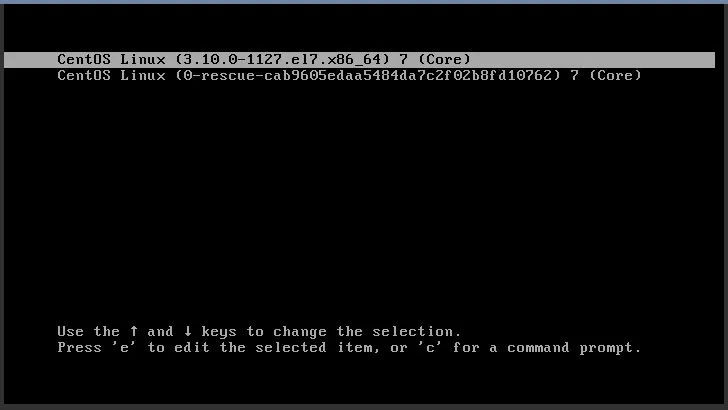
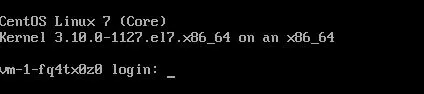
GRUB bootloader initial boot screen for CentOS 7 Core kernel 3.10.0-1127.el7.x86_64 on x86_64 architecture. The terminal shows the login prompt ‘vm-1-fq4tx8z0 login:’ with a blinking cursor, awaiting user input.

Now edit your menu (press the letter e on the keyboard) that will allow you to edit the menu.

You will see something like this:
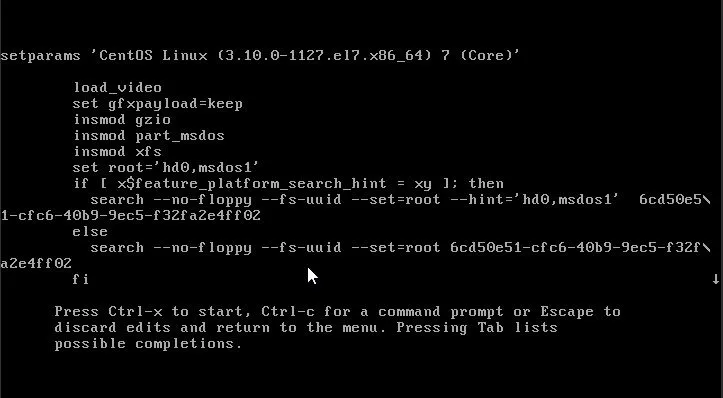
GRUB bootloader menu showing CentOS Linux kernel selection with boot parameters including load_video, set gfxpayload=keep, insmod commands, and root device configuration. The entry displays kernel version 3.10.0-1127.el7.x86_64 with platform search hints and root device UUID options.

Now scroll down (use the arrow keys) to the line that starts with initrd16.
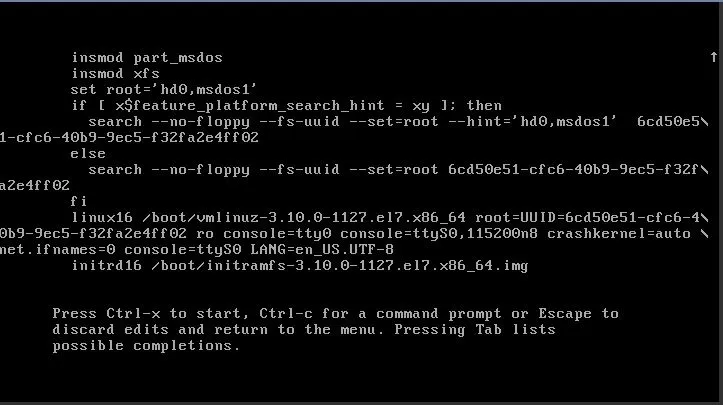
GRUB bootloader configuration showing detailed boot commands for CentOS 7 with kernel 3.10.0-1127.el7.x86_64. The screen displays insmod commands for partition and filesystem modules, root device settings, linux16 boot command with root UUID, console settings, crash kernel parameters, and initrd16 initramfs loading command.

Press the left arrow key to “jump” on the previous line to edit it. You will need to make some changes:

  • Remove console=ttyS0, console=tty0, console=ttyS0,115200n8.
  • Now add the following at the end of the line: rd.break enforcing=0.
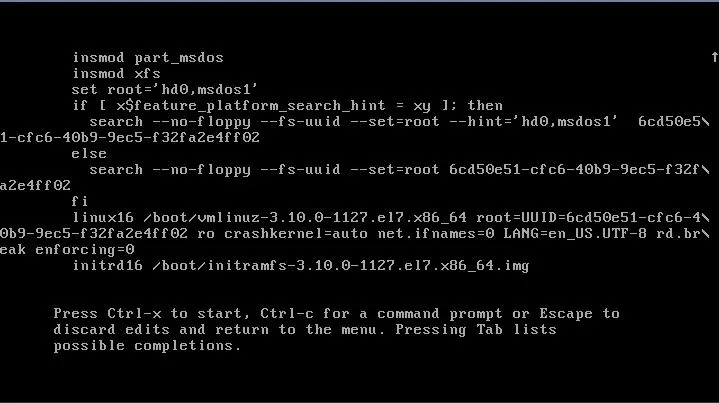
GRUB bootloader boot sequence showing kernel loading process for CentOS 7 with vmlinuz-3.10.0-1127.el7.x86_64. The screen displays insmod commands, linux16 boot command with root UUID 6cd50e51-cfc6-40b9-9ec5-f32fa2e4ff02, crash kernel configuration, network interface settings, and initrd16 initramfs-3.10.0-1127.el7.x86_64.img loading.

Now hold the Ctrl button on the keyboard and press x. The system will start to boot and reach something similar to: CentOS 7 rescue mode terminal showing system initialization progress with green ‘OK’ status indicators. The screen displays filesystem mounting (XFS on /dev/vda1), random initialization, systemd target mounting, reload configuration steps, and initrd file systems setup. A dracut warning appears about break before switch_root. The emergency shell is available with instructions to type ‘journalctl’ for logs and save ‘/run/initramfs/rdsosreport.txt’ for bug reports. The prompt shows ‘switch_root:/#’ indicating emergency mode.
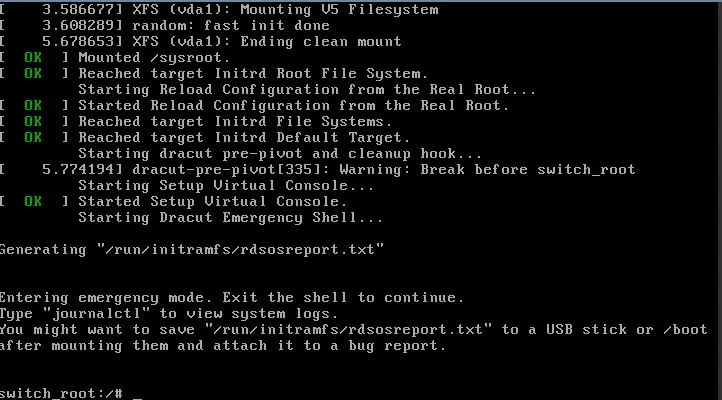
Now type the following in your console (copy and paste doesn’t work):

Terminal window
mount –o remount,rw /sysroot chroot /sysroot passwd root

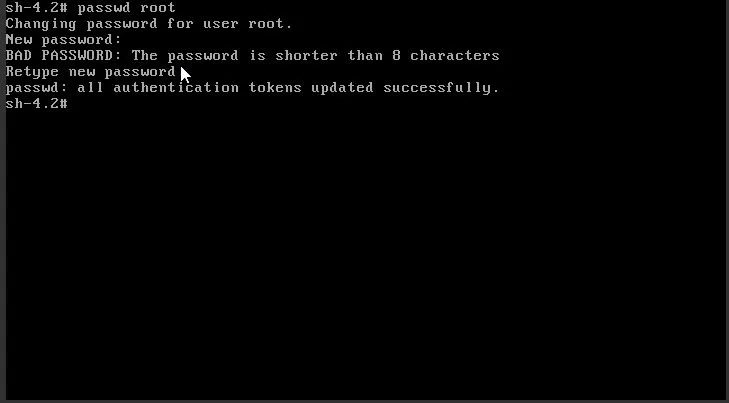
Change the root password, which we will use to login.
We will change the root password later for security reasons! Terminal session showing password change process for root user using ‘passwd root’ command. The output displays ‘Changing password for user root’, followed by prompts for ‘New password’ and ‘Retype new password’. A BAD PASSWORD warning indicates ‘The password is shorter than 8 characters’, and the final line confirms ‘passwd: all authentication tokens updated successfully.’ The shell prompt shows ‘sh-4.2#’.
Now type “exit” two times. This will allow the system to complete the powerup cycle and you will receive a login prompt:
Web console user authentication form requiring initial password change for Windows images. The form includes username field, new password and repeat password fields with requirements (minimum 15 characters, 1 special character, 1 number, 1 capital letter), and Save/Discard buttons. A warning advises avoiding special characters #, +, =, ¶ due to web console keyboard layout complications.

Type “root” for user, and the password you used in step 10.
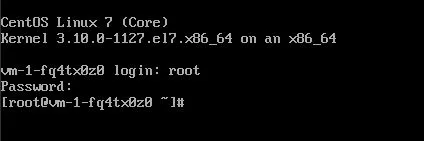
CentOS 7 terminal showing successful root login with kernel version 3.10.0-1127.el7.x86_64 on x86_64 architecture. The screen displays the login prompt ‘vm-1-fq4tx8z0’ and root shell prompt after successful authentication.

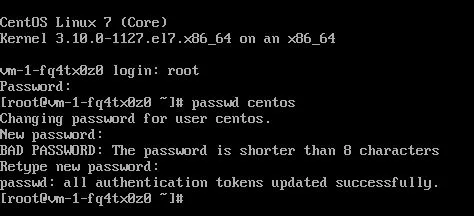
Now change the password for the default distribution/login user. For CentOS distro, the default user is “centos”.

Type the password twice:

Terminal window
passwd centos

CentOS 7 terminal showing password change procedure for centos user. The session displays kernel version 3.10.0-1127.el7.x86_64, hostname ‘vm-1-fq4tx8z0’, and successful login as root. The command ‘passwd centos’ is executed with output showing ‘Changing password for user centos’, password prompts, a BAD PASSWORD warning about password length (shorter than 8 characters), and confirmation message ‘passwd: all authentication tokens updated successfully.’ The root prompt ‘root@vm-1-fq4tx8z0 ~#’ is displayed.

Now you need to temporarily allow logging in via password. We will change that at a later stage.
Open /etc/ssh/sshd_config.

Terminal window
vi /etc/ssh/sshd\_config

Find the line that looks like:

#PasswordAuthentication yes

Once the indicator is on top of the # sign, press x to delete that character.
Then press the following sequence of keys: Esc, :, w, q and Enter.
This sequence will save your modifications.

Terminal window
sshd -t

Terminal session showing failed SSH daemon configuration test. The command ‘sshd -t’ produces error output: ‘/etc/ssh/sshd_config: line 132: Bad configuration option: 1PasswordAuthentication’ followed by ‘/etc/ssh/sshd_config: terminating, 1 bad configuration options’. The root prompt ‘root@vm-1-fq4tx8z0 ~#’ is shown, indicating a typo in the SSH configuration file where ‘1PasswordAuthentication’ should be ‘PasswordAuthentication’.

Good output should be:
Terminal session showing successful SSH daemon configuration test with command ‘sshd -t’ executed at root prompt. The command completes without errors, returning to the root prompt ‘root@vm-1-fq4tx8z0 ~#’, indicating valid SSH configuration.

Restart the sshd daemon.
This daemon controls remote access to the linux server.

Terminal window
systemctl restart sshd

On EL-based systems (like CentOS), the daemon is called “sshd”, while on debian and derivatives it’s called “ssh”.

Now you should be able to ssh with your password. Use the password you created:

Terminal window
ssh centos@4.159.97.5 Warning: Permanently added '4.159.97.5' (ECDSA) to the list of known hosts. centos@4.159.97.5's password: X11 forwarding request failed on channel 0 Last login: Thu May 21 09:15:14 2020 from 4.159.97.30 [centos@vm-1-fq4tx0z0 \~]$

Edit your authorized_keys to allow your new ssh key.

Terminal window
echo 'ssh-rsa AAAAB3NzaC1yc2EAAAADAQABAAACAQDMbC29mO0j9NnjTt/eSNQuwX0XPcFT77Fg20wUKCHFyJrC+yldMja8EEEo+LY2HRgu5mzDHdKG9nHW2yGtPt1kUfz6Icck/Of5uT5G9139IKdDd1VxdqDOKKQq6e+3cbtLe0JvAdEG/B7M0nIkpguVX2T2Lojsi7xF3sHjrg7vjYeFWmoBjWl7tilgu0eXTHFdmKvCJ05qjgU5OwXitE8YtxKd/iifs0YACan3PCFX4P4vAe/oBjmaIW2qCLaBTEI2COMl6/EVaIhiudplTFJV4ebbbidwhXkGWj8o0mMEv7umgIsU3Fv4UoUQ0fU7ZxqReApIBGLtKL6rG7NntTD6r6ROrh5VXfJfWRXQgBh+S/Ei9gvRBeu0qzqEiSIyIWT14+RsXjDuGBRch2GZmGjres7XEqtCRvpnDJ6A1gS8NFeHr9GcATUbBhS45iFCuDTvFfNgI7ydyOfWlB+/D8fvrfgXH7k1r5291oiNonVTmYkF3sDVWGmRvFoyZcSqBxftok4TCD9vEmqg7Uqa0eAkYIxyxffNmzUgY3UrxRLD+IyUFAoaXKMtkuxE5KrrBYSweIOa5pCvbJOjX/yP7R5SumvEOEJMSiu0bdd5UsP6ed8omax6FWcp3g+P4PMRMbaM/aMowAE+02TizdJ+PDfWD1+f6W4XMZHHyfwsfTeLKw== someuser@MYPC' >> \~/.ssh/authorized\_keys

Verify access via key. It should login you without password.

Undo your changes in sshd config file.
As we are now able to copy / paste in the shell (not the web console), you can run:

Terminal window
sudo sed -i 's/PasswordAuthentication yes/#PasswordAuthentication no/' /etc/ssh/sshd\_config

Again, verify your changes and restart sshd if no errors are detected:

Terminal window
sshd -t systemctl restart sshd

Fix SELINUX (CentOS and derivatives):

Terminal window
touch /.autorelabel restorecon -RFvv /etc/shadow restorecon -RFvv /etc/ssh/sshd\_config setenforce 1

Now set the user’s passwords to something random:

Terminal window
cat /dev/urandom | tr -dc 'A-Za-z0-9!"#$%&'\\''()*+,-./:;<=>?@[\\]^\_`{|}\~' | head -c 25 | passwd --stdin root cat /dev/urandom | tr -dc 'A-Za-z0-9!"#$%&'\\''()*+,-./:;<=>?@[\\]^\_`{|}\~' | head -c 25 | passwd --stdin centos

Reboot (optional).

Terminal window
reboot