Troubleshooting
Last updated on
If you encounter issues with the STACKIT Server Agent, you can try to perform a first fix with the following troubleshooting steps.
Check STACKIT Server Agent Service Status
Section titled “Check STACKIT Server Agent Service Status”Ensure that the STACKIT Server Agent service is running.
Windows (using the Windows Service Manager)
Section titled “Windows (using the Windows Service Manager)”-
Press Win + R to open the Run dialog
-
Type
services.mscand press Enter. -
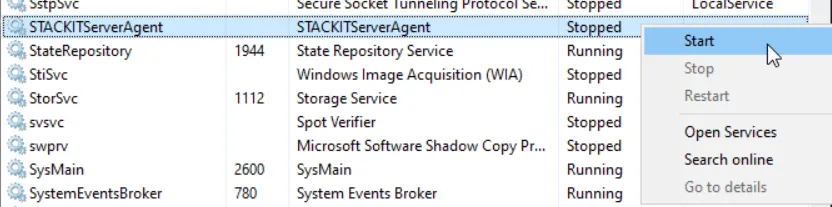
Find the entry STACKITServerAgent service:

-
If the service is stopped, start the service by right-clicking on the service and selecting Start:
Windows (using the PowerShell)
Section titled “Windows (using the PowerShell)”- Open PowerShell and run the following command to get the service status:
Terminal window Get-Service STACKITServerAgent - If the service is stopped, start the service by running the following command:
Terminal window Start-Service STACKITServerAgent
- Use the following command:
systemctl status stackit-server-agent.service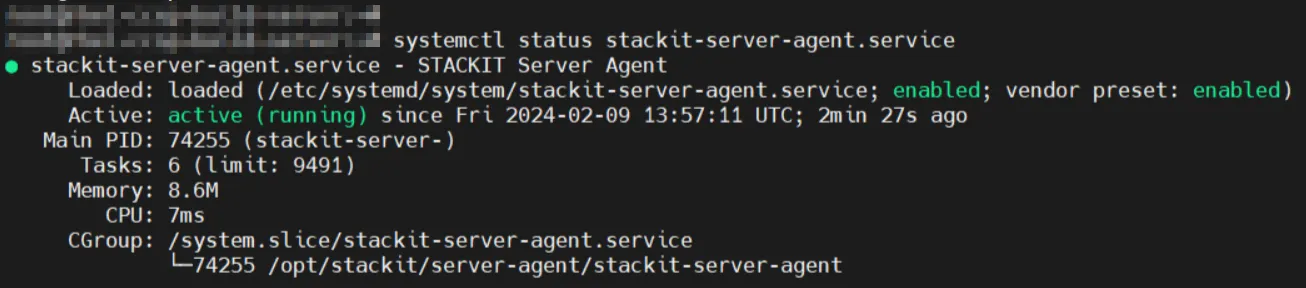
- If the service is stopped like this…
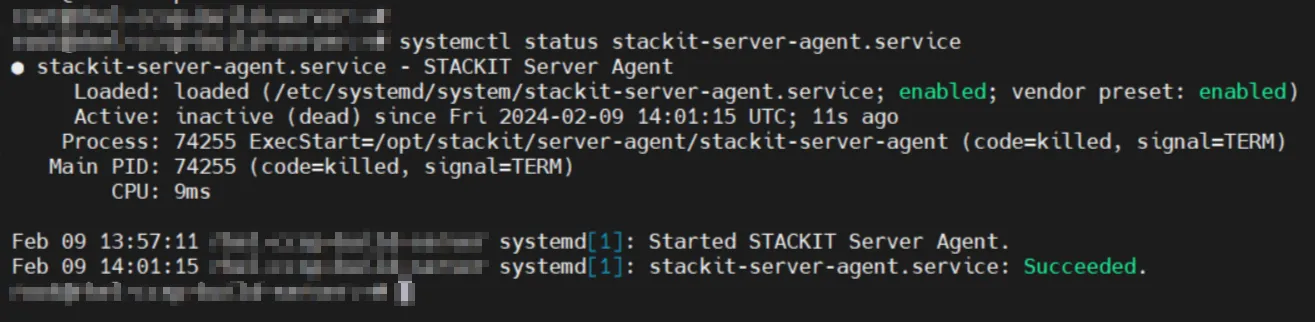
…start the service by running the following command:systemctl start stackit-server-agent.service
Restart the STACKIT Server Agent Service
Section titled “Restart the STACKIT Server Agent Service”If the STACKIT Server Agent Service is already running, but you are experiencing issues, try restarting the service.
Windows (using the Windows Service Manager)
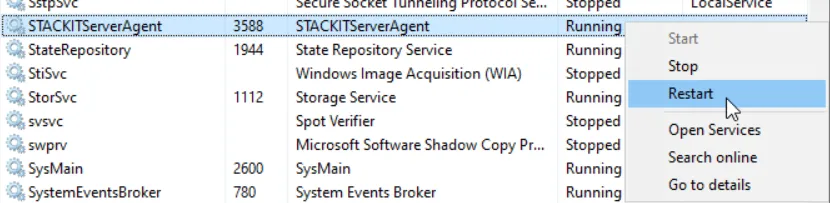
Section titled “Windows (using the Windows Service Manager)”- Open the Windows Service Manager and find the STACKITServerAgent, as described above
- Right-click on the STACKITServerAgent, then select Restart:
Windows (using the Power Shell)
Section titled “Windows (using the Power Shell)”- Open a PowerShell and run the following command:
Restart-Service STACKITServerAgent- Use the following command:
systemctl restart stackit-server-agent.service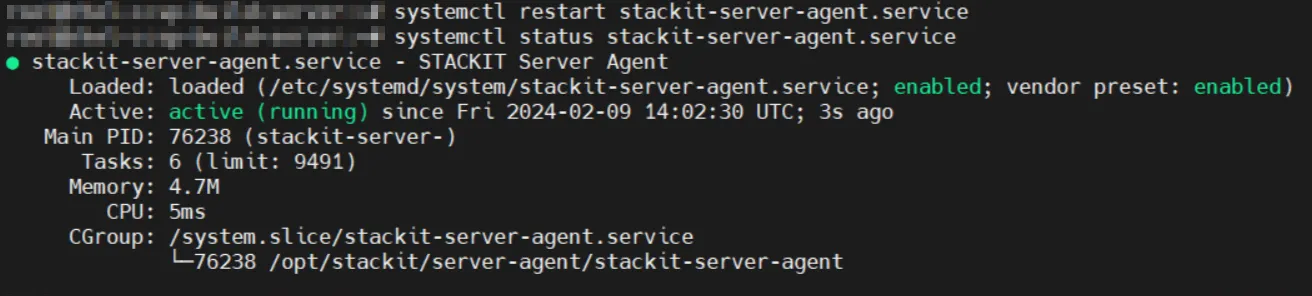
Check Log Files
Section titled “Check Log Files”Windows
Section titled “Windows”Examine the log file (local.log) for any error message or relevant information.
Also check if the correct Service Account Access Token from your STACKIT project is placed inside the serviceToken.txt file.
Both files are located under C:\Program Files (x86)\STACKIT\STACKITServerAgent:
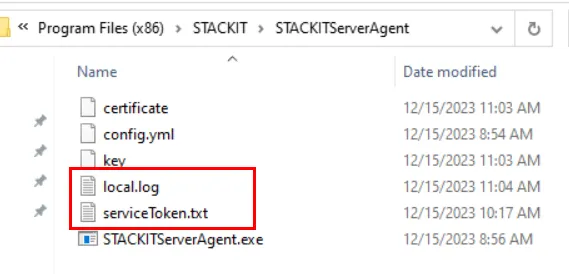
- In case of errors or issues you may encounter in these logs in combination with a malfunctioning STACKIT Server Agent, please open a ticket, so that our STACKIT Support colleagues can take care of your issue.
Examine the log file (local.log) for any error message or relevant information by using the following command:
cat /opt/stackit/server-agent/local.log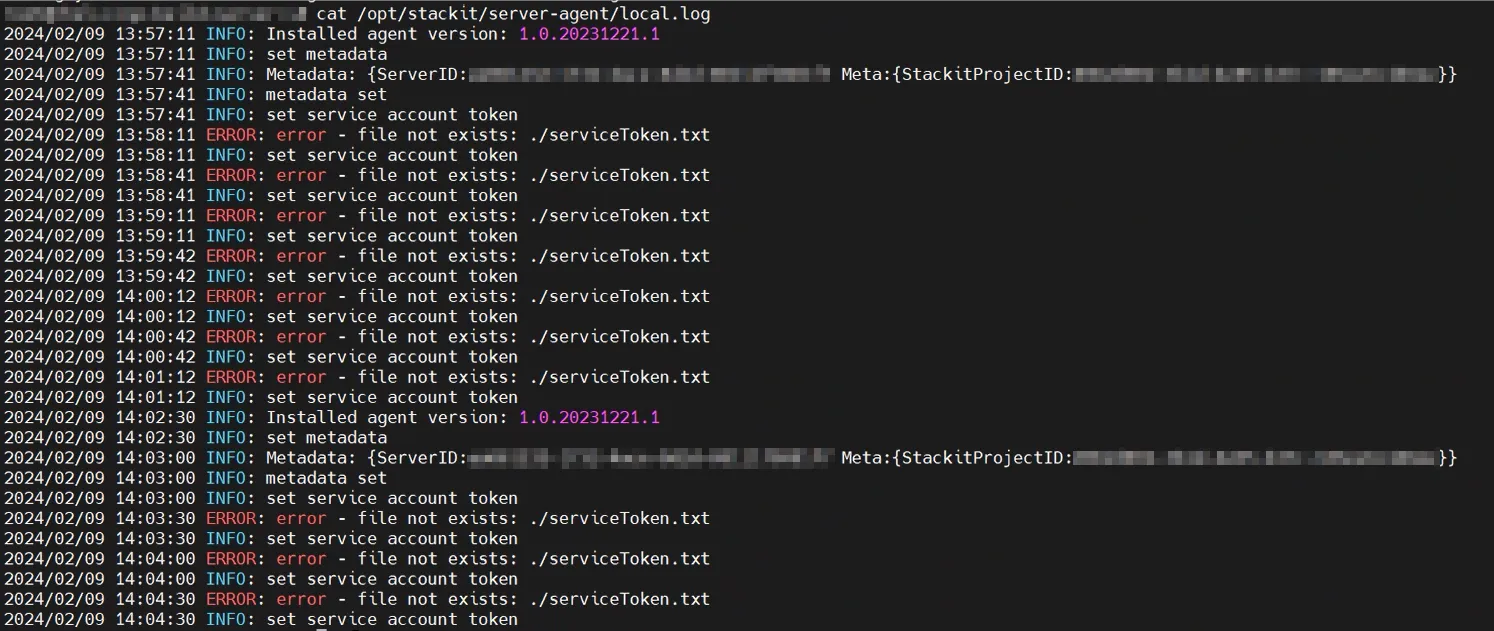
Reinstall the STACKIT Server Agent
Section titled “Reinstall the STACKIT Server Agent”If the above steps did not resolve the issue, consider reinstalling the STACKIT Server Agent:
Windows
Section titled “Windows”- Uninstall the existing STACKIT Server Agent via “Apps & Features”:
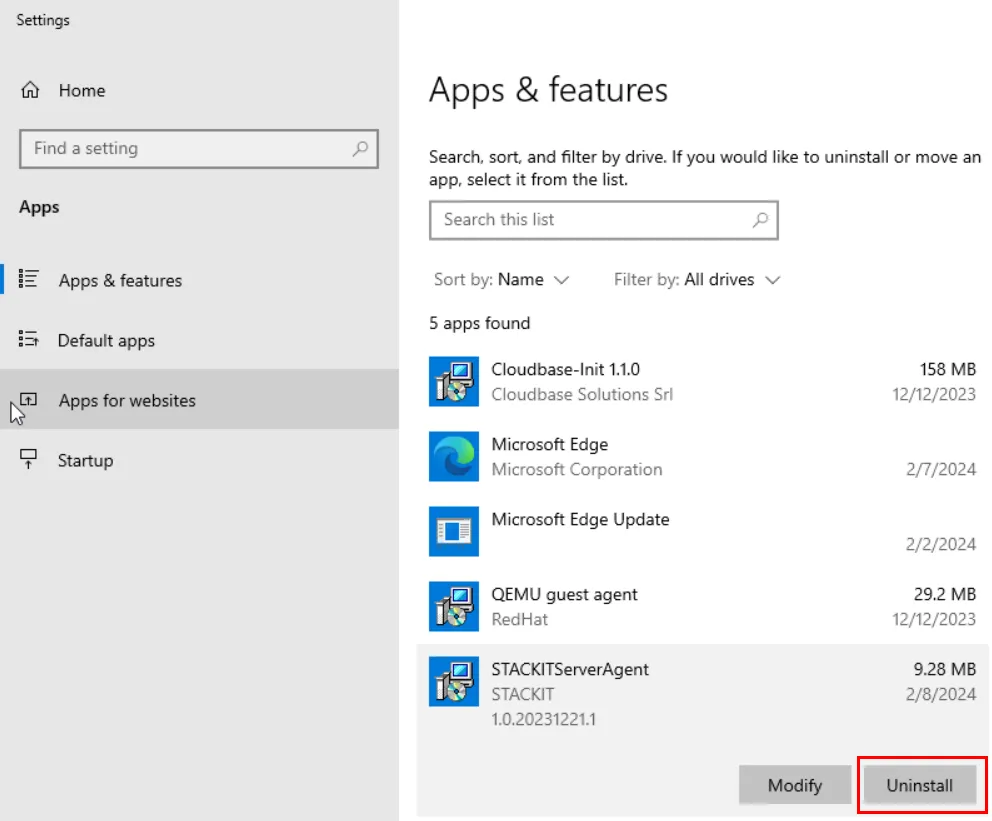
- Confirm the Un-installation in the next popup.
- Make sure that the complete folder
C:\Program Files (x86)\STACKIT\STACKITServerAgentis deleted. In case there might be some files left after the un-installation, please delete the whole folder manually. - Install the STACKIT Server Agent as described here: Install the Server Agent via Portal
- Uninstall and reinstall the STACKIT Server Agent in one go by using one of the following commands, depending on the type of Linux you use:
Debian based (e. g. Debian, Ubuntu, Linux Mint):
Section titled “Debian based (e. g. Debian, Ubuntu, Linux Mint):”apt remove -y stackit-server-agent && dpkg -i /tmp/stackit-server-agent.debFedora/RedHat based:
Section titled “Fedora/RedHat based:”yum remove stackit-server-agent -y && yum localinstall /tmp/stackit-server-agent.rpm -y