Manage a STACKIT Server
Last updated on
This page shows you how to manage a STACKIT server in the STACKIT Portal.
Changing an existing STACKIT Server instance
Section titled “Changing an existing STACKIT Server instance”STACKIT servers are the basis of Infrastructure as a Service (IaaS) from STACKIT. There are a variety of options available to you. These include:
- Creating an additional storage volume
- Change the flavor of a server
- Create and manage Security Groups
- Generating a User Access Token
With the STACKIT Server itself you can also use functions that directly influence the behavior of the VM. These functions are described below.
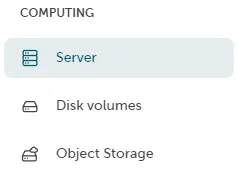
Volumes can be viewed in the Portal under Computing → Server.
Start / stop / restart functions
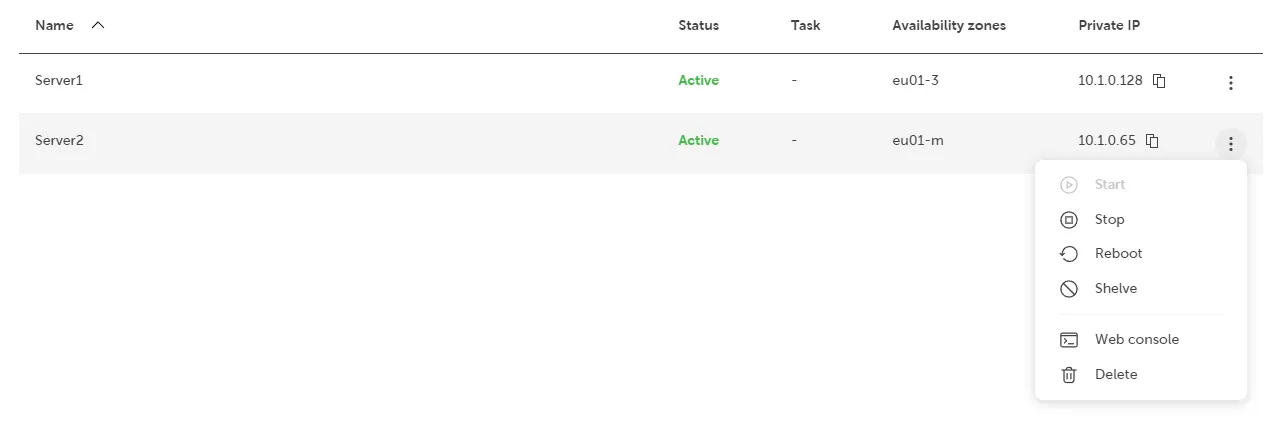
Section titled “Start / stop / restart functions”You can use the function menu to select your STACKIT Server instance.
- Start (if they are switched off),
- Stop (if they are switched on)
- Restart (if they are switched on)
Shelve / unshelve functions
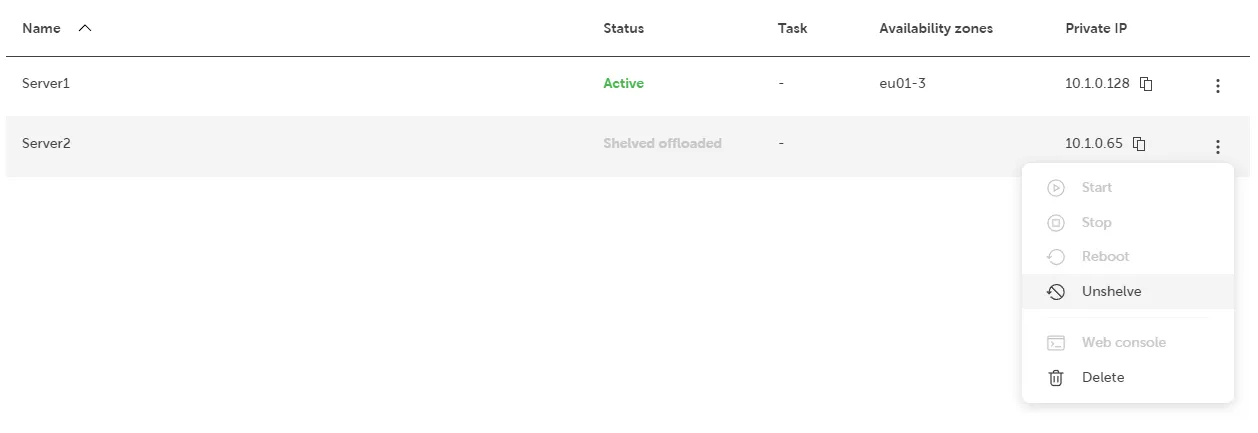
Section titled “Shelve / unshelve functions”You can use the function menu to select your STACKIT Server instances.
- Shelve (if they are switched on or off),
- Unshelve (if they are shelved offloaded).
Functions web console
Section titled “Functions web console”- (Optional) Access your server using the web console
- (Optional) Deleting a STACKIT Server instance