Update and maintain clusters
Last updated on
This tutorial describes how cluster operations for Kubernetes clusters can be triggered. Additionally, it provides insights into how to manually or automatically update the Kubernetes version or Operating System version of your cluster.
Overview of possible cluster operations
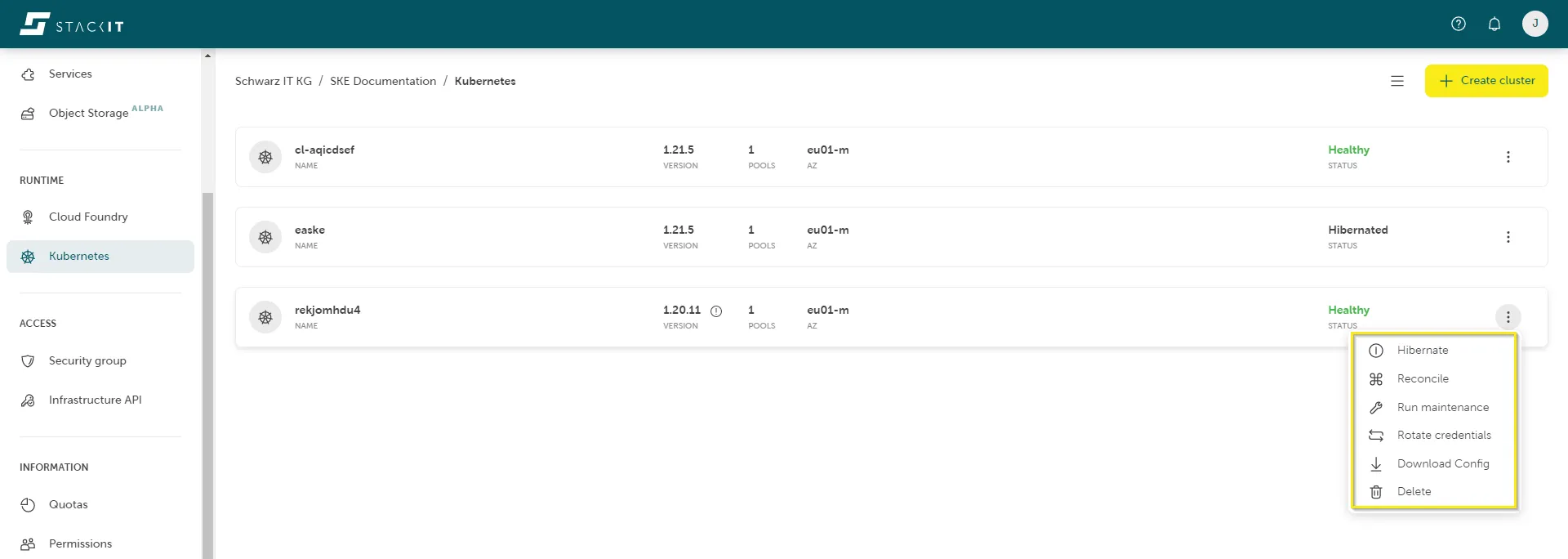
Section titled “Overview of possible cluster operations”The STACKIT Cloud Portal offers several cluster operations that can be directly triggered from a cluster’s context menu in the Kubernetes section.
Hibernation
Section titled “Hibernation”SKE supports hibernation of clusters. This is useful to save costs for clusters which are not required to run all the time. Usually this is the case for demo, evaluation, development or test clusters, which could be put to sleep, for example, during night time or during the weekend.
When hibernating a cluster, the worker nodes and attached volumes of the cluster are shut down, and the allocated resources are returned, i.e. it is scaled to zero worker nodes of the cluster. Therefore, hibernation is an effective way to minimize costs of temporarily unused clusters.
How to hibernate SKE clusters
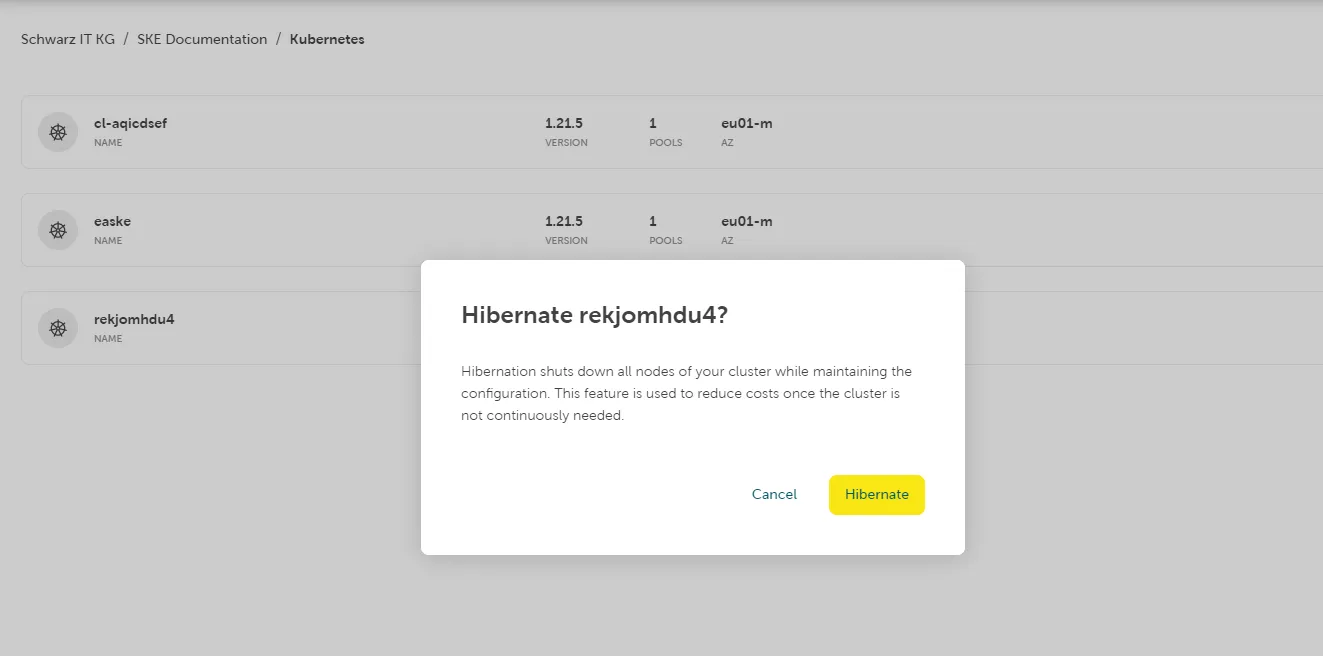
Section titled “How to hibernate SKE clusters”In the Kubernetes section in the STACKIT Cloud Portal, navigate to the cluster that you want to hibernate. Open the cluster’s context menu and select Hibernate to manually hibernate the SKE cluster. Manual hibernation requires confirmation to prevent unintended hibernation and downtime of the cluster.
How to wake up a hibernated SKE cluster
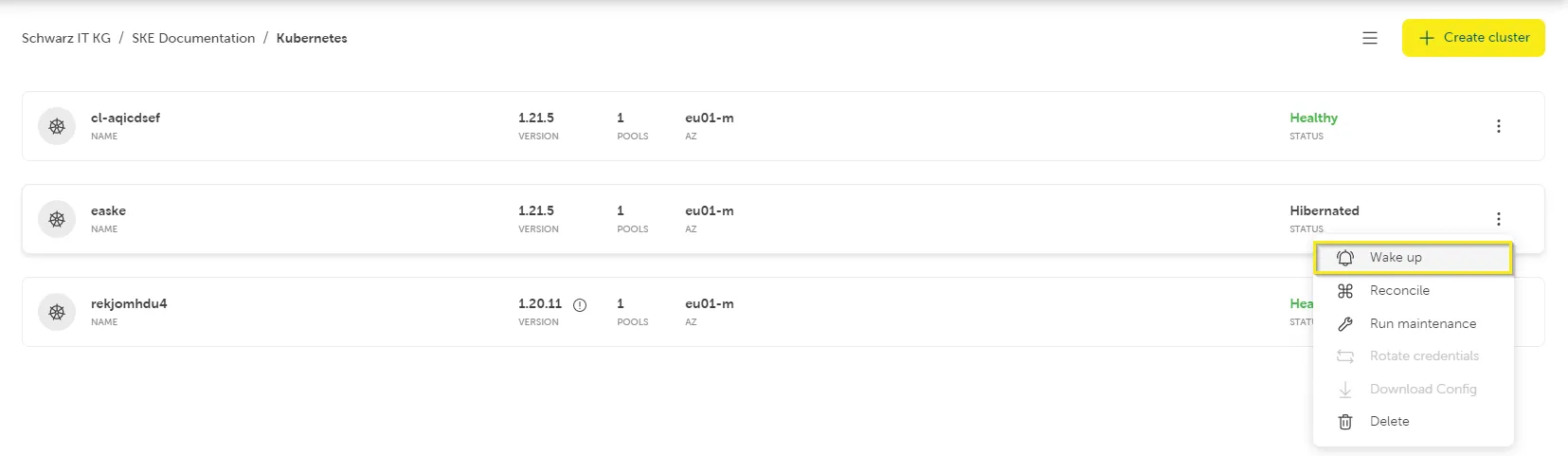
Section titled “How to wake up a hibernated SKE cluster”To wake up a hibernated cluster, navigate to the cluster in the SKE Dashboard. Open the cluster’s context menu and select Wake up manually wake up the cluster.
Confirm to wake up the cluster in the upcoming popup window. Note that waking up a cluster takes several minutes.
Reconciliation
Section titled “Reconciliation”During reconciliation, Kubernetes ensures that the current state of a resource matches the desired state specified by the user. The reconciliation process is often triggered by events such as creation or modifications of resources.
A reconciliation will be automatically done at least once per day in the configured maintenance time window.
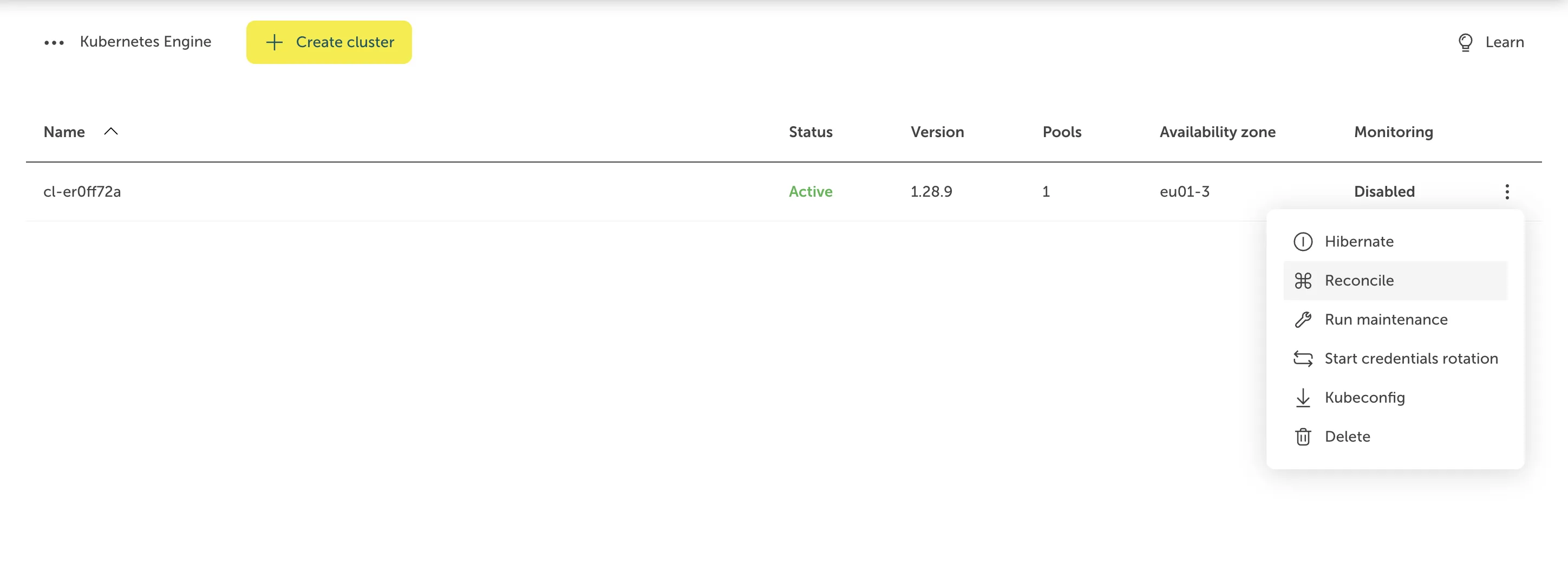
To trigger a manual reconciliation of the Kubernetes cluster, open the cluster’s context menu and select Reconcile.
Maintenance
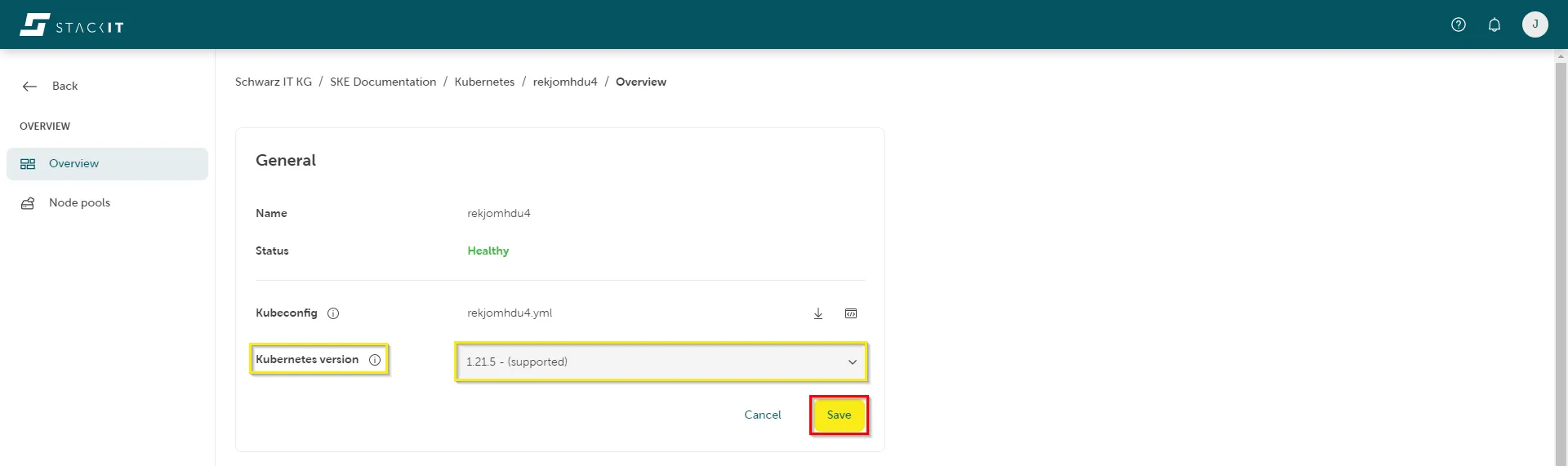
Section titled “Maintenance”To trigger a manual update of the Kubernetes version, click on the desired cluster in the STACKIT Cloud Portal. Next, click the edit icon in the top right corner of the General section of the cluster overview page. The Kubernetes version is specified in the lower part of the widget.
In the next step, select the target version of the update. This can either be a updated minor or patch version of Kubernetes. The version update starts after confirming the selection by clicking on Save.
How to automatically update the Kubernetes and OS version
Section titled “How to automatically update the Kubernetes and OS version”Within SKE you can configure a maintenance window for Kubernetes and Operating System updates. The maintenance window is checked daily by SKE and will trigger updates in case a new supported Kubernetes patch version or a new OS version for the worker nodes is available. If auto-update of the operating system version is configured for a cluster, SKE automatically updates the cluster nodes to the latest version of the operating system supported by SKE during the next maintenance window.
To configure a maintenance window, navigate to the overview page of your cluster. On the bottom part of the page a Maintenance section is displayed. After clicking on the edit icon in the top right corner of the widget, you can set a start and end time and the time zone for your maintenance window. Additionally, you can configure which version updates (Kubernetes or OS) should be considered by SKE for automatic updates. Prerequisites for this is a more recent version available and that this version is not classified as a preview version.
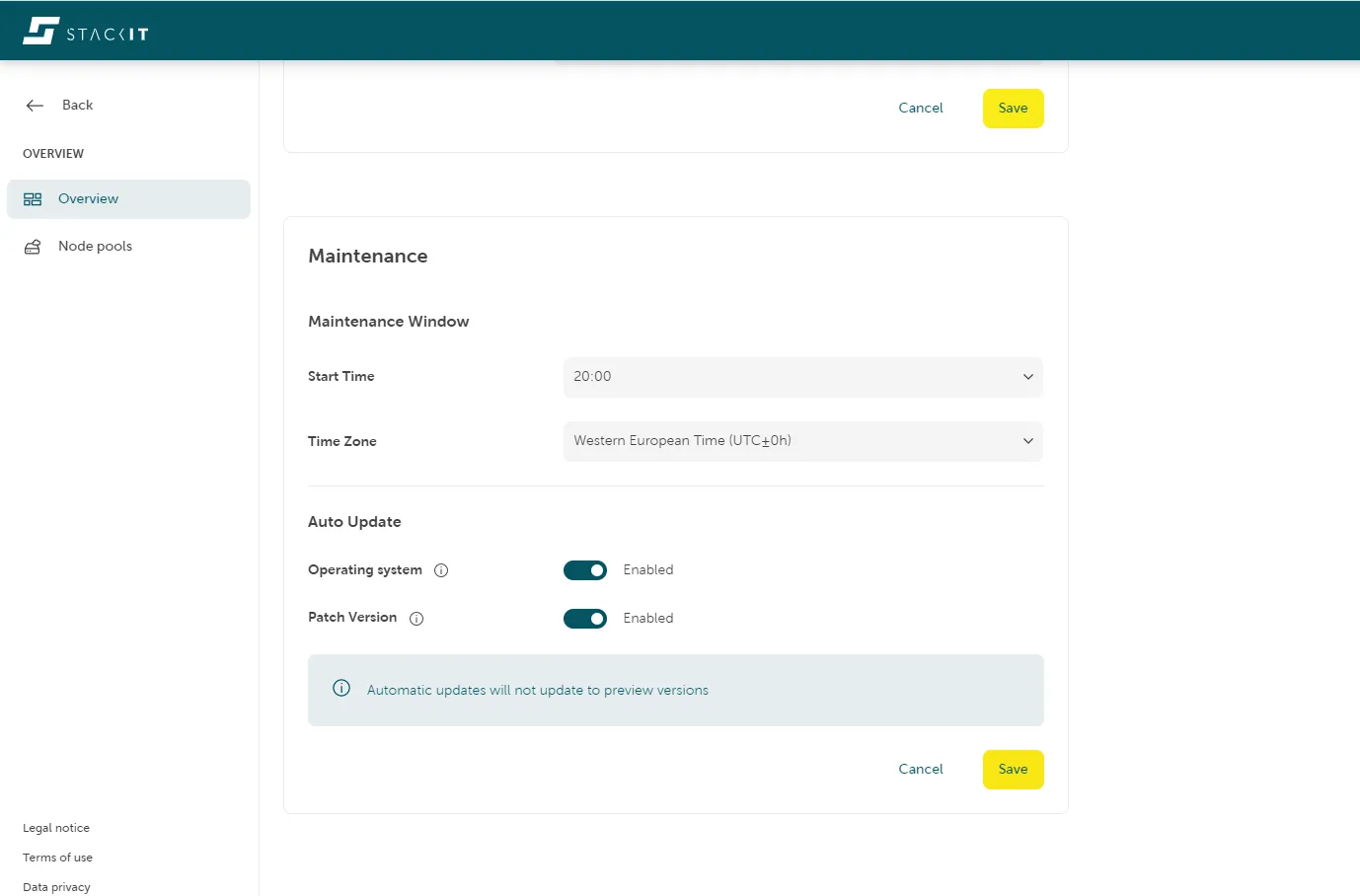
Note that for updates of the Kubernetes or the operating system version, the cluster is reconciled which might include a restart of the cluster control plane and rolling update of the worker nodes.
Summary of the two operations
Section titled “Summary of the two operations”The following table summarizes the support for day two operations. Click here for more information about the different updates types in SKE.
Operation | Auto-update | Forceful update | Manual update |
|---|---|---|---|
Update Kubernetes version | Patch versions only | Patch versions and consecutive minor versions only | yes |
Update Operating System version | yes | yes | yes |
Forceful updates of the operating system version are triggered like for Kubernetes versions if the operating system version of a cluster has an expiration date that is before the start of the next maintenance window.