Monitor applications via STACKIT Observability
Last updated on
This section shows the process, how customer workloads on SKE can be monitored using the STACKIT Observability service.
Overview
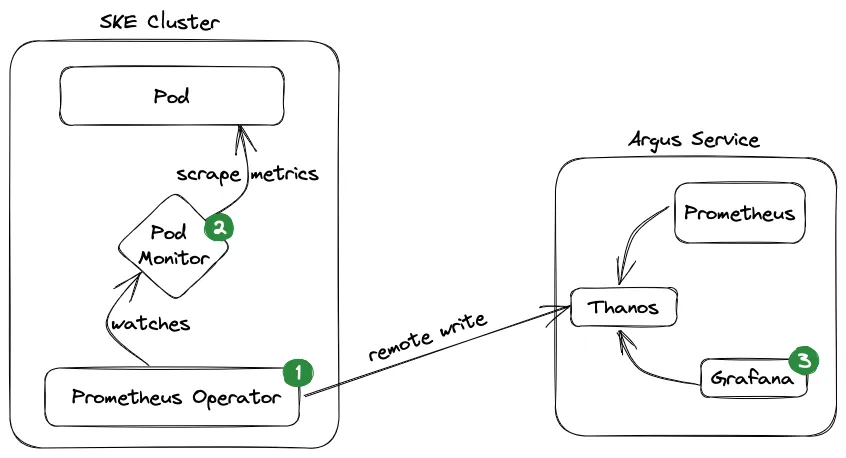
Section titled “Overview”Here is a high-level architecture diagram of the monitoring setup:
Prerequisites
Section titled “Prerequisites”- You have ordered the following services:
- You have basic knowledge of Prometheus, Grafana and Kubernetes.
- You have verified your Kubernetes cluster using the
kubectlcommand.kubectlis a command line tool which allows you to run commands against Kubernetes clusters:Terminal window kubectl get nodesNAME STATUS ROLES AGE VERSIONshoot--9kjnrurmk8--pawanpg-worker-jpqie-z1-767df-dsg99 Ready <none> 19d v1.21.10shoot--9kjnrurmk8--pawanpg-worker-jpqie-z1-767df-g2q42 Ready <none> 19d v1.21.10
1. Deploy the Prometheus operator on your SKE cluster
Section titled “1. Deploy the Prometheus operator on your SKE cluster”curl -sL https://github.com/prometheus-operator/prometheus-operator/releases/download/v0.63.0/bundle.yaml | kubectl create -f -Create credentials for Observability Service: API Prerequisites Observability
There you get a JSON with your username, password and your pushMetricsUrl (inside the urls object).
Create a Kubernetes secret with your Observability credentials:
kubectl create secret generic observabilitysecret \ --from-literal=username='<your_observability_username>'\ --from-literal=password='<your_observability_password>'\ -n defaultNext you need to create a Prometheus instance in order to scrape your metrics and push them to Observability.
In the example below we created a PodMonitor in order to scrape the metrics of a pod. You could also create a ServiceMonitor to scrape metrics there.
Here you have to use your pushMetricsUrl which you got with your username and password.
apiVersion: v1kind: ServiceAccountmetadata: name: prometheus---apiVersion: rbac.authorization.k8s.io/v1kind: ClusterRolemetadata: name: prometheusrules:- apiGroups: [""] resources: - nodes - nodes/metrics - services - endpoints - pods verbs: ["get", "list", "watch"]- apiGroups: [""] resources: - configmaps verbs: ["get"]- apiGroups: - networking.k8s.io resources: - ingresses verbs: ["get", "list", "watch"]- nonResourceURLs: ["/metrics"] verbs: ["get"]---apiVersion: rbac.authorization.k8s.io/v1kind: ClusterRoleBindingmetadata: name: prometheusroleRef: apiGroup: rbac.authorization.k8s.io kind: ClusterRole name: prometheussubjects:- kind: ServiceAccount name: prometheus namespace: default---apiVersion: monitoring.coreos.com/v1kind: Prometheusmetadata: name: prometheusspec: serviceAccountName: prometheus podMonitorSelector: matchLabels: team: frontend resources: requests: memory: 400Mi enableAdminAPI: false remoteWrite: - url: "<your_pushMetrics_URL>" basicAuth: username: name: observabilitysecret key: username password: name: observabilitysecret key: password---apiVersion: v1kind: Servicemetadata: name: prometheusspec: type: ClusterIP ports: - port: 80 targetPort: http protocol: TCP name: http selector: prometheus: prometheus2. Create a PodMonitor for your application
Section titled “2. Create a PodMonitor for your application”In order to monitor your application, you need to create a PodMonitor to scrape the metrics of your pod:
apiVersion: monitoring.coreos.com/v1kind: PodMonitormetadata: name: product-demo labels: team: frontendspec: selector: matchLabels: app: product-demo podMetricsEndpoints: - port: metrics namespaceSelector: any: true3. Visualize your metrics in Grafana
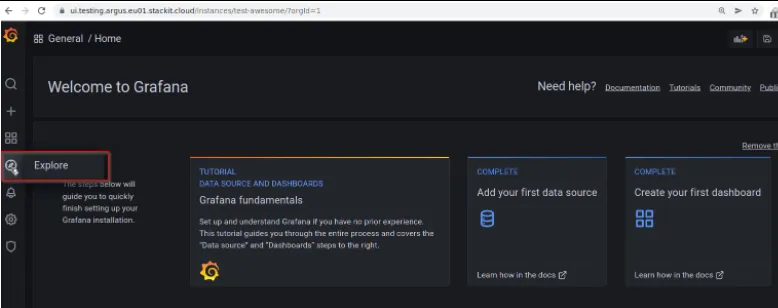
Section titled “3. Visualize your metrics in Grafana”Get your grafanaUrl, grafanaAdminUsername and grafanaAdminPassword from step 2. Open the grafanaUrl in browser and use your Grafana credentials. Click the Explore symbol:
Check your metrics using simple query. Query up{job="node-exporter"} to find the SKE cluster worker nodes detail:
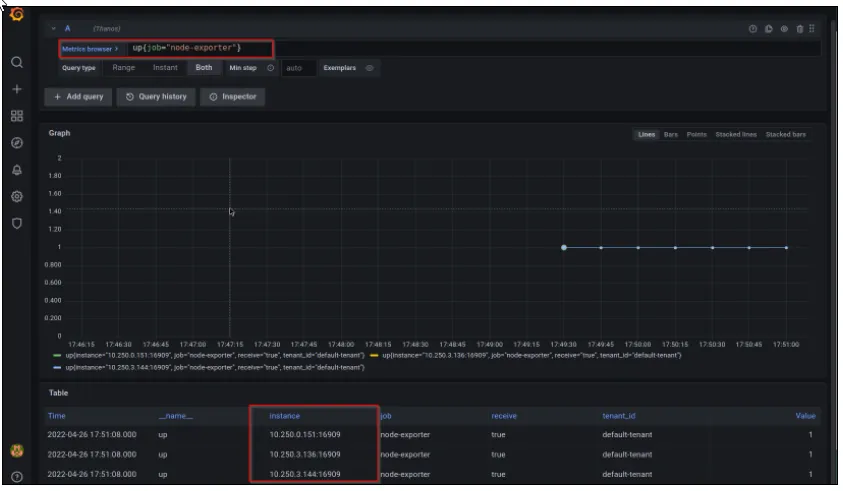
You can verify your metrics by comparing the IPs from your Kubernetes node details using below command:
kubectl get nodes -o wide
NAME STATUS ROLES AGE VERSION INTERNAL-IP EXTERNAL-IP OS-IMAGE KERNEL-VERSION CONTAINER-RUNTIMEshoot--9kjnrurmk8--pawanpg-worker-jpqie-z1-767df-8xvkg Ready <none> 4h8m v1.21.10 10.250.0.151 <none> Flatcar Container Linux by Kinvolk 3033.2.3 (Oklo)shoot--9kjnrurmk8--pawanpg-worker-jpqie-z1-767df-dsg99 Ready <none> 20d v1.21.10 10.250.3.136 <none> Flatcar Container Linux by Kinvolk 3033.2.3 (Oklo)shoot--9kjnrurmk8--pawanpg-worker-jpqie-z1-767df-g2q42 Ready <none> 20d v1.21.10 10.250.3.144 <none> Flatcar Container Linux by Kinvolk 3033.2.3 (Oklo)