Zugriff auf Ihre VM wiederherstellen
Zuletzt aktualisiert am
Falls Sie Ihren SSH-Schlüssel und Ihr Passwort verlieren, haben Sie immer noch die Möglichkeit, Ihre VM wiederherzustellen.
Voraussetzungen
Abschnitt betitelt „Voraussetzungen“Linux-Betriebssystem: Die Schritte in dieser Anleitung beziehen sich auf das Betriebssystem CentOS und sollten auf jedem anderen auf Red Hat Enterprise Linux basierenden System funktionieren. Für andere Linux-Derivate sollte die Beschreibung ebenfalls funktionieren, allerdings müssen einige Schritte angepasst werden. Beispiele: Jede Linux-Distribution verwendet einen anderen Standard-Benutzernamen und der Name des SSH-Daemons unterscheidet sich bei EL- und Debian-Derivaten.
Zugriff auf Ihre Linux-VM wiederherstellen
Abschnitt betitelt „Zugriff auf Ihre Linux-VM wiederherstellen“Starten Sie Ihre VM über die Web-Konsole neu.

Rufen Sie das Portal auf und öffnen Sie die Web-Konsole.

Sie werden sehen, wie Ihre VM bootet; drücken Sie die Schaltfläche Send CtrlAltDel in der oberen rechten Ecke.
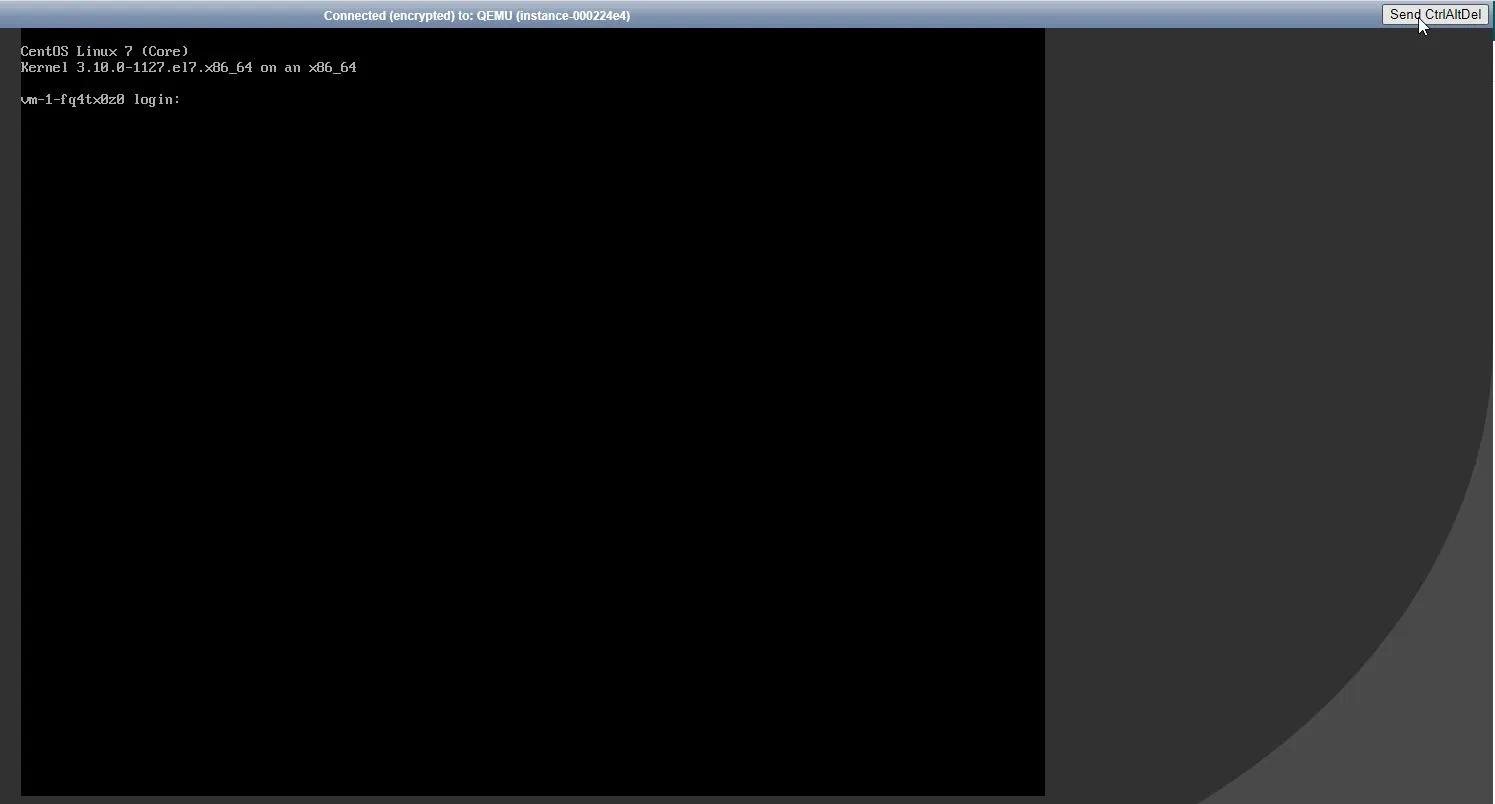
Drücken Sie die Pfeiltasten, um das Timeout des Grub-Menüs zu stoppen – es ist ziemlich kurz. Wenn Sie den Moment verpassen, drücken Sie einfach erneut Send CtrlAltDel. Sie sollten etwa Folgendes sehen:
Drücken Sie Auf und Ab.
Wählen Sie den neuesten (obersten) Menüeintrag aus.
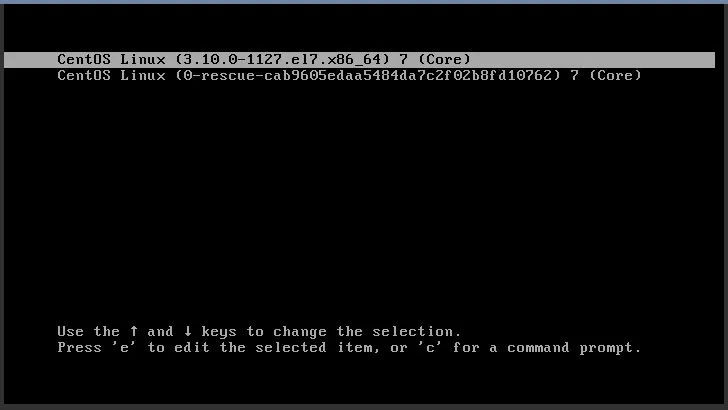
Bearbeiten Sie nun Ihr Menü (drücken Sie die Taste e auf der Tastatur), um das Menü bearbeiten zu können.
Sie werden etwas Ähnliches wie dies sehen:
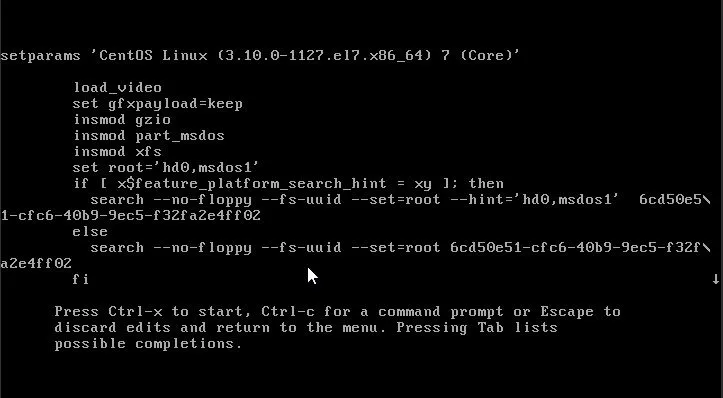
Scrollen Sie nun nach unten (verwenden Sie die Pfeiltasten) bis zu der Zeile, die mit initrd16 beginnt.
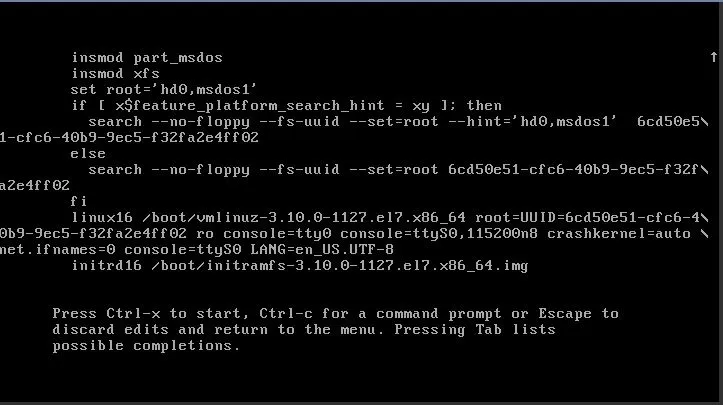
Drücken Sie die linke Pfeiltaste, um in die vorherige Zeile zu “springen”, um diese zu bearbeiten. Sie müssen einige Änderungen vornehmen:
- Entfernen Sie
console=ttyS0,console=tty0,console=ttyS0,115200n8. - Fügen Sie nun am Ende der Zeile Folgendes hinzu:
rd.break enforcing=0.
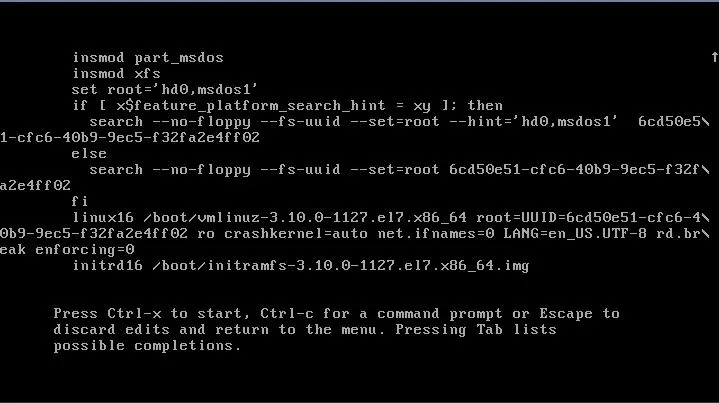
Halten Sie nun die Steuerungs-Taste auf der Tastatur gedrückt und drücken Sie x. Das System beginnt zu booten und erreicht einen Zustand ähnlich wie:
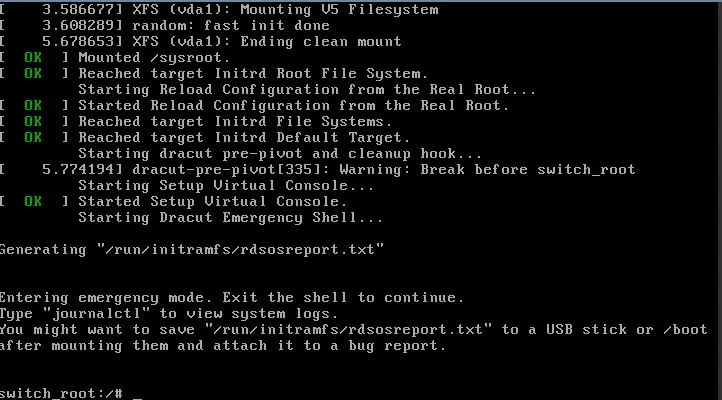
Geben Sie nun Folgendes in Ihre Konsole ein (Kopieren und Einfügen funktioniert nicht):
mount –o remount,rw /sysroot chroot /sysroot passwd rootÄndern Sie das Root-Passwort, das wir zum Anmelden verwenden werden.
Wir werden das Root-Passwort später aus Sicherheitsgründen erneut ändern!
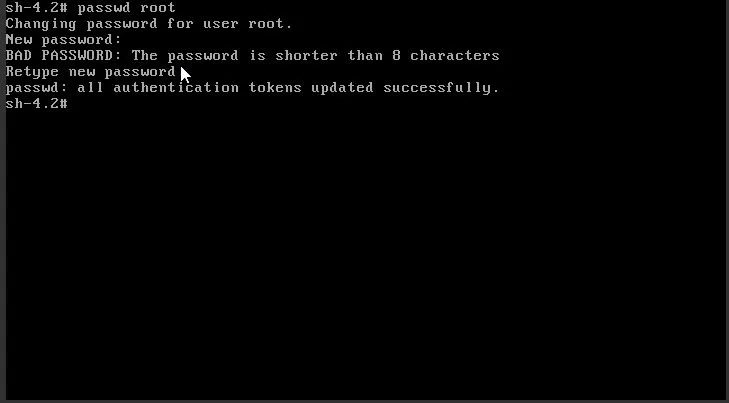
Geben Sie nun zweimal “exit” ein. Dies ermöglicht es dem System, den Hochfahrzyklus abzuschließen, und Sie erhalten eine Anmeldeaufforderung:
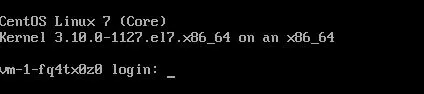
Geben Sie “root” als Benutzer und das Passwort ein, das Sie in Schritt 10 verwendet haben.
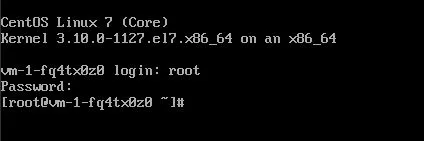
Ändern Sie nun das Passwort für den Standard-Distributions-/Login-Benutzer. Für die CentOS-Distro ist der Standardbenutzer centos.
Geben Sie das Passwort zweimal ein:
passwd centos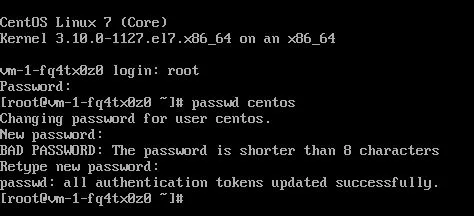
Nun müssen Sie vorübergehend die Anmeldung per Passwort erlauben. Wir werden dies zu einem späteren Zeitpunkt wieder ändern. Öffnen Sie /etc/ssh/sshd_config.
vi /etc/ssh/sshd\_configSuchen Sie die Zeile, die wie folgt aussieht:
#PasswordAuthentication yesSobald sich der Cursor auf dem # -Zeichen befindet, drücken Sie x, um dieses Zeichen zu löschen. Drücken Sie dann die folgende Tastenfolge: Esc, :, w, q and Enter.
Diese Sequenz speichert Ihre Änderungen.
Änderungen überprüfen
Abschnitt betitelt „Änderungen überprüfen“sshd -t
Eine gute Ausgabe sollte so aussehen:

Starten Sie den sshd-Daemon neu. Dieser Daemon steuert den Fernzugriff auf den Linux-Server.
systemctl restart sshdAuf EL-basierten Systemen (wie CentOS) heißt der Daemon “sshd”, während er auf Debian und Derivaten “ssh” genannt wird.
Nun sollten Sie in der Lage sein, sich per SSH mit Ihrem Passwort anzumelden. Verwenden Sie das von Ihnen erstellte Passwort:
ssh centos@4.159.97.5 Warning: Permanently added '4.159.97.5' (ECDSA) to the list of known hosts. centos@4.159.97.5's password: X11 forwarding request failed on channel 0 Last login: Thu May 21 09:15:14 2020 from 4.159.97.30 [centos@vm-1-fq4tx0z0 \~]$Bearbeiten Sie Ihre authorized_keys, um Ihren neuen SSH-Key zuzulassen.
echo 'ssh-rsa AAAAB3NzaC1yc2EAAAADAQABAAACAQDMbC29mO0j9NnjTt/eSNQuwX0XPcFT77Fg20wUKCHFyJrC+yldMja8EEEo+LY2HRgu5mzDHdKG9nHW2yGtPt1kUfz6Icck/Of5uT5G9139IKdDd1VxdqDOKKQq6e+3cbtLe0JvAdEG/B7M0nIkpguVX2T2Lojsi7xF3sHjrg7vjYeFWmoBjWl7tilgu0eXTHFdmKvCJ05qjgU5OwXitE8YtxKd/iifs0YACan3PCFX4P4vAe/oBjmaIW2qCLaBTEI2COMl6/EVaIhiudplTFJV4ebbbidwhXkGWj8o0mMEv7umgIsU3Fv4UoUQ0fU7ZxqReApIBGLtKL6rG7NntTD6r6ROrh5VXfJfWRXQgBh+S/Ei9gvRBeu0qzqEiSIyIWT14+RsXjDuGBRch2GZmGjres7XEqtCRvpnDJ6A1gS8NFeHr9GcATUbBhS45iFCuDTvFfNgI7ydyOfWlB+/D8fvrfgXH7k1r5291oiNonVTmYkF3sDVWGmRvFoyZcSqBxftok4TCD9vEmqg7Uqa0eAkYIxyxffNmzUgY3UrxRLD+IyUFAoaXKMtkuxE5KrrBYSweIOa5pCvbJOjX/yP7R5SumvEOEJMSiu0bdd5UsP6ed8omax6FWcp3g+P4PMRMbaM/aMowAE+02TizdJ+PDfWD1+f6W4XMZHHyfwsfTeLKw== someuser@MYPC' >> \~/.ssh/authorized\_keysÜberprüfen Sie den Zugriff per Schlüssel. Die Anmeldung sollte ohne Passwort erfolgen.
Machen Sie Ihre Änderungen in der sshd-Konfigurationsdatei rückgängig. Da wir nun in der Shell (nicht in der Web-Konsole) Kopieren / Einfügen können, können Sie Folgendes ausführen:
sudo sed -i 's/PasswordAuthentication yes/#PasswordAuthentication no/' /etc/ssh/sshd\_configÜberprüfen Sie Ihre Änderungen erneut und starten Sie sshd neu, falls keine Fehler erkannt werden:
sshd -t systemctl restart sshdSELinux reparieren (CentOS und Derivate):
touch /.autorelabel restorecon -RFvv /etc/shadow restorecon -RFvv /etc/ssh/sshd\_config setenforce 1Setzen Sie nun die Passwörter der Benutzer auf einen Zufallswert:
cat /dev/urandom | tr -dc 'A-Za-z0-9!"#$%&'\\''()*+,-./:;<=>?@[\\]^\_`{|}\~' | head -c 25 | passwd --stdin root cat /dev/urandom | tr -dc 'A-Za-z0-9!"#$%&'\\''()*+,-./:;<=>?@[\\]^\_`{|}\~' | head -c 25 | passwd --stdin centosNeustart (optional).
reboot