Befehlsvorlagen
Zuletzt aktualisiert am
Sobald Sie den Run Command Service aktiviert haben, möchten Sie Informationen über die aktuell verfügbaren Befehle erhalten, die Sie verwenden können.
Die folgende Dokumentation beschreibt, wie Sie alle aktuell verfügbaren und unterstützten Befehlsvorlagen im STACKIT Portal abrufen können, um diese für die Remote-Ausführung auf Ihrem Server zu nutzen.
Befehlsvorlagen über das Portal verwenden
Abschnitt betitelt „Befehlsvorlagen über das Portal verwenden“Führen Sie die folgenden Schritte aus, wenn Sie das STACKIT Portal verwenden möchten, um Informationen über die aktuell verfügbaren Befehlsvorlagen zu erhalten:
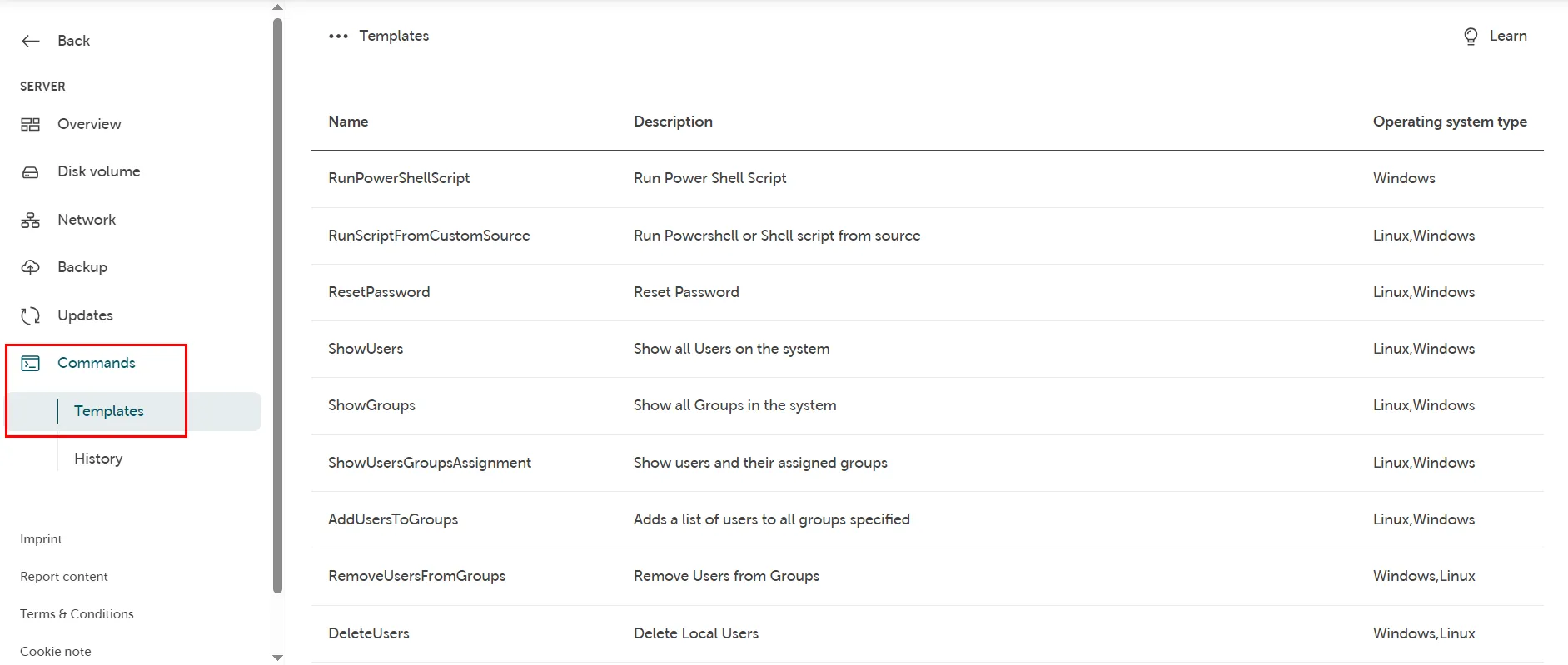
Navigieren Sie in Ihrem Projekt zur Übersicht des Servers, auf dem Sie einen Befehl remote ausführen möchten, und klicken Sie auf Commands → Templates, um eine Liste aller verfügbaren Befehlsvorlagen für diesen Server aufzurufen:
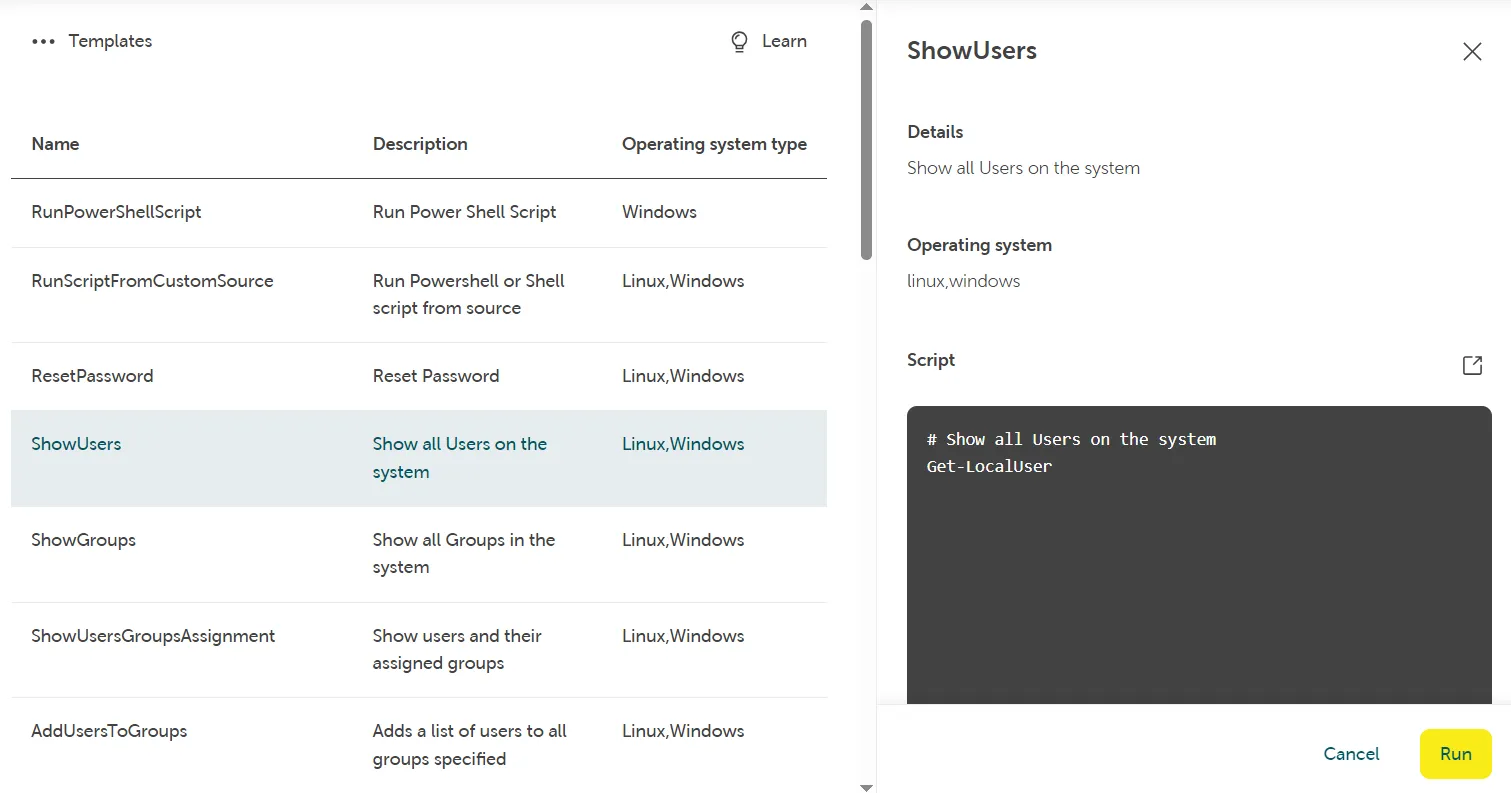
Klicken Sie auf eine Befehlsvorlage (z. B. „ShowUsers“). Es wird ein Informationsfenster mit Details zum unterstützten Betriebssystem (Linux/Windows) sowie zum Inhalt des ausgeführten Skripts angezeigt:
Liste der Befehlsvorlagen
Abschnitt betitelt „Liste der Befehlsvorlagen“| Nummer | Betriebssystemtyp | Name der Befehlsvorlage | Titel der Befehlsvorlage | Argumente | Beschreibung |
|---|---|---|---|---|---|
| 1 | Linux | RunShellScript | Shell-Skript ausführen | - | Linux: Führen Sie ein benutzerdefiniertes Shell-Skript auf Linux-Servern aus. Beispielhafte Verwendung von Argumenten: - arguments: “arg1 arg2 arg3” |
| 2 | Windows | RunPowerShellScript | PowerShell-Skript ausführen | - | Windows: Führen Sie ein benutzerdefiniertes PowerShell-Skript auf Windows-Servern aus. Beispielhafte Verwendung von Argumenten: - arguments: “arg1 arg2 arg3” |
| 3 | Linux/Windows | RunScriptFromCustomSource | Skript aus einer benutzerdefinierten stackits3-, lokalen oder öffentlichen Quelle ausführen | sourceType, location | Linux: Führen Sie ein Shell-Skript aus einer anderen benutzerdefinierten Quelle aus. Verfügbare Quelltypen:
|
| 4 | Windows: Führen Sie ein Shell-Skript aus einer anderen benutzerdefinierten Quelle aus. Verfügbare Quelltypen:
| ||||
| 5 | Linux/Windows | ResetPassword | Passwort zurücksetzen oder neuen Benutzer erstellen | username, password | Linux: Setzen Sie das Passwort eines bestehenden Benutzers zurück oder erstellen Sie einen neuen Benutzer mit Sudo-Berechtigungen auf Linux-Servern. |
Windows: Setzen Sie das Passwort eines bestehenden Benutzers zurück oder erstellen Sie einen neuen Administrator auf Windows-Servern. | |||||
| 6 | Linux | ResetSSHPublicKey | SSH-Schlüssel zurücksetzen oder neuen Benutzer erstellen | username, key | Linux: Setzen Sie den öffentlichen SSH-Schlüssel eines bestehenden Benutzers zurück oder erstellen Sie einen neuen Benutzer mit Sudo-Berechtigungen auf Linux-Servern. |
| 7 | Linux/Windows | ShowUsers | Alle Benutzer im System anzeigen | - | Linux: Zeigen Sie alle Benutzer im System mit Benutzer-ID, Gruppen-ID, Home-Verzeichnis, Shell und weiteren Informationen an. |
Windows: Zeigen Sie alle Benutzer im System mit Beschreibung an. | |||||
| 8 | Linux/Windows | ShowGroups | Alle Gruppen im System anzeigen | - | Linux: Zeigen Sie alle Gruppen im System mit Details an. |
Windows: Zeigen Sie alle Gruppen im System mit Details an. | |||||
| 9 | Linux/Windows | ShowUsersGroupsAssignment | Benutzer und ihre zugewiesenen Gruppen anzeigen | users | Linux: Zeigen Sie Benutzer im System und deren zugewiesene Gruppen an. Sie können einen einzelnen Benutzer oder eine Liste von Benutzern (user1,user2,user3) angeben. |
Windows: Zeigen Sie Benutzer im System und deren zugewiesene Gruppen an. Sie können einen einzelnen Benutzer oder eine Liste von Benutzern (user1,user2,user3) angeben. | |||||
| 10 | Linux/Windows | AddUsersToGroups | Benutzer zu allen angegebenen Gruppen hinzufügen | users, groups | Linux: Fügen Sie einen oder mehrere Benutzer zu einer oder mehreren Gruppen hinzu. Beispielhafte Verwendung von Argumenten: - users: “user1,user2,user3”- groups: “group1,group2,group3” |
Windows: Fügen Sie einen oder mehrere Benutzer zu einer oder mehreren Gruppen hinzu. Beispielhafte Verwendung von Argumenten: - users: “user1,user2,user3”- groups: “group1,group2,group3” | |||||
| 11 | Linux/Windows | RemoveUsersFromGroups | Benutzer aus Gruppen entfernen | users, groups | Linux: Entfernen Sie einen oder mehrere Benutzer aus einer oder mehreren Gruppen. Sie können jedoch einen Benutzer nicht aus seiner primären Gruppe entfernen. Beispielhafte Verwendung von Argumenten: - users: “user1,user2,user3”- groups: “group1,group2,group3” |
Windows: Entfernen Sie einen oder mehrere Benutzer aus einer oder mehreren Gruppen. Beispielhafte Verwendung von Argumenten: - users: “user1,user2,user3”- groups: “group1,group2,group3” | |||||
| 12 | Linux/Windows | DeleteUsers | Lokale Benutzer aus dem System löschen | user | Linux: Löschen Sie einen oder mehrere lokale Benutzer aus dem System. Beispielhafte Verwendung von Argumenten: - users: “user1,user2,user3” |
Windows: Löschen Sie einen oder mehrere lokale Benutzer aus dem System. Beispielhafte Verwendung von Argumenten: - users: “user1,user2,user3” | |||||
| 13 | Windows | joinDomain | Einen Windows-Server zu einer Domäne hinzufügen | DNS, DomainName, DomainUser, DomainPassword, OuPath | Windows: Einen Windows-Server zu einer Domäne hinzufügen. Eingabeargumente:
|
| 14 | Linux/Windows | ShowHostname | Hostnamen anzeigen | - | Linux: Zeigen Sie den FQDN (Fully Qualified Domain Name) an. |
Windows: Zeigen Sie den lokalen Hostnamen an. | |||||
| 15 | Linux/Windows | ShowSystemInfo | Systeminformationen anzeigen | - | Linux: Zeigen Sie Systeminformationen zu CPU, Speicher, RAM, BIOS und mehr an. |
Windows: Zeigen Sie Systeminformationen zu CPU, Speicher, RAM, BIOS und mehr an. | |||||
| 16 | Linux/Windows | ShowLogEntries | Log-Einträge aus dem System anzeigen | Linux: - | Linux: Zeigen Sie systemd-Journal-Einträge mit höherer Priorität seit dem letzten Bootvorgang an. |
Windows: Rufen Sie Windows-Ereignisprotokolle ab und zeigen Sie diese an, mit Optionen zum Filtern nach Protokollnamen, Eintragstyp, Zeit und Datum sowie zur Begrenzung der Ausgabe. Verfügbare Protokollnamen: Standardmäßig werden 10 Protokolle pro Protokollname in chronologischer Reihenfolge angezeigt. Beispielhafte Verwendung von Argumenten: | |||||
| 17 | Linux/Windows | ShowCurrentWorkload | Aktuelle Systemauslastung anzeigen | - | Linux: Bietet eine dynamische Echtzeitansicht des laufenden Systems. |
Windows: Zeigen Sie die aktuelle Auslastung (CPU- und RAM-Auslastung) an. | |||||
| 18 | Linux/Windows | ShowProcesses | Prozesse im System anzeigen | Linux: - | Linux: Erstellt eine Momentaufnahme der aktuellen Prozesse. |
Windows: Zeigen Sie Prozesse und die zugehörige Auslastung an. Führen Sie das Skript ohne Argumente aus, um alle Prozesse abzurufen. Wenn Sie einen Prozess oder eine Liste von Prozessen angeben möchten, führen Sie es mit Argumenten aus. Beispielhafte Verwendung von Argumenten: - ProcessName: “process1,process2” | |||||
| 19 | Linux/Windows | ManageServices | Dienste im System verwalten | action, services | Linux: Dienste verwalten und Aktionen auf diesen ausführen. Eingabeargumente:
|
Windows: Dienste verwalten und Aktionen auf diesen ausführen. Eingabeargumente:
| |||||
| 20 | Linux/Windows | KillProcesses | Prozesse im System beenden | Linux: signal, processname Windows: processname | Linux: Beenden Sie einen Prozess. Eingabeargumente:
Beispielhafte Verwendung von Argumenten: - signal: “SIGKILL”- processname: “process1” |
Windows: Beenden Sie einen oder mehrere Prozesse. Beispielhafte Verwendung von Argumenten: - processname: “process1,process2” | |||||
| 21 | Linux/Windows | ShowNetworkConfiguration | Netzwerkkonfiguration anzeigen | - | Linux: Zeigen Sie die Konfiguration der Netzwerkschnittstellen an. |
Windows: Zeigen Sie die IP-Konfiguration an. | |||||
| 22 | Linux/Windows | ShowRouting | Einträge der Routing-Tabelle anzeigen | - | Linux: Zeigen Sie Einträge der Routing-Tabelle an. |
Windows: Zeigen Sie Einträge der Routing-Tabelle an. | |||||
| 23 | Linux/Windows | ShowSocketStatus | Alle Sockets und deren Status anzeigen | - | Linux: Zeigen Sie alle Sockets und deren Status an. |
Windows: Zeigen Sie alle Sockets und deren Status an. | |||||
| 24 | Linux/Windows | ShowMemoryUsage | Speicherauslastung anzeigen | - | Linux: Zeigen Sie die Speicher- und Swap-Auslastung an. |
Windows: Zeigen Sie den gesamten, genutzten und verfügbaren physischen Speicher an. | |||||
| 25 | Linux/Windows | ShowFilesystems | Dateisysteme mit Festplattenauslastung anzeigen | - | Linux: Zeigen Sie Dateisysteme mit Festplattenauslastung an. |
Windows: Zeigen Sie Dateisysteme mit Festplattenauslastung an. | |||||
| 26 | Linux | ShowInodes | Dateisysteme mit Inodes-Auslastung anzeigen | - | Linux: Zeigen Sie Dateisysteme mit Inodes-Auslastung an. |
| 27 | Linux | ShowBlockDevices | Blockgeräte anzeigen | - | Linux: Zeigen Sie Blockgeräte an. |
| 28 | Linux | ShowPartitionsTable | Partitionstabelle anzeigen | - | Linux: Zeigen Sie die Partitionstabelle an. |
| 29 | Linux | ShowMountedFilesystems | Eingehängte Dateisysteme anzeigen | - | Linux: Zeigen Sie eingehängte Dateisysteme an. |
| 30 | Windows | EnableRemotePowerShell | Remote-PowerShell aktivieren | - | Windows: Konfigurieren Sie die Maschine, um Remote-PowerShell zu aktivieren. |
| 31 | Windows | DisableNetworkLevelAuthentication | Network Level Authentication deaktivieren | - | Windows: Verwenden Sie dieses Skript, um NLA zu deaktivieren, wenn RDP-Verbindungen mit dem Fehler „Der Remotecomputer, mit dem Sie eine Verbindung herstellen möchten, erfordert Network Level Authentication (NLA). Ihr Windows-Domänencontroller kann jedoch nicht kontaktiert werden, um NLA durchzuführen.“ oder dem Fehler „Ein Authentifizierungsfehler ist aufgetreten. Die lokale Sicherheitsinstanz kann nicht kontaktiert werden.“ fehlschlagen. NLA ist eine Sicherheitsfunktion, die nur vorübergehend deaktiviert werden sollte, damit RDP-Verbindungen erfolgreich hergestellt werden können, bis das Verbindungsproblem mit dem Domänencontroller behoben wurde. |
| 32 | Windows | ShowRDPSettings | RDP-Listener-Einstellungen anzeigen | - | Windows: Zeigen Sie detaillierte Informationen zur IP-Adresse, Subnetzmaske und zum Standard-Gateway für jeden an TCP/IP gebundenen Adapter an. |
| 33 | Windows | ResetRDPCertificate | RDP-Zertifikat auf Standard zurücksetzen | - | Windows: Entfernt das an den RDP-Listener gebundene SSL-Zertifikat und setzt die Sicherheit des RDP-Listeners auf den Standardwert zurück. Verwenden Sie dieses Skript, wenn Probleme mit dem Zertifikat auftreten. Dieses Skript startet den TermService neu. |
| 34 | Windows | EnableRDPPort | Remote Desktop-Port konfigurieren | RDPPort | Windows: Legen Sie die Standard-Portnummer (3389) oder eine benutzerdefinierte Portnummer für Remote Desktop-Verbindungen fest und aktivieren Sie die Firewall-Regel für den eingehenden Zugriff auf den Port. Beispielhafte Verwendung von Argumenten: - RDPPort: “3389” |