Befehl ausführen
Zuletzt aktualisiert am
Sie können verschiedene Arten von Skripten remote auf Ihrem Server ausführen, indem Sie diese im STACKIT Portal starten. Wenn Sie Run Commands lieber über die API nutzen möchten, lesen Sie den Abschnitt Befehl über die API ausführen (der auch verschiedene Beispiele enthält).
Voraussetzungen
Abschnitt betitelt „Voraussetzungen“So führen Sie einen Befehl remote auf Ihrem Server aus
Abschnitt betitelt „So führen Sie einen Befehl remote auf Ihrem Server aus“-
Navigieren Sie im STACKIT Portal zu dem Server, auf dem Sie einen Befehl ausführen möchten.
-
Gehen Sie zu Commands > Templates.
-
Wählen Sie den auszuführenden Befehl aus der Liste der Befehlsvorlagen aus.
-
Klicken Sie auf Run, um das Remote-Skript dieser Befehlsvorlage auszuführen.
-
Warten Sie, bis die Ausführung des Skripts abgeschlossen ist. Je nach Skript kann dies einige Sekunden dauern. Wenn das Skript erfolgreich war, ändert sich der Wert in Status zu
Successfulund der Wert für Exit Code ist0.War die Ausführung nicht erfolgreich und ist ein Fehler aufgetreten, ist der Wert für Exit Code nicht
0. Lesen Sie in diesem Fall die Anleitung Fehlerbehebung für den Server Agent oder kontaktieren Sie den STACKIT Support. -
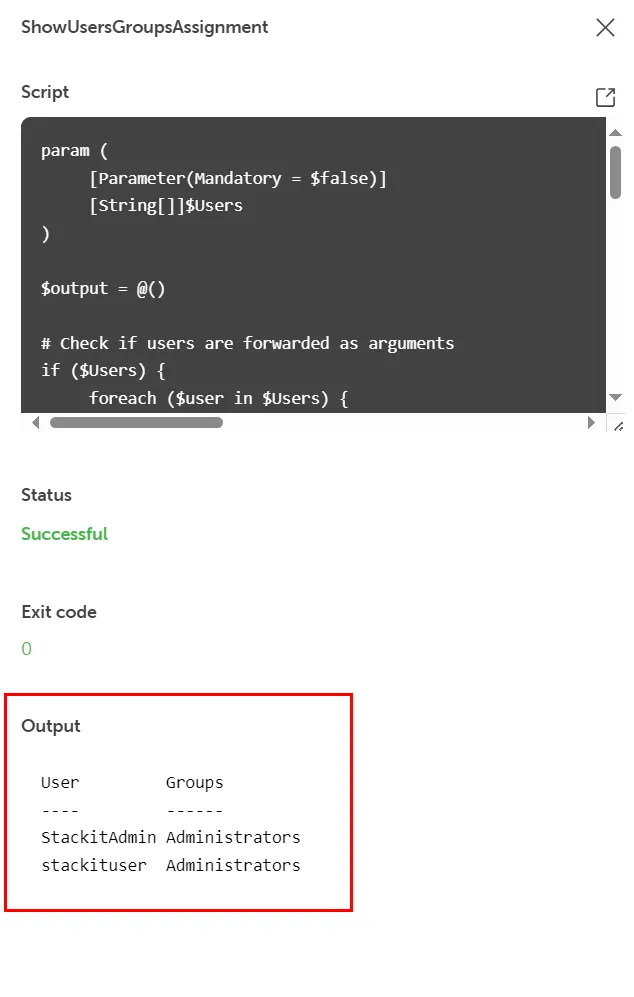
Überprüfen Sie das Feld Output im Detailbereich auf die Ergebnisse.
Argumente verwenden
Abschnitt betitelt „Argumente verwenden“Bei einigen Befehlsvorlagen können Sie ein oder mehrere Argumente verwenden. Typ, Anzahl, Format und Trennzeichen der Argumente hängen jedoch von der jeweiligen Befehlsvorlage ab. Weitere Einzelheiten finden Sie in der Liste der Befehlsvorlagen.
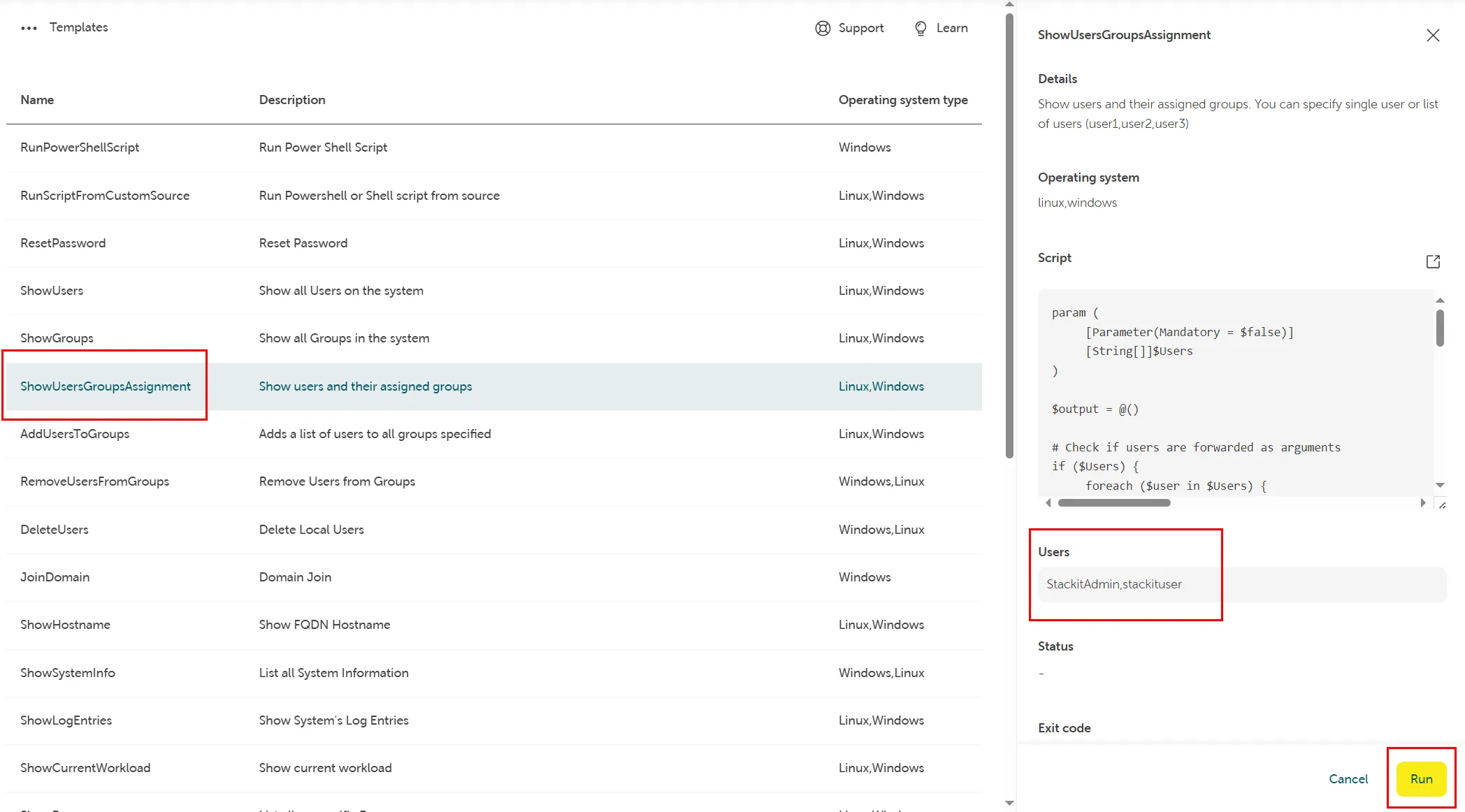
Das folgende Beispiel zeigt die Verwendung mehrerer Argumente (z. B. lokale Benutzer StackitAdmin, stackituser) für die Befehlsvorlage ShowUsersGroupsAssignment, mit der alle oder bestimmte Benutzer und deren Gruppenmitgliedschaften angezeigt werden können. In dieser Befehlsvorlage können Sie Ihre Argumente durch Kommas getrennt in das Argument-Feld eingeben.
Nach erfolgreicher Ausführung des Skripts enthält das Feld Output die gewünschten Ergebniswerte:
Befehlsverlauf
Abschnitt betitelt „Befehlsverlauf“Navigieren Sie zu Commands > History, um das Protokoll der Skriptausführungen aufzurufen. Diese Ansicht zeigt eine chronologische Liste aller auf dem Server ausgeführten Skripte, einschließlich ihres Status sowie der Start- und Endzeiten.
Durch Klicken auf eine einzelne Zeile öffnet sich rechts ein Detailbereich. Hier können Sie den verwendeten Skript-Code, den finalen Exit-Code und die vollständige Textausgabe des Befehls einsehen.