Problembehebung
Zuletzt aktualisiert am
Wenn Sie Probleme mit dem STACKIT Server Agent haben, können Sie versuchen, diese mit den folgenden Schritten zur Fehlerbehebung zu beheben.
STACKIT Server Agent Dienststatus prüfen
Abschnitt betitelt „STACKIT Server Agent Dienststatus prüfen“Stellen Sie sicher, dass der STACKIT Server Agent Dienst läuft.
Windows (über den Windows Service Manager)
Abschnitt betitelt „Windows (über den Windows Service Manager)“- Drücken Sie Win + R, um den Dialog “Ausführen” zu öffnen.
- Geben Sie
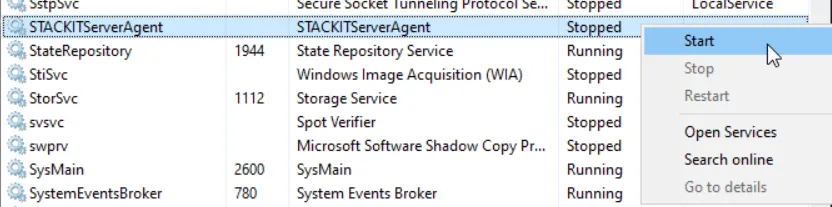
services.mscein und drücken Sie die Eingabetaste. - Suchen Sie den Eintrag STACKITServerAgent-Dienst:

- Wenn der Dienst beendet ist, starten Sie den Dienst, indem Sie mit der rechten Maustaste auf den Dienst klicken und Starten auswählen:
Windows (über die PowerShell)
Abschnitt betitelt „Windows (über die PowerShell)“- Öffnen Sie die PowerShell und führen Sie den folgenden Befehl aus, um den Dienststatus abzurufen:
Terminal-Fenster Get-Service STACKITServerAgent - Wenn der Dienst beendet ist, starten Sie den Dienst, indem Sie den folgenden Befehl ausführen:
Terminal-Fenster Start-Service STACKITServerAgent
- Verwenden Sie den folgenden Befehl:
Terminal-Fenster systemctl status stackit-server-agent.service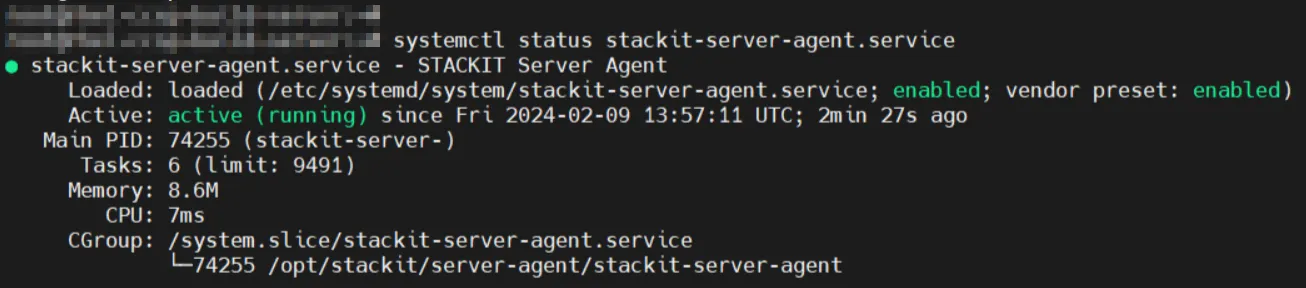
- Wenn der Dienst wie folgt beendet ist:
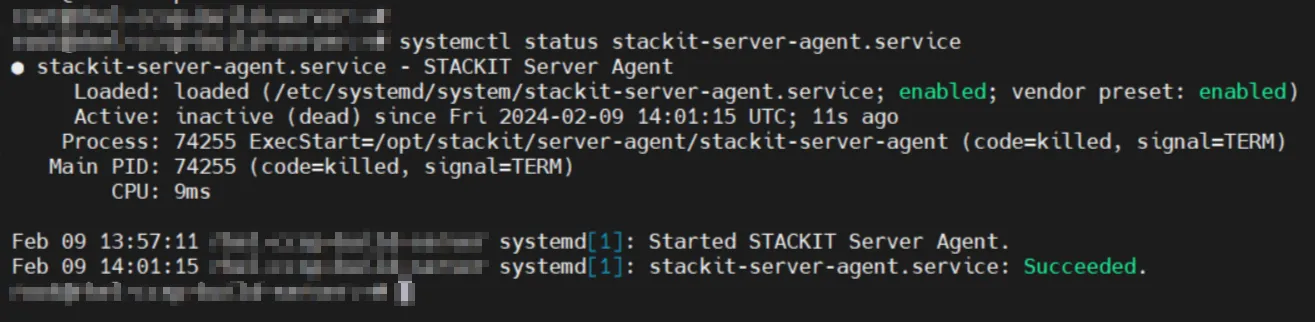 …starten Sie den Dienst, indem Sie den folgenden Befehl ausführen:
Terminal-Fenster systemctl start stackit-server-agent.service
STACKIT Server Agent Dienst neu starten
Abschnitt betitelt „STACKIT Server Agent Dienst neu starten“Wenn der STACKIT Server Agent Dienst bereits läuft, aber Probleme auftreten, versuchen Sie, den Dienst neu zu starten.
Windows (über den Windows Service Manager)
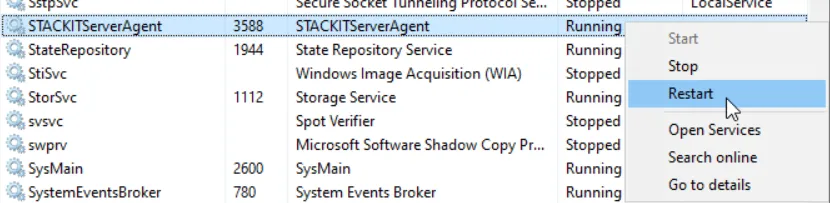
Abschnitt betitelt „Windows (über den Windows Service Manager)“- Öffnen Sie den Windows Service Manager und suchen Sie den STACKITServerAgent, wie oben beschrieben.
- Klicken Sie mit der rechten Maustaste auf den STACKITServerAgent und wählen Sie dann Neu starten:
Windows (über die Power Shell)
Abschnitt betitelt „Windows (über die Power Shell)“- Öffnen Sie eine PowerShell und führen Sie den folgenden Befehl aus:
Restart-Service STACKITServerAgent- Verwenden Sie den folgenden Befehl:
systemctl restart stackit-server-agent.service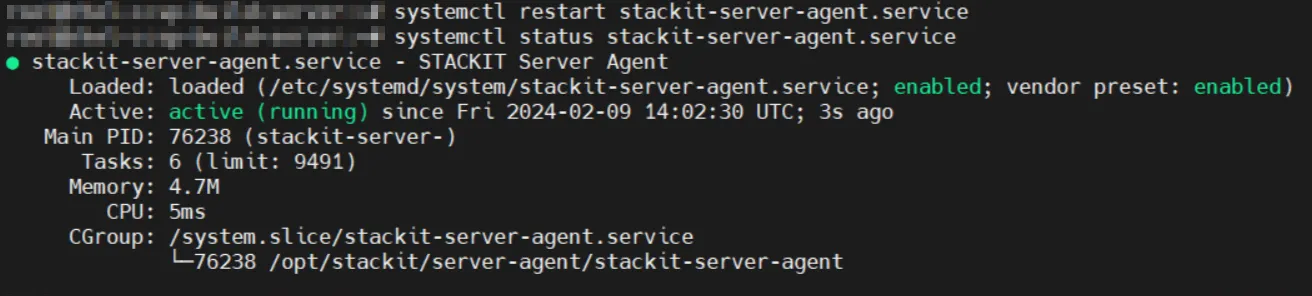
Protokolldateien prüfen
Abschnitt betitelt „Protokolldateien prüfen“Windows
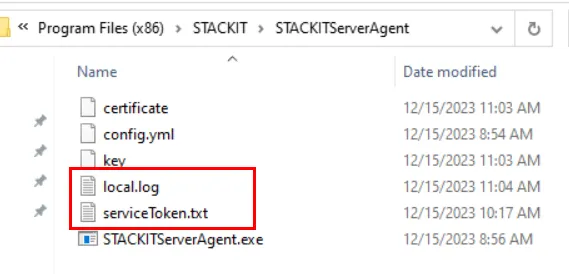
Abschnitt betitelt „Windows“Überprüfen Sie die Protokolldatei (local.log) auf Fehlermeldungen oder relevante Informationen.
Prüfen Sie auch, ob sich das korrekte Service Account Access Token von Ihrem Portal-Projekt in der Datei serviceToken.txt befindet.
Beide Dateien befinden sich unter C:\Program Files (x86)\STACKIT\STACKITServerAgent:
- Bei Fehlern oder Problemen, die Ihnen in diesen Protokollen in Kombination mit einem fehlerhaften STACKIT Server Agent begegnen, öffnen Sie bitte ein Ticket, damit sich unsere STACKIT Support-Kollegen um Ihr Problem kümmern können.
Überprüfen Sie die Protokolldatei (local.log) auf Fehlermeldungen oder relevante Informationen mit dem folgenden Befehl:
cat /opt/stackit/server-agent/local.log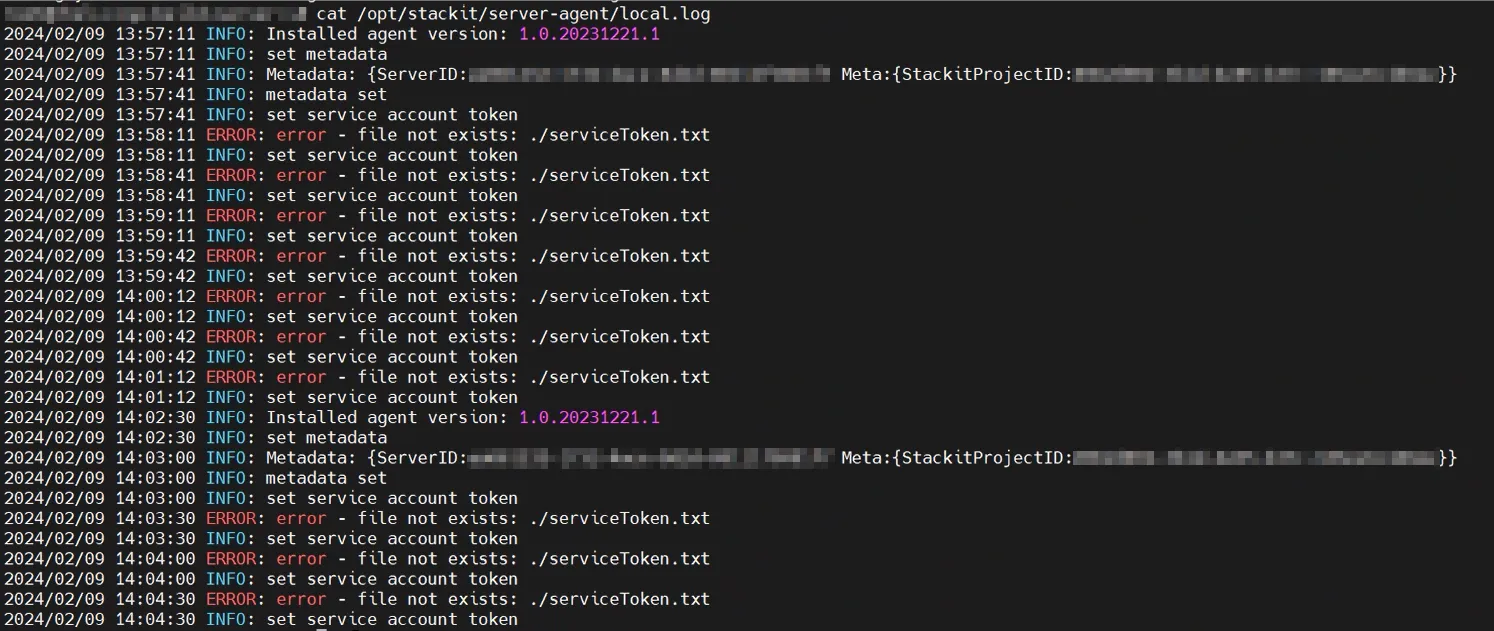
STACKIT Server Agent neu installieren
Abschnitt betitelt „STACKIT Server Agent neu installieren“Wenn die oben genannten Schritte das Problem nicht behoben haben, ziehen Sie eine Neuinstallation des STACKIT Server Agent in Betracht:
Windows
Abschnitt betitelt „Windows“- Deinstallieren Sie den vorhandenen STACKIT Server Agent über „Apps & Features“:
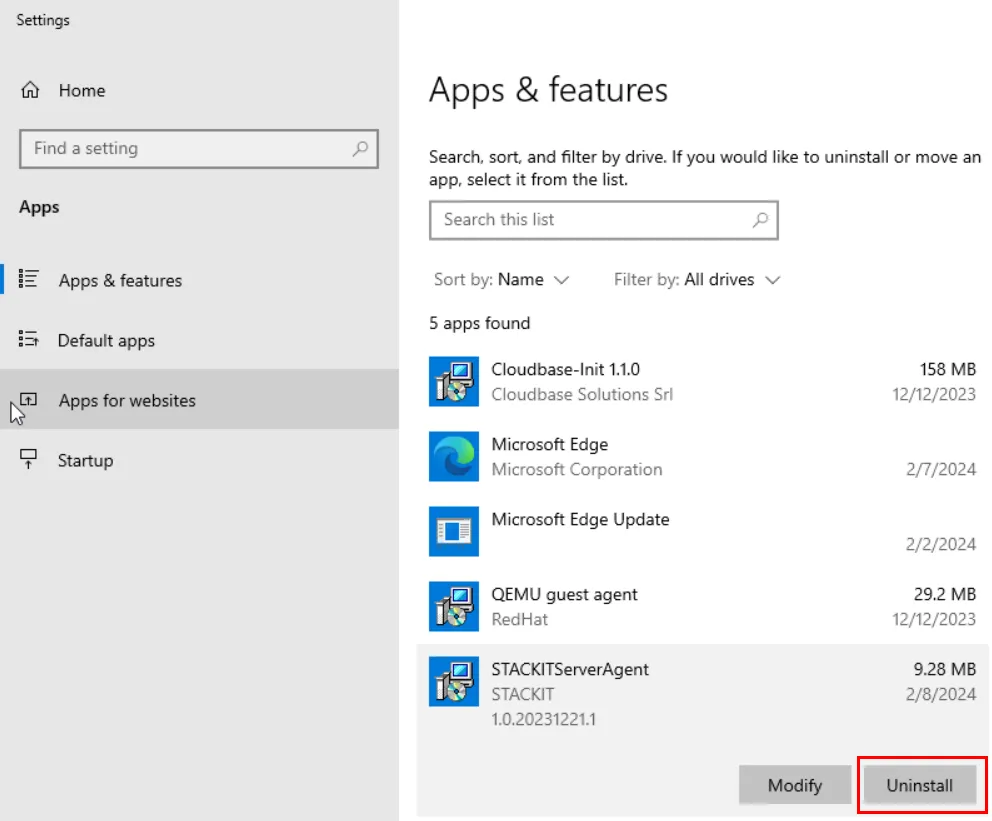
- Bestätigen Sie die Deinstallation im nächsten Popup.
- Stellen Sie sicher, dass der komplette Ordner
C:\Program Files (x86)\STACKIT\STACKITServerAgentgelöscht wird. Falls nach der Deinstallation noch Dateien übrig sind, löschen Sie bitte den gesamten Ordner manuell. - Installieren Sie den STACKIT Server Agent, wie hier beschrieben: Server Agent über Portal installieren
- Deinstallieren und installieren Sie den STACKIT Server Agent in einem Durchgang mit einem der folgenden Befehle, je nach verwendetem Linux-Typ:
Debian-basiert (z. B. Debian, Ubuntu, Linux Mint):
Abschnitt betitelt „Debian-basiert (z. B. Debian, Ubuntu, Linux Mint):“apt remove -y stackit-server-agent && dpkg -i /tmp/stackit-server-agent.debFedora/RedHat-basiert:
Abschnitt betitelt „Fedora/RedHat-basiert:“yum remove stackit-server-agent -y && yum localinstall /tmp/stackit-server-agent.rpm -y