Repository-Berechtigungen
Zuletzt aktualisiert am
Wenn Sie Mitwirkende einladen, Ihrem Repository beizutreten, oder wenn Sie Teams für Ihre Organisation erstellen, müssen Sie entscheiden, was jeder Mitwirkende/jedes Team tun darf. Sie können Teams unterschiedliche Berechtigungsstufen für jede Einheit (z. B. Issues, PRs, Wiki) zuweisen.
Repository-Sichtbarkeit
Abschnitt betitelt „Repository-Sichtbarkeit“Die Sichtbarkeit Ihrer Repositories hängt von der Sichtbarkeit Ihres Profils sowie davon ab, ob Sie ein Repository als privat markiert haben.
- Wenn die Sichtbarkeit Ihres Profils auf Eingeschränkt (Limited) eingestellt ist, sind alle Ihrer nicht-privaten Repositories nur für eingeloggte Benutzer sichtbar.
- Wenn die Sichtbarkeit Ihres Profils auf Öffentlich (Public) eingestellt ist, werden alle Ihrer nicht-privaten Repositories allen angezeigt.
- Wenn Sie nicht möchten, dass jemand (außer Ihren Mitwirkenden) Ihre Repositories sieht, markieren Sie Ihr Repository als Privat (Private). Die Sichtbarkeit Ihres Profils kann in den Datenschutzeinstellungen (Privacy settings) geändert werden.
Mitwirkende
Abschnitt betitelt „Mitwirkende“Es gibt vier Berechtigungsstufen: Lesen (Read), Schreiben (Write), Administrator (Administrator) und Eigentümer (Owner). Standardmäßig ist die Person, die ein Repository erstellt, ein Eigentümer. Die folgende Tabelle gibt einen Überblick darüber, was Mitwirkende tun dürfen, wenn ihnen jede dieser Berechtigungsstufen gewährt wird:
|
| Aufgabe | Lesen | Schreiben | Admin | Eigentümer |
|---|---|---|---|---|
| Repository anzeigen, klonen und pullen | ✅ | ✅ | ✅ | ✅ |
| Pull-Requests beitragen | ✅ | ✅ | ✅ | ✅ |
| Pull-Requests, zu denen beigetragen wurde, pushen/aktualisieren | ✅ | ✅ | ✅ | ✅ |
| Direkt in das Repository pushen | ❌ | ✅ | ✅ | ✅ |
| Pull-Requests zusammenführen (Merge) | ❌ | ✅ | ✅ | ✅ |
| Issues und Kommentare moderieren/löschen | ❌ | ✅ | ✅ | ✅ |
| Force-Push/Verlauf neu schreiben (falls aktiviert) | ❌ | ✅ | ✅ | ✅ |
| Mitwirkende zum Repository hinzufügen/entfernen | ❌ | ❌ | ✅ | ✅ |
| Branch-Einstellungen konfigurieren (schützen/Schutz aufheben, Force-Push aktivieren) | ❌ | ❌ | ✅ | ✅ |
| Repository-Einstellungen konfigurieren (Wiki, Issues, PRs, Releases aktivieren, Profil aktualisieren) | ❌ | ❌ | ✅ | ✅ |
| Repository-Einstellungen in der Gefahrenzone konfigurieren (Eigentümerschaft übertragen, Wiki-Daten / Repository löschen, Repository archivieren) | ❌ | ❌ | ❌ | ✅ |
Die Berechtigungen für Teams sind konfigurierbar. Sie können festlegen, auf welche Repositories ein Team Zugriff hat; daher können Sie für jede Einheit (Code-Zugriff, Issues, Releases) eine andere Berechtigungsstufe festlegen. Jede Einheit ist mit einer dieser 3 Berechtigungsstufen konfiguriert:
- Kein Zugriff: Mitglieder können diese Einheit weder anzeigen noch andere Aktionen daran vornehmen.
- Lesen: Mitglieder können die Einheit anzeigen und Standardaktionen für diese Einheit ausführen.
- Schreiben: Mitglieder können die Einheit anzeigen und Schreibaktionen für diese Einheit ausführen. Wenn ein Team mit Administratorzugriff konfiguriert ist, können Sie Einheiten nicht ändern. Das Team erhält Admin-Berechtigungen (Siehe die Admin-Spalte unter Mitwirkende).
Benutzer blockieren
Abschnitt betitelt „Benutzer blockieren“Das Blockieren eines anderen Benutzers kann notwendig werden, wenn dieser böswillig handelt oder Ihr Repository mit Spam überzieht (zum Beispiel durch Hinzufügen unerwünschter Kommentare in Issues). Wenn Sie einen Benutzer blockieren, benachrichtigt STACKIT Git diesen nicht explizit, er kann jedoch durch eine Interaktion mit Ihnen erfahren, dass er blockiert ist.
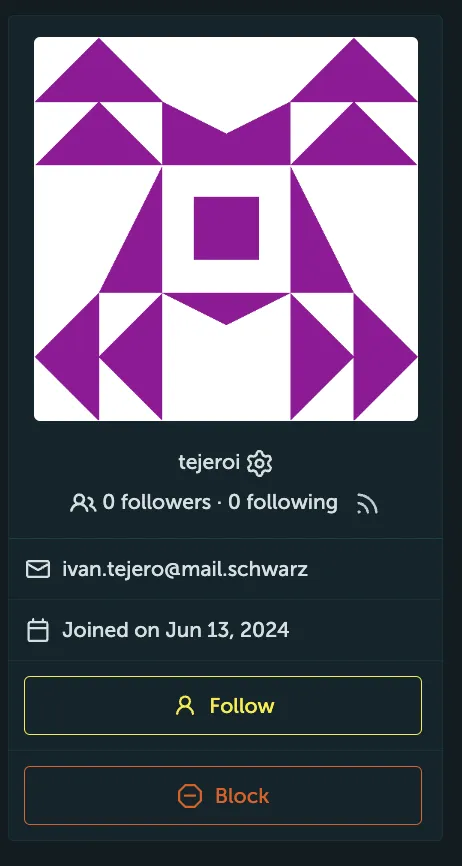
- Navigieren Sie zur Profilseite des Benutzers, den Sie blockieren möchten.
- Klicken Sie auf die Schaltfläche Blockieren (Block).
Ein Pop-up wird angezeigt.
- Bitte lesen Sie sorgfältig, was das Blockieren eines Benutzers impliziert, und wenn Sie die Implikationen akzeptieren, klicken Sie auf Ja (Yes).
Liste der blockierten Benutzer und Freigabe
Abschnitt betitelt „Liste der blockierten Benutzer und Freigabe“- Um die Liste der von Ihnen blockierten Benutzer anzuzeigen, navigieren Sie in der oberen rechten Ecke zu Ihrem Benutzerprofil und klicken Sie auf Einstellungen (Settings).
- Wählen Sie Blockierte Benutzer (Blocked Users) im Menü.
Dadurch gelangen Sie zu der Seite, auf der die von Ihnen blockierten Benutzer aufgelistet sind. - Um jemanden freizugeben (Unblock), klicken Sie auf die Schaltfläche Freigeben neben seinem Namen.