Skip to content

Create a new instance

Within a created project, create a new server by clicking on Create server. This opens the configuration wizard.

A screenshot of the STACKIT cloud platform interface. The main navigation on the left shows Server highlighted and selected under the COMPUTING category. The primary action visible in the top-right corner of the content area is a bright yellow button labeled "+ Create server".

  • Enter a name for your server under General information.
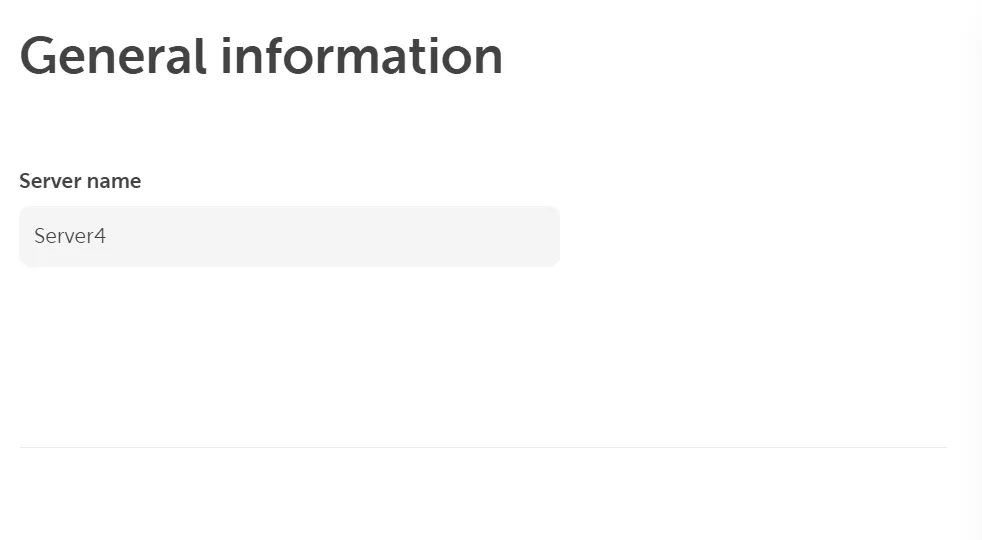
    A screenshot from a server creation interface showing the "General information" section. A text input field is labeled "Server name" and contains the pre-filled value "Server4".
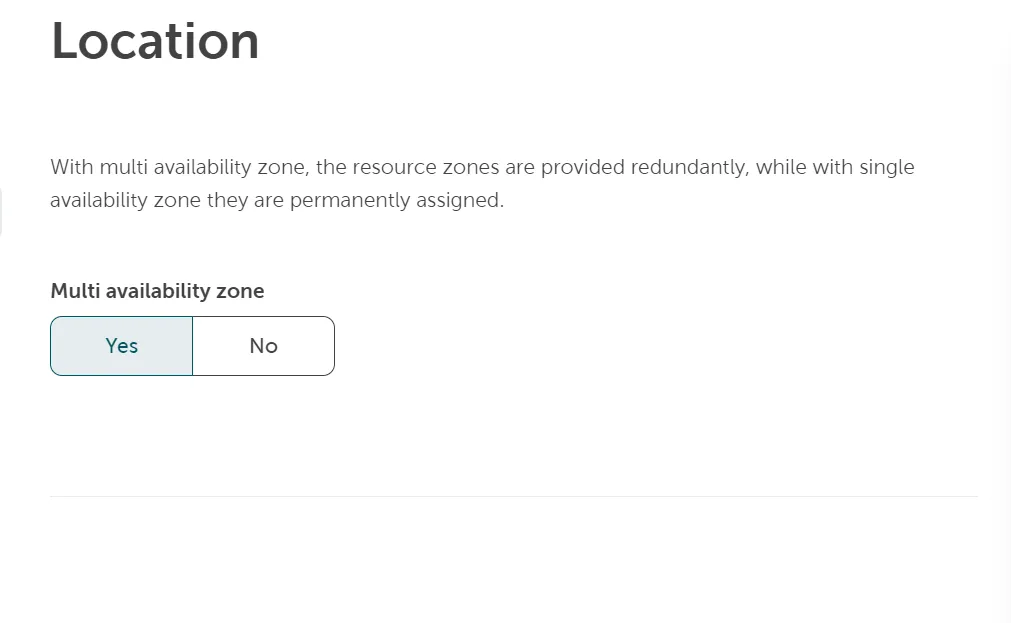
  • Set the location of your new server. If you want to have redundancy by location, you can find more information regarding the Regions and availability zones. A screenshot of the server creation process in the "Location" section. The text explains, "With multi availability zone, the resource zones are provided redundantly, while with single availability zone they are permanently assigned." Below this, the option "Multi availability zone" is presented with two toggle buttons: "Yes" (selected) and "No".
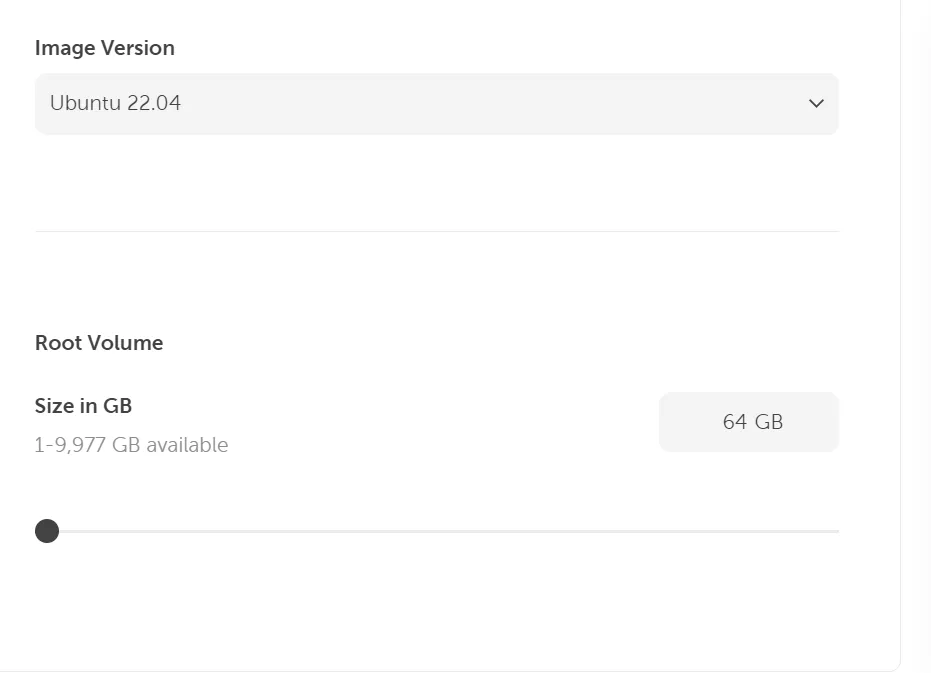
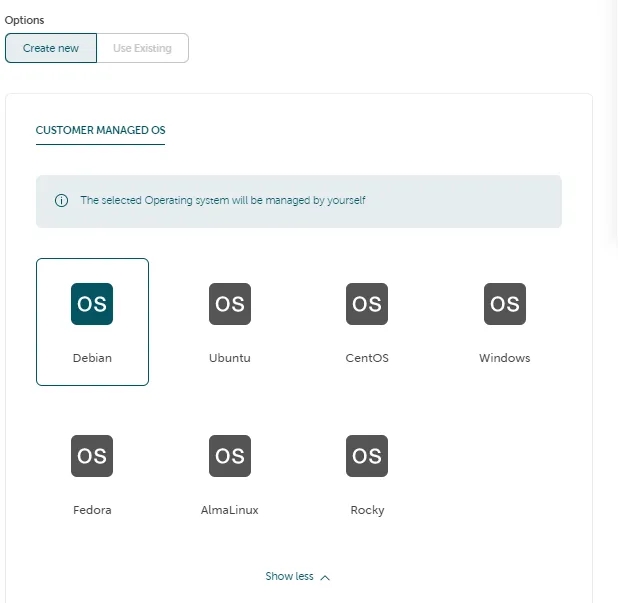
  • Select the desired operating system and version from the list. A screenshot of the "Options" panel for selecting an Operating System (OS). It has two tabs: "Create new" (selected) and "Use Existing." Under the heading "CUSTOMER MANAGED OS", an information box states, "The selected Operating system will be managed by yourself." Seven OS options are displayed as icons labeled "OS": Debian (selected), Ubuntu, CentOS, Windows, Fedora, AlmaLinux, and Rocky. A screenshot of the Disk configuration section. It shows a dropdown labeled "Image Version" with "Ubuntu 22.04" selected. Below that, under "Root Volume", there's a setting for "Size in GB" with a range of "1-9,977 GB available." A slider is visible, and the current value is set to "64 GB".
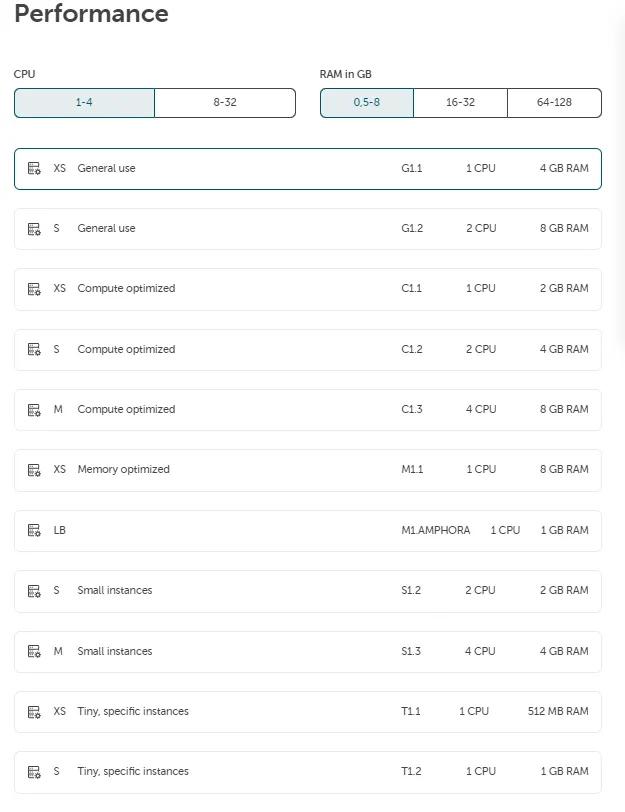
  • Select the desired flavor below depending on the required performance. This includes the number of virtual CPUs, maximum usable RAM and hard disk storage capacity. The flavors are grouped by different use cases (General use, Processor Optimized, RAM optimized and Small packages). Within the groupings, select the desired size (XS to XL). See: Machine types A screenshot showing the "Performance" configuration section for server sizing. It features selection buttons for CPU ("1-4" selected, "8-32") and RAM in GB ("0.5-8" selected, "16-32", "64-128"). Below are various predefined instance types listed, including: XS General use (G1.1, 1 CPU, 4 GB RAM), S General use (G1.2, 2 CPU, 8 GB RAM), and several Compute optimized, Memory optimized, Small instances, and Tiny, specific instances options.
  • Additional storage volumes can be added to the hard disk storage via Disk volumes, which can be easily attached to the server. See: Block Storage.

The next step is to configure the network.

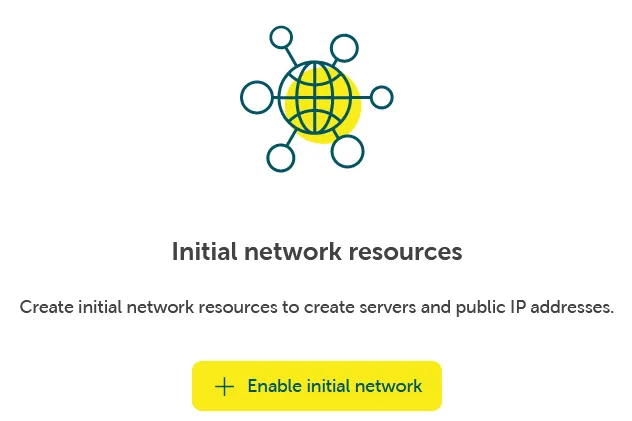
If a network is not already available to provide the server, a network environment can be created using Networking → Network → Enable initial network.
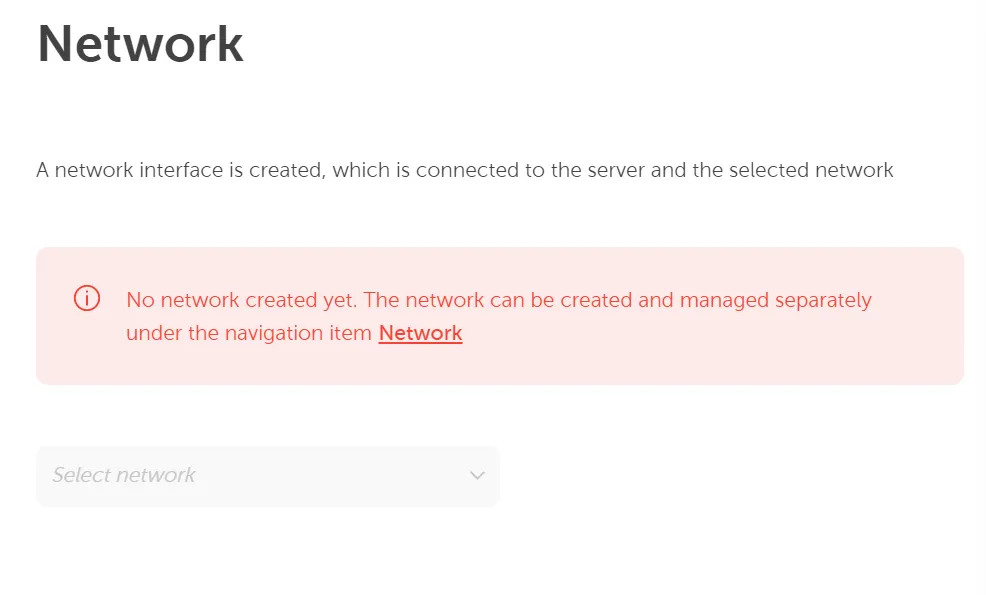
A screenshot of the "Network" configuration section. A red error box is prominently displayed with the message: "No network created yet. The network can be created and managed separately under the navigation item Network" (with "Network" as a clickable link). Below the error, a dropdown field is present, currently showing "Select network".

An interface screen titled "Initial network resources". An icon featuring a yellow and green globe connected to four circular nodes by teal lines is displayed above the title. The text beneath reads, "Create initial network resources to create servers and public IP addresses." A prominent yellow button at the bottom says "+ Enable initial network".

If a network is already created in this project, you can select it from the list.

A public IP address can be easily added if you already have existing ones by clicking Use existing public IP. Or you can create and assign such addresses via Networking → Network → Public IP → Create public IP on the project level. The server can be reached from outside via this address. This is described in detail here: Create public IP address.
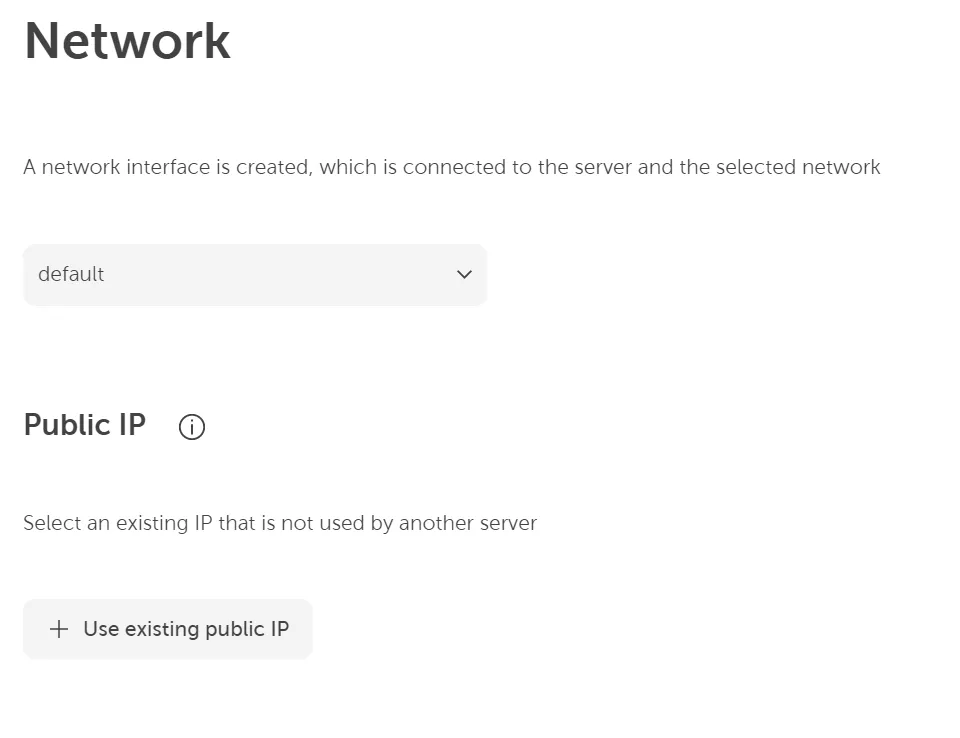
A screenshot of the "Network" configuration section for creating a server. Text explains, "A network interface is created, which is connected to the server and the selected network." A dropdown is shown with "default" selected. Under the "Public IP" section, an information icon and text prompt the user to "Select an existing IP that is not used by another server." A button is available to "+ Use existing public IP".

Finally, you can give initial credentials to the server so that you can authenticate and log in to the server afterwards (e.g., via SSH). Two options are available here:

SSH key: Clicking on Add new allows you to store a public SSH key, so you can log in to the server via SSH using the private counterpart.

User authentication: If you want to connect to the server via web console, you need initial user password credentials, as no SSH key can be used here. Create credentials by clicking on Add. You can use these credentials e.g. for the web console (see Access your server using web console).
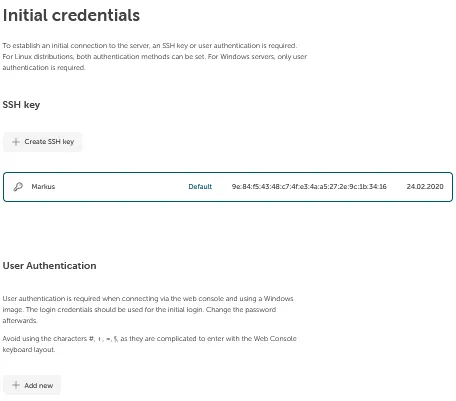
A screenshot of the "Initial credentials" setup section. The introductory text explains the need for an SSH key or user authentication. The section is divided into "SSH key" and "User Authentication". Under SSH key, there is a button to "+ Create SSH key" and an existing key named "Markus" is listed with its fingerprint and creation date (24.02.2020). The User Authentication section provides a description of its purpose for web console login and a button to "+ Add new" user authentication.

If the server is configured as desired, it can be created by clicking on Order fee-based. After a few seconds, the new instance should appear under the Server tab with the status Running. The VM is then already started.