Configure a Server Backup Management Service
Last updated on
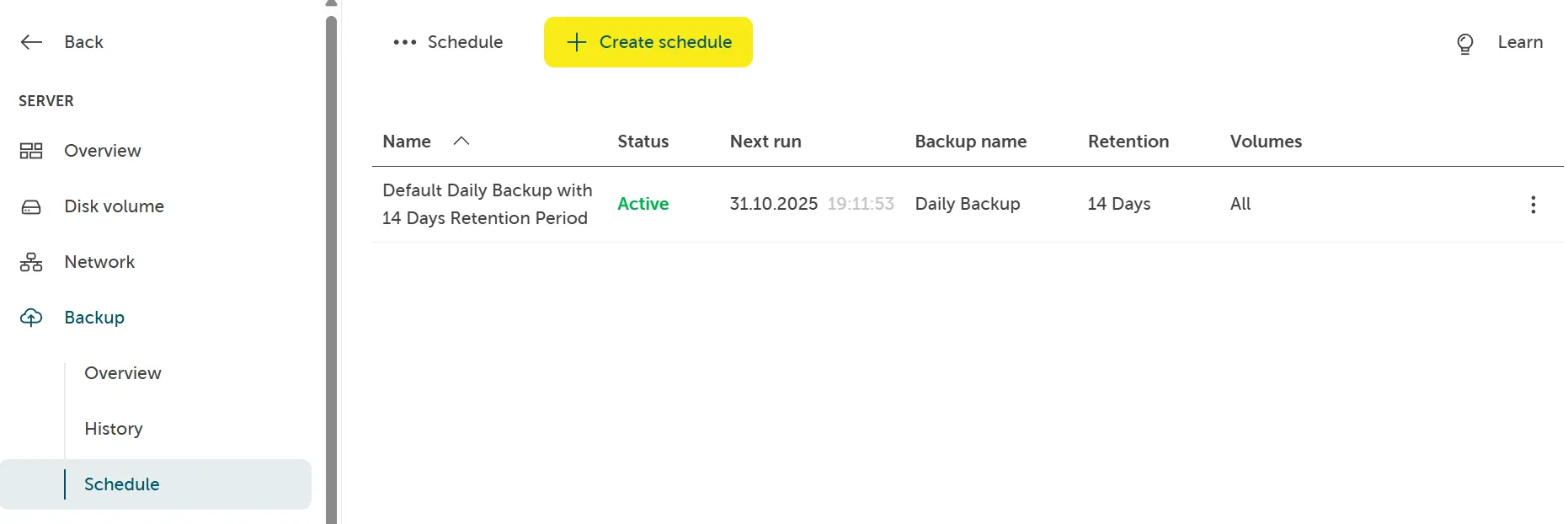
View current backup schedules
Section titled “View current backup schedules”On the backup schedule page, you can view all currently created backup schedules. If there is no existing backup schedule, please check the steps below how to create it.
Create a backup schedule
Section titled “Create a backup schedule”If you haven’t activated the default schedule after enabling the Server Backup Management Service or you need an additional custom schedule, you can create one by following the steps below.
In the STACKIT Portal go to Server > Backup > Schedule and click the button Create Schedule.
Schedule
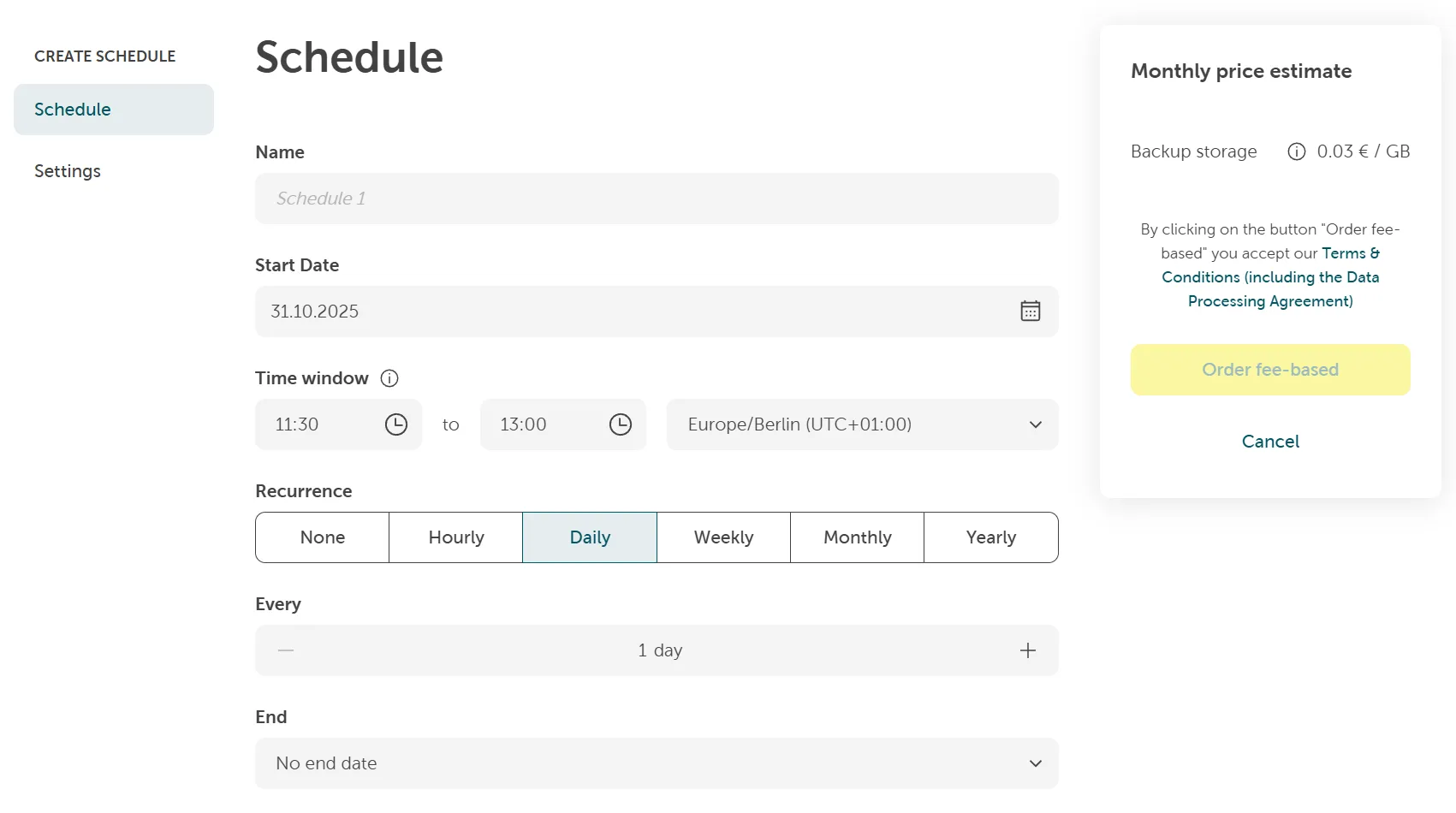
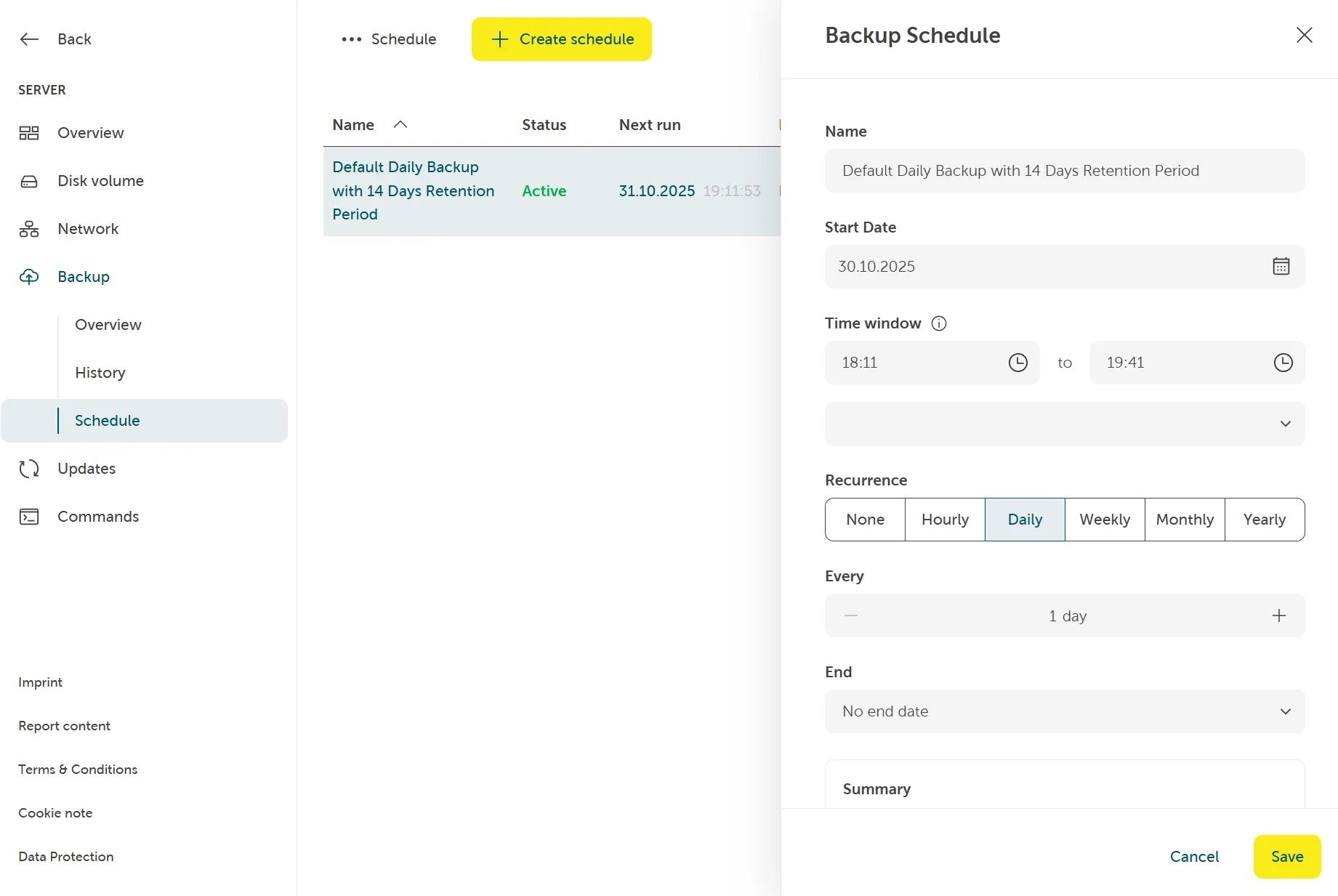
Section titled “Schedule”Custom backup schedules can be created with specific start time and recurrence settings. You can create hoURLy, daily, weekly, monthly and yearly schedules. Advanced schedules like every last weekday of the month are also possible.
Settings
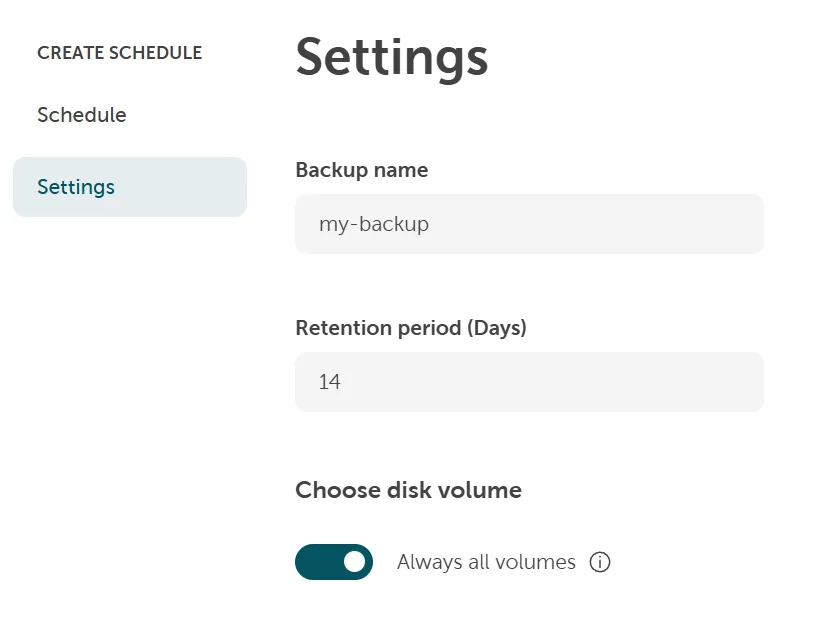
Section titled “Settings”On the schedule creation page navigate to Settings and set:
- Backup Name: The name which will be visible on the backup history page.
- Retention period: The number of days for which you want to keep the backups created with this schedule.
- Volumes: Volumes which should be backed up by the recurring schedule. When Always all volumes option is activated, and you attach or detach volumes to this server, they will be automatically included or excluded from the backed up volumes. If you want to backup specific volume (i.e. Root), you can deactivate the Always all volumes toggle and can select the volumes which want to be backed up with this schedule.
Edit a backup schedule
Section titled “Edit a backup schedule”In order to edit an existing schedule, click on it and use the fields on the right:
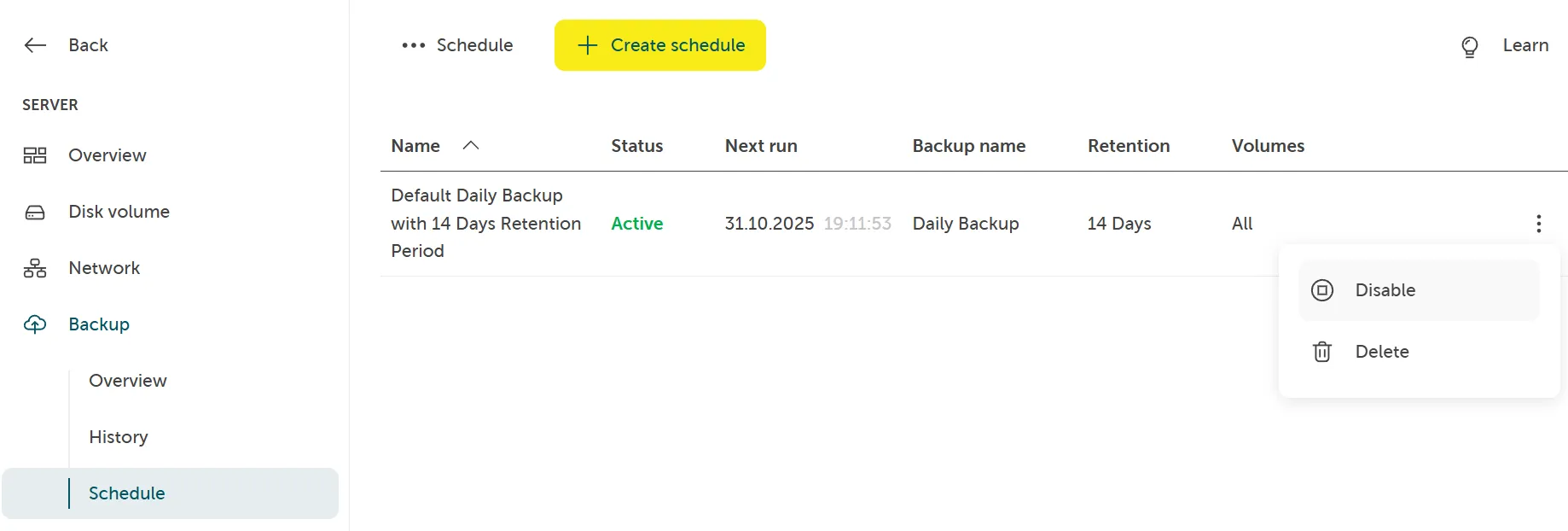
Disable a backup schedule
Section titled “Disable a backup schedule”If you want to temporary disable backup schedule, you can do this from the context menu by clicking Disable: