Einen Server Update Management Service bestellen
Zuletzt aktualisiert am
Damit der STACKIT Server Update Management Service auf Ihrer VM aktiviert werden kann, muss der STACKIT Server Agent auf dem Server installiert sein. Dieser Agent spielt eine entscheidende Rolle bei der Automatisierung der Verwaltung und Installation der neuesten Windows-Updates auf Ihrer Maschine gemäß den von Ihnen definierten Zeitplänen.
Wenn Sie weitere Informationen zur Bereitstellung des STACKIT Server Agent benötigen, lesen Sie bitte diese Dokumentation: Server Agent via STACKIT API installieren.
Sobald der STACKIT Server Agent für Ihren Server aktiviert ist, gibt es zwei Möglichkeiten, den Server Update Management Service zu aktivieren: Im Rahmen der Bestellung eines neuen Servers oder nach der Servererstellung auf einer bestehenden Maschine.
Voraussetzungen
Abschnitt betitelt „Voraussetzungen“Um die auf dieser Seite beschriebenen Schritte ausführen zu können, müssen die folgenden Bedingungen erfüllt sein:
- Ihr Unternehmen verfügt über ein Kundenkonto.
(Siehe: Kundenkonto erstellen) - Sie haben ein Benutzerkonto, sind im STACKIT Portal angemeldet und sind einem Abrechnungskonto und Projekt beigetreten oder haben diese erstellt. (Siehe: Erste Schritte)
- Sie verfügen über die erforderlichen Berechtigungen (Siehe: STACKIT IAM verstehen)
- Sie haben einen Server in Ihrem Projekt.
(Siehe: Erstellen einer neuen Linux-Instanz, Erstellen eines neuen Windows Server) - Der STACKIT Server Agent ist auf Ihrem Server installiert und wird ausgeführt.
(Siehe: Server Agent via STACKIT API installieren)
Option 1: Aktivierung des Server Update Management Service im Rahmen der Serverbestellung
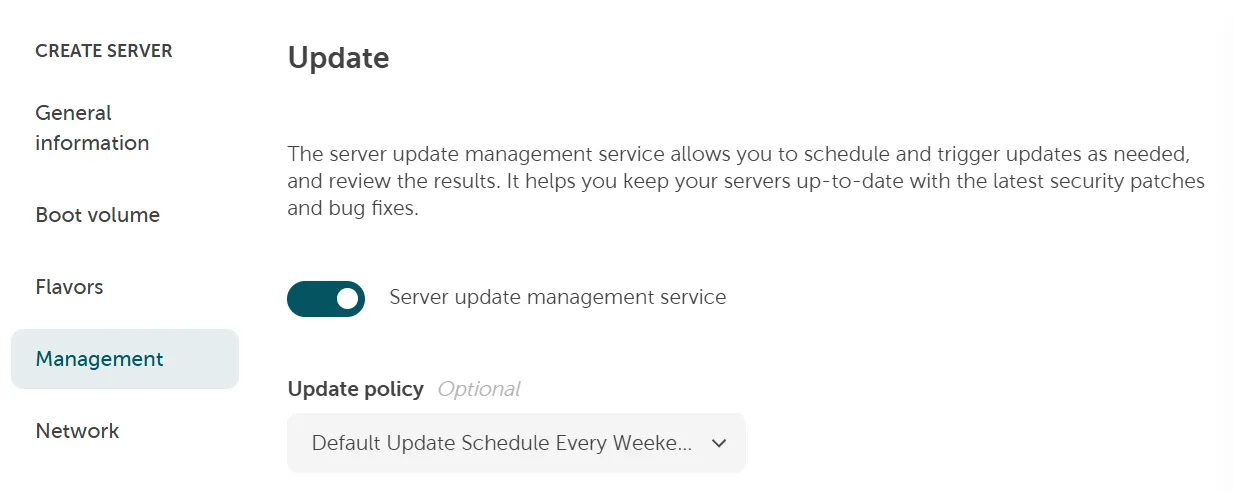
Abschnitt betitelt „Option 1: Aktivierung des Server Update Management Service im Rahmen der Serverbestellung“Nachdem Sie Ihren Servernamen, das Betriebssystem / die Version und den Maschinentyp ausgewählt und den STACKIT Server Agent aktiviert haben, können Sie den Server Update Management Service und die Update-Richtlinie, die den Standard-Update-Zeitplan festlegt, im Abschnitt Verwaltung aktivieren.
Option 2: Aktivierung des Server Update Management Service nach der Servererstellung auf einem bestehenden Server
Abschnitt betitelt „Option 2: Aktivierung des Server Update Management Service nach der Servererstellung auf einem bestehenden Server“Falls Sie bereits einen Server haben, auf dem der Server Update Management Service noch nicht aktiviert ist, folgen Sie den unten genannten Schritten:
-
Stellen Sie sicher, dass der STACKIT Server Agent auf diesem Server installiert ist und ausgeführt wird.
-
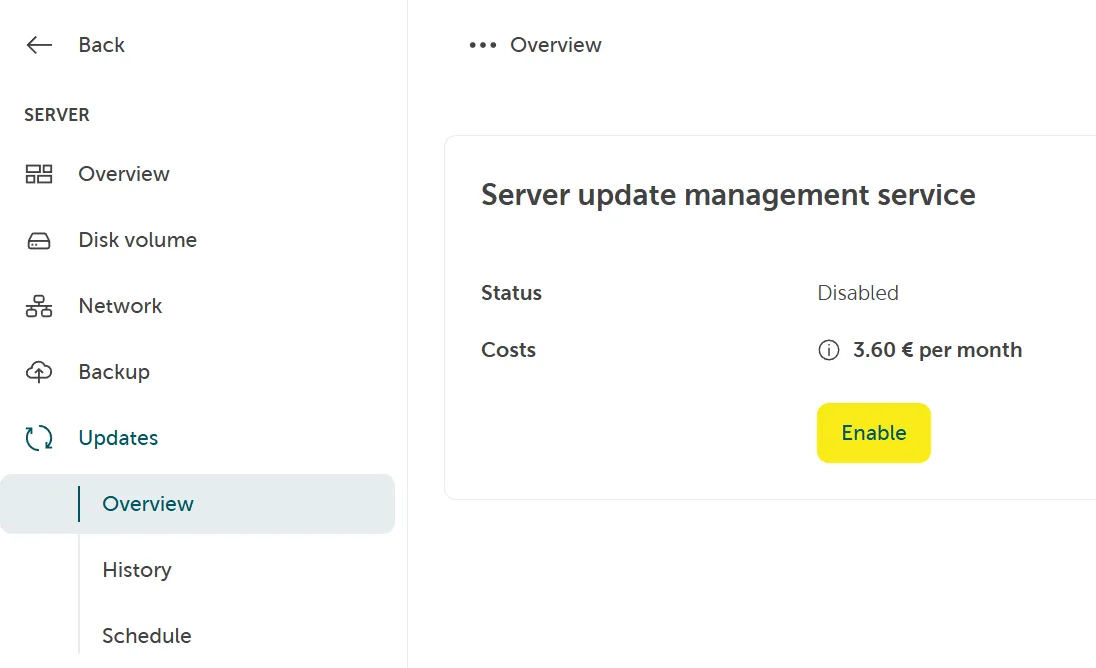
Wählen Sie den Server in der Serverübersicht aus und navigieren Sie zu Updates > Übersicht.
-
Klicken Sie auf Aktivieren.
-
Wählen Sie Ihre Update-Richtlinie aus.
-
Klicken Sie auf Kostenpflichtig bestellen.