Verbindung zu einem vorhandenen Windows Server herstellen
Zuletzt aktualisiert am
Mit dem Server verbinden
Abschnitt betitelt „Mit dem Server verbinden“Es gibt derzeit zwei Hauptmethoden, um eine Verbindung zu dem neu erstellten Server herzustellen:
Über die Web-Konsole
Abschnitt betitelt „Über die Web-Konsole“Sobald Ihr Server verfügbar ist, können Sie im STACKIT Portal zu seinen Menüoptionen (drei vertikale Punkte auf der rechten Seite) navigieren und die Web-Konsole wählen, um seinen Status einzusehen (zum Beispiel während eines Neustarts).
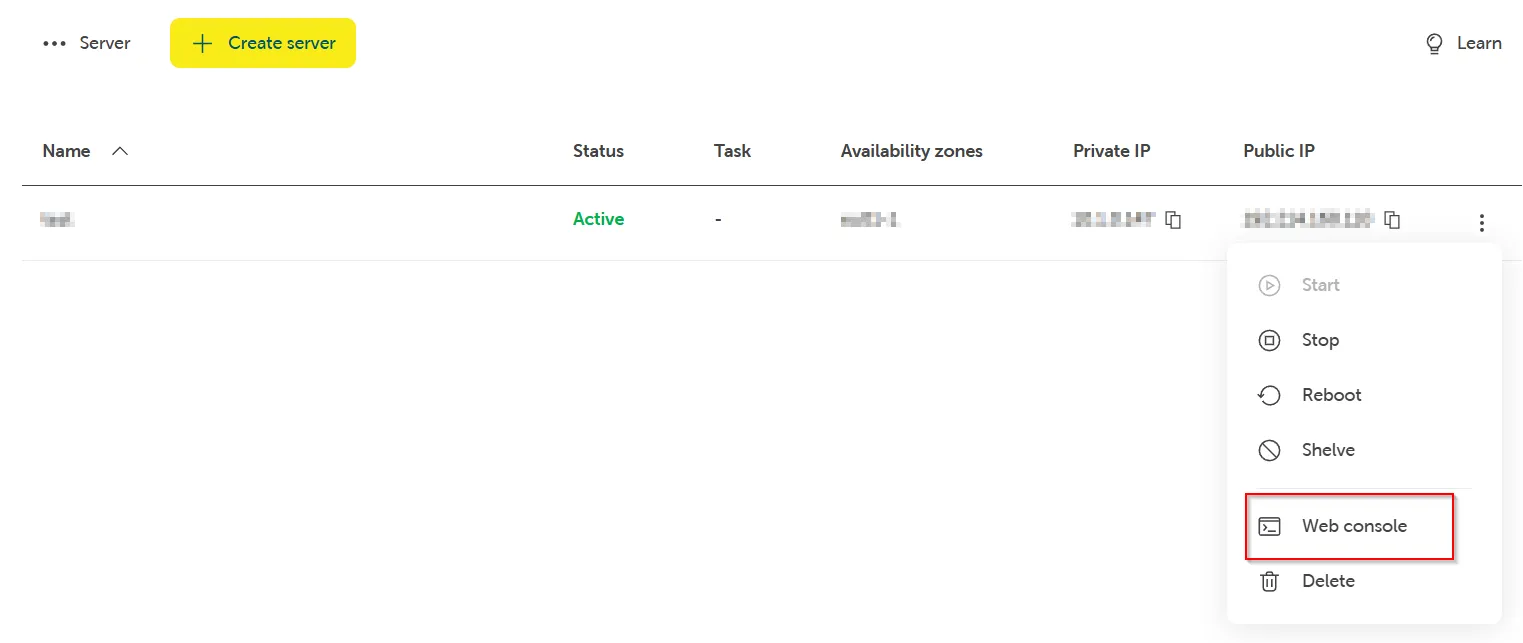
Alternativ können Sie die STACKIT IAAS-API verwenden, um die Konsolen-URL abzurufen. Stellen Sie sicher, dass Sie die korrekte projectId und serverId angeben:
GET [https://iaas.api.eu01.stackit.cloud/v1/projects/](https://iaas.api.eu01.stackit.cloud/v1/projects/){projectId}/servers/{serverId}/consoleWenn Sie den Server gerade erst erstellt haben, besteht die Möglichkeit, dass Sie sich mit seiner Remote-Konsole verbunden haben, bevor alle Aufgaben nach der Installation durchgeführt wurden.
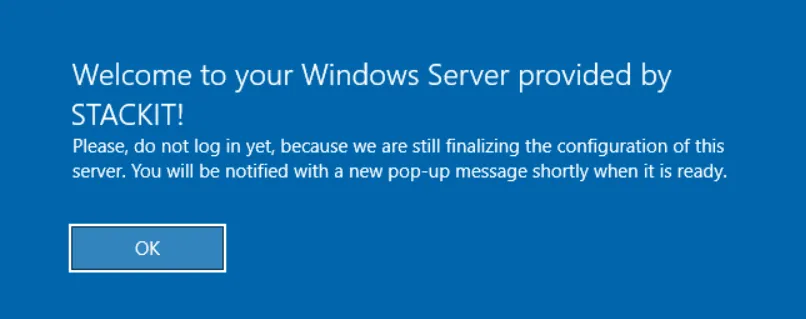
In diesem Fall werden Sie, wenn Sie versuchen, die Schaltfläche Strg+Alt+Entf im Konsolenfenster zum Anmelden zu klicken, über die laufende Finalisierung informiert:
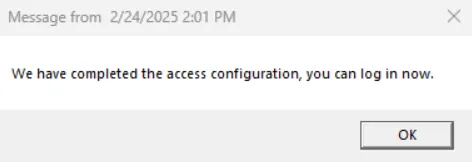
Nach einigen Sekunden informiert Sie ein neues Pop-up-Fenster darüber, dass alle erforderlichen Schritte abgeschlossen wurden und Sie sich sicher am Server anmelden können:
Zu diesem Zeitpunkt ist die Server-Konfiguration abgeschlossen und Sie können mit der Nutzung des Servers beginnen:
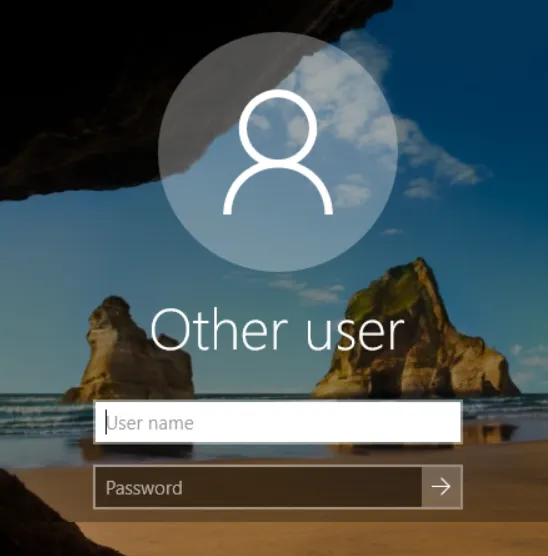
Über eine Standard-RDP-Verbindung
Abschnitt betitelt „Über eine Standard-RDP-Verbindung“Remotedesktopverbindungen sind standardmäßig bereits konfiguriert und interne Netzwerkverbindungen zwischen Hosts im selben lokalen Netzwerk sind zulässig.
Wenn Sie jedoch über das Internet auf den Server zugreifen möchten, müssen Sie zuerst eine öffentliche IP-Adresse erstellen und diese Ihrem Server zuweisen. In einem zweiten Schritt muss auch die zusätzliche Schutzschicht in Form von Sicherheitsgruppen entsprechend angepasst werden, um den Zugriff aus dem Internet zu ermöglichen.
Weitere Informationen finden Sie auf der Seite Sicherheitsgruppen und -regeln erstellen und verwalten. for further details.
Abhängig von dem Netzwerk, von dem aus Sie die Verbindung versuchen, können Sie entweder die private oder die öffentliche IP-Adresse des Servers verwenden.

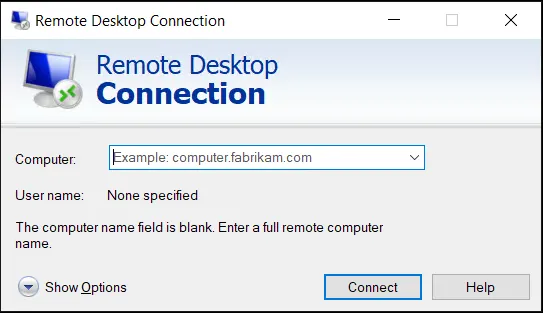
Sobald die Voraussetzungen erfüllt sind, können Sie einen Standard-RDP-Client (z. B. Remotedesktopverbindung) verwenden, um sich per Fernzugriff am Server anzumelden: