How to push traces
Last updated on
This guide explains the process of setting up application tracing, configuring the export via an OpenTelemetry Collector, and ensuring secure transmission to the STACKIT Observability Instance.
Prerequisites
Section titled “Prerequisites”Before you can push traces to your STACKIT Observability instance, ensure you have the following ready:
- Technical Credentials: You need a technical
<USERNAME>and<PASSWORD>for your specific instance. If you haven’t generated these yet, follow the instructions in our Authentication Overview.
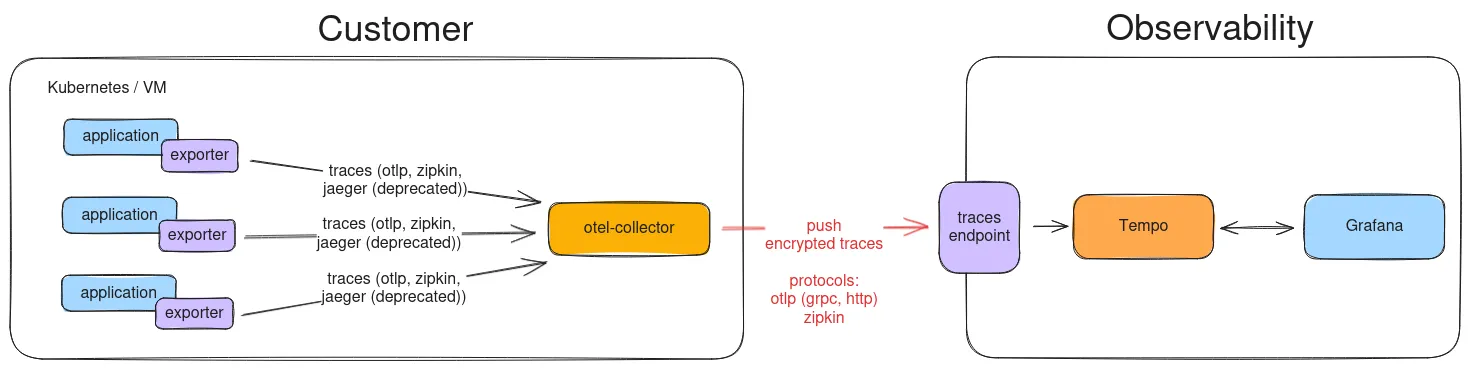
The Tracing Data Flow
Section titled “The Tracing Data Flow”Traces follow a specific path from your application to the Tempo backend:
- Application: Your code uses the OpenTelemetry (OTel) SDK/Exporter (often called “Agent”) to instrument operations (spans).
- OTel Exporter: The application’s OTel Exporter sends these spans over the local network to the next component.
- OpenTelemetry Collector (Recommended): The Collector receives the traces, batch-processes them, and applies secure authentication before forwarding them over the internet.
- STACKIT Observability Endpoint (Tempo): The Collector pushes the traces to the specific Tempo ingestion endpoint in your STACKIT instance, where they are stored and indexed for querying.
This model allows your application to focus on its business logic while delegating security and reliable delivery to the Collector.
Integrating Tracing into Your Application
Section titled “Integrating Tracing into Your Application”To instrument your application, you must integrate the appropriate OpenTelemetry SDK for your programming language. This SDK captures the tracing data.
For detailed language-specific integration guides, please refer to the official OpenTelemetry documentation: OpenTelemetry Language Documentation
Configuring Authentication (Base64 Encoding)
Section titled “Configuring Authentication (Base64 Encoding)”For security, the trace endpoint is protected by Basic Authentication. The OTLP Exporter in the Collector requires your technical credentials to be base64-encoded in the format username:password.
Encoding Format:
BASE64(<USERNAME>:<PASSWORD>)
You can perform this encoding using a standard command-line tool. Make sure to replace <USERNAME> and <PASSWORD> with your generated technical credentials:
echo -n "<USERNAME>:<PASSWORD>" | base64Copy the resulting base64 string, as you will need it for the authorization header in the Collector configuration.
OpenTelemetry Collector Configuration Example
Section titled “OpenTelemetry Collector Configuration Example”The Collector is the preferred method for managing authentication and exporting data. This example shows a simple configuration (collector-config.yaml) that receives traces via OTLP and forwards them securely to the STACKIT endpoint using the required Basic Auth headers.
collector-config.yaml
Section titled “collector-config.yaml”receivers: # Accepts OTLP traces from your applications (e.g., on port 4317) otlp: protocols: grpc: http: jaeger: protocols: thrift_compact:
processors: # Batches traces for efficient transmission batch:
exporters: debug: verbosity: detailed sampling_initial: 5 sampling_thereafter: 200
# Forwards traces to the STACKIT Observability Instance (Tempo) otlp: # IMPORTANT: Copy the full "OTLP ingest" URL for Traces from the STACKIT Portal. # This URL already includes the required port 443 for OTLP/gRPC over TLS. endpoint: "<TRACING_ENDPOINT_URL>" headers: # Required for Basic Authentication authorization: "Basic <BASE64_ENCODED_CREDENTIALS>" tls: # Use TLS if your endpoint requires it (highly recommended and standard) insecure: false
service: pipelines: traces: receivers: [otlp, jaeger] processors: [batch] exporters: [otlp]docker-compose.yaml
Section titled “docker-compose.yaml”The OTel collector can be run via Docker as follows. It mounts your local configuration file into the container.
services: otel-collector: image: otel/opentelemetry-collector:latest # image: otel/opentelemetry-collector-contrib container_name: otel-collector command: - --config=/etc/otel-config.yaml volumes: - ./conf/collector-config.yaml:/etc/otel-config.yaml:roBy implementing this Collector configuration, you ensure your traces are reliably collected, batched, authenticated, and securely delivered to your Tempo instance.
Check Traces
Section titled “Check Traces”Now you can select the data source Tempo in Grafana. The recommended way to index the traces is to use the data source Tempo and log the traces in Loki. This assigns the traces to the logs in terms of time.