View, create and delete secrets
Last updated on
Prerequisites
Section titled “Prerequisites”In order to follow the steps described on this page, the following conditions need to be met:
- Your organization has a customer account. (See: Create a customer account)
- You have a user account with the necessary permissions. (See: Getting started, Understand STACKIT IAM)
- You have a project in your customer account. (See: Getting started)
- You are logged into the Portal. (See: Getting started)
- You have at least one running instance of a Secret Manager. (See: Create a service in Secrets Manager)
View secrets
Section titled “View secrets”-
In the STACKIT Portal navigate to Security > Secrets Manager.
-
Select the desired Secrets Manager instance from the list.
-
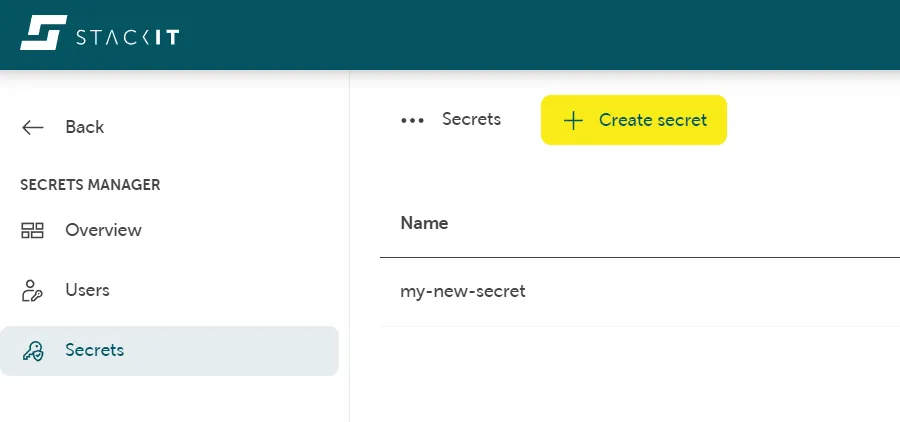
In the sidebar on the left navigate to Secrets.
The list of secrets inside this Secrets Manager instance is displayed:
-
To show the details of a secret in the list, click the respective list entry.
- The tab Overview shows general information and contains the buttons for creating a new version as well as disabling and destroying the current version.
- In the tab Users you can create and view the users, who have access to your secrets.
- The tab Secret data contains a list of the key-value-pairs of the secret. Clicking a key-value-pair shows its content in clear text. You can also copy a key or its value to the clipboard.
Create a secret
Section titled “Create a secret”-
Navigate to Security > Secrets Manager and in the list select a Secret Manager.
-
Via the sidebar menu on the left select Secrets.
-
Click the button Create secret.
-
Enter a name for the secret.
-
Optional
Click Add key value and specify one or more key-value-pairs. You can also do that later.
-
View the pricing information, the terms and conditions and click the button Order fee-based to create the secret.
-
The secret has been created and is now listed in Secrets.
Delete a secret
Section titled “Delete a secret”-
Make sure the secret is no longer needed.
-
Delete the secret.
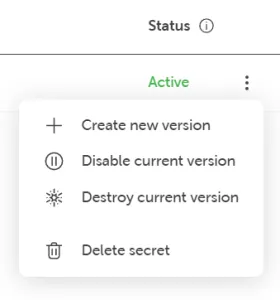
Navigate to Security > Secrets Manager and select a Secrets Manager instance from the list. In the sidebar menu on the left click on Secrets. Via the context menu of a secret you can select Delete secret:
-
Confirm the deletion.
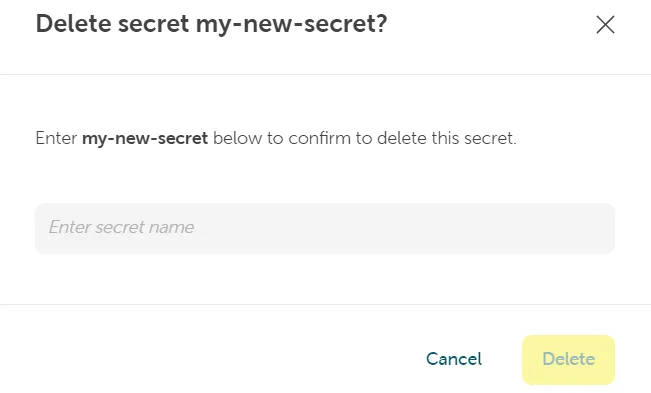
Enter the name and click the button Delete to confirm the deletion of the Secret:
-
The secret is now deleted permanently.