Löschen eines Windows Server
Zuletzt aktualisiert am
Einen STACKIT Windows Server über das STACKIT Portal löschen
Abschnitt betitelt „Einen STACKIT Windows Server über das STACKIT Portal löschen“Wenn Sie einen STACKIT Windows Server (Windows Server) über das STACKIT Portal (Portal) löschen möchten, navigieren Sie bitte zur Server-Übersicht, klicken Sie auf die drei vertikalen Punkte auf der rechten Seite und wählen Sie „Löschen”:
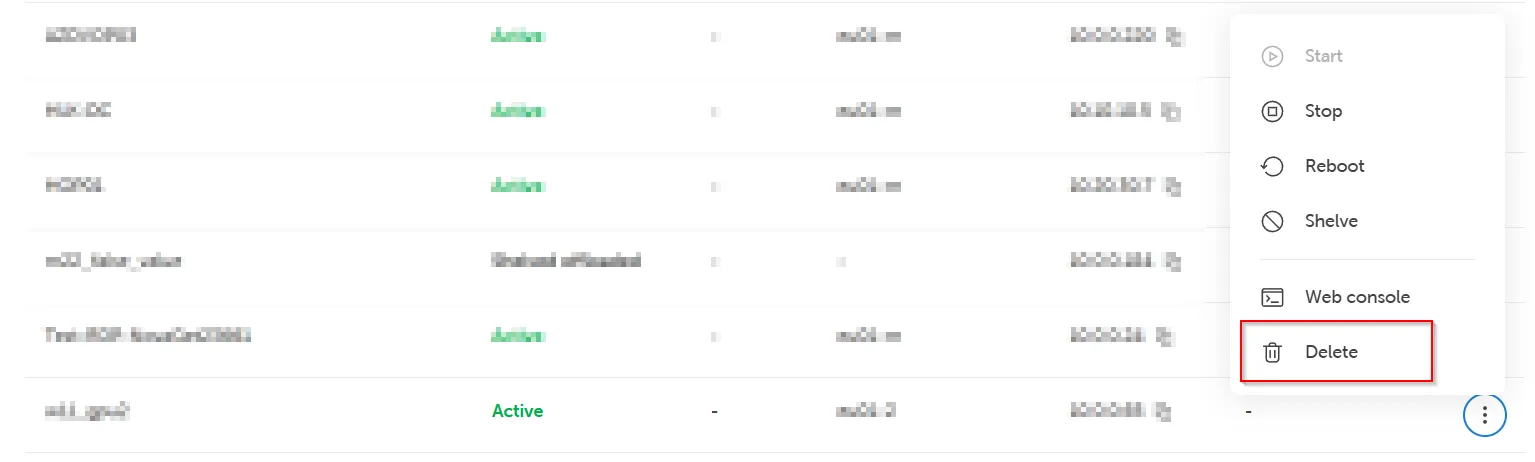
Warten Sie, bis der Vorgang abgeschlossen ist. Zu diesem Zeitpunkt wird Ihr Managed Service für diesen Server beendet.
Wiederherstellen eines Backup-Volumes eines gelöschten Windows Server
Abschnitt betitelt „Wiederherstellen eines Backup-Volumes eines gelöschten Windows Server“Wenn Sie ein Backup eines Volumes wiederherstellen möchten, nachdem der Server gelöscht wurde, finden Sie die verfügbaren Sicherungen und volumeBackups.ids in Ihrem Projekt über die STACKIT IAAS API oder die STACKIT CLI (CLI) und können diese verwenden, um die Sicherung in neuen Volumes wiederherzustellen.
Falls Sie kein Volume angeben, auf dem die Sicherung wiederhergestellt werden soll, wird aus dieser Sicherung ein neues Volume erstellt. Dieses können Sie anschließend verwenden, um einen neuen Server aus diesem Volume zu erstellen.
Alle vorhandenen Volume-Sicherungen, die mit dem gelöschten Server verknüpft sind, bleiben bestehen, bis ihr Ablaufdatum erreicht ist. Falls gewünscht, können Sie solche Sicherungen auch manuell über die STACKIT IAAS API löschen.
Weitere Informationen finden Sie in unserem Abschnitt FAQ & Bekannte Probleme.