Konfigurieren eines OpenSearch-Services
Zuletzt aktualisiert am
Sie können Ihre Services verwalten über
- die Cloud-Foundry-CLI oder die Cloud-Foundry-UI (Stratos), siehe Cloud Foundry
- die STACKIT CLI oder das STACKIT Portal, siehe die folgenden Anleitungen.
Services müssen immer in der Umgebung verwaltet werden, in der sie erstellt wurden.
- Services, die im STACKIT Portal/CLI erstellt wurden, müssen auch im STACKIT Portal/CLI verwaltet/gelöscht werden. Im STACKIT Portal werden einige (nicht alle) Services angezeigt, die mit Cloud Foundry erstellt wurden (insbesondere die Flex-Datenbanken).
- Services, die mit Cloud Foundry erstellt wurden, müssen mit Cloud Foundry verwaltet/gelöscht werden. Services, die in Cloud Foundry als Teil einer Organisation mit dem Präfix
stackit_portal_prod_angezeigt werden, wurden mit dem STACKIT Portal/CLI erstellt und müssen dort verwaltet werden, auch wenn in Cloud Foundry Verwaltungsoptionen angezeigt werden.
Übersicht der Service-Details
Abschnitt betitelt „Übersicht der Service-Details“- Besuchen Sie das STACKIT Portal
- Klicken Sie in der Seitenleiste auf OpenSearch.
- Wählen Sie die OpenSearch-Instanz aus, die Sie verwalten möchten.
Im Tab Overview werden alle Informationen zur ausgewählten Service-Instanz angezeigt.
-
Um die Cloud-Foundry-CLI zu verwenden, müssen Sie sich zunächst an Ihrem STACKIT-Projekt-Endpunkt anmelden. Lesen Sie Mit Cloud Foundry interagieren, um Unterstützung bei der Anmeldung zu erhalten.
-
Öffnen Sie die OpenSearch-Service-Details mit dem
cf-Befehl:Parameter Bedeutung Beispiel SERVICE_INSTANCE Der Name Ihres Services. my-cf-opensearch-service Terminal-Fenster cf service [SERVICE_INSTANCE]Beispiel:
Terminal-Fenster cf service my-cf-opensearch-serviceErgebnis:
Terminal-Fenster name: my-cf-opensearch-serviceguid: cd8c...type: managedbroker: a9s-searchoffering: appcloud-opensearch2plan: opensearch-1.4.10-singletags:offering tags: searchenginedescription: OpenSearch is a fully managed search and analytics engine.documentation:dashboard url: https://a9s-search-dashboard.system.01.cf.eu01.stackit.cloud/service-instances/cd8c...Showing status of last operation:status: create succeededmessage:started: 2025-11-20T08:19:34Zupdated: 2025-11-20T08:19:34ZShowing bound apps:There are no bound apps for this service instance.Showing sharing info:This service instance is not currently being shared.Showing upgrade status:Upgrades are not supported by this broker.Im Tab Overview werden alle Informationen zur ausgewählten Service-Instanz angezeigt.
Zugangsdaten verwalten
Abschnitt betitelt „Zugangsdaten verwalten“-
Navigieren Sie zu OpenSearch und wählen Sie die Instanz aus.
-
Wählen Sie im Menü Credentials.
Im Tab Credentials sind alle aktiven Zugangsdaten aufgelistet. Sie können neue Zugangsdaten über die Schaltfläche Create Credentials erstellen oder bestehende Zugangsdaten über das Kontextmenü löschen.
Um die Cloud-Foundry-CLI zu verwenden, müssen Sie sich zunächst an Ihrem STACKIT-Projekt-Endpunkt anmelden. Lesen Sie Mit Cloud Foundry interagieren, um Unterstützung bei der Anmeldung zu erhalten.
Erstellen Sie einen OpenSearch-Service-Key mit dem cf-Befehl:
| Parameter | Bedeutung | Beispiel |
|---|---|---|
| SERVICE_INSTANCE | Der Name Ihres Services. Sie können einen beliebigen Namen wählen. | my-cf-opensearch-service |
| KEY_NAME | Der Name Ihres Service-Keys. Sie können einen beliebigen Namen wählen. | my-key |
cf create-service-key [SERVICE_INSTANCE] [KEY_NAME]Beispiel:
cf create-service-key my-cf-opensearch-service my-keyRufen Sie mit dem cf-Befehl eine Liste aller verfügbaren OpenSearch-Service-Keys ab:
| Parameter | Bedeutung | Beispiel |
|---|---|---|
| SERVICE_INSTANCE | Der Name Ihres Services. | my-cf-opensearch-service |
cf service-keys [SERVICE_INSTANCE]Beispiel:
cf service-keys my-cf-opensearch-serviceErgebnis:
name last operation messagemy-key create succeededmy-key2 create succeeded...Rufen Sie mit dem cf-Befehl einen OpenSearch-Service-Key ab:
| Parameter | Bedeutung | Beispiel |
|---|---|---|
| SERVICE_INSTANCE | Der Name Ihres Services. | my-cf-opensearch-service |
| KEY_NAME | Der Name Ihres Service-Keys. Sie können einen beliebigen Namen wählen. | my-key |
cf service-key [SERVICE_INSTANCE] [KEY_NAME]Beispiel:
cf service-key my-cf-opensearch-service my-keyErgebnis:
{ "credentials": { "cacrt": "-----BEGIN CERTIFICATE-----\n...\n-----END CERTIFICATE-----\n", ... "password": "a9s53...", "username": "a9sc0..." }}Sie können eine Verbindung zu OpenSearch-Instanzen mit jedem REST-API-Tool herstellen. Im Abschnitt Getting Started wird beschrieben, wie Sie Ihre Verbindung testen.
Löschen Sie einen OpenSearch-Service-Key mit dem cf-Befehl:
| Parameter | Bedeutung | Beispiel |
|---|---|---|
| SERVICE_INSTANCE | Der Name Ihres Services. | my-cf-opensearch-service |
| KEY_NAME | Der Name Ihres Service-Keys. | my-key |
cf delete-service-key [SERVICE_INSTANCE] [KEY_NAME]Beispiel:
cf delete-service-key my-cf-opensearch-service my-keyBestätigen Sie das Löschen des Service-Keys, indem Sie y eingeben.
Really delete the service key my-key? [yN]:Dashboard
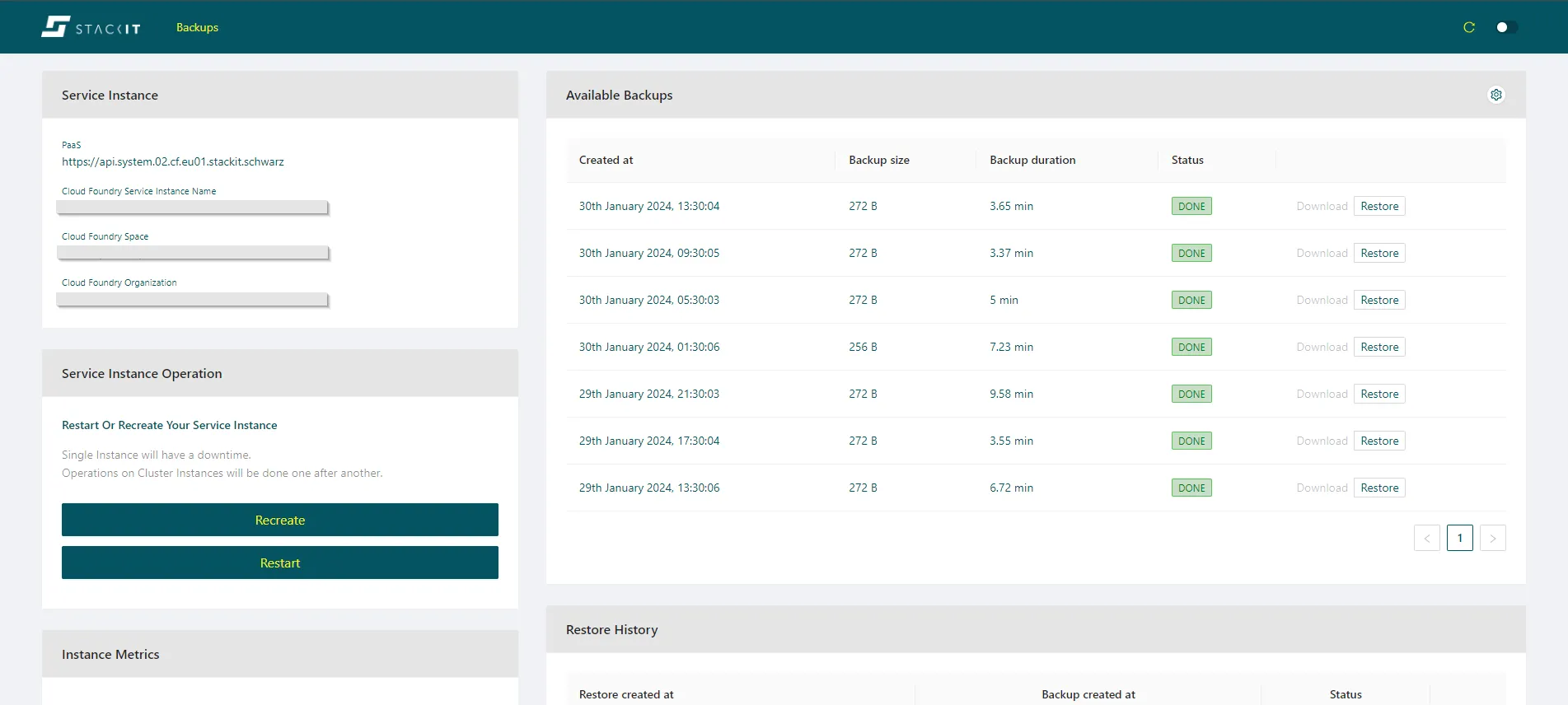
Abschnitt betitelt „Dashboard“Die Services verfügen immer über ein Dashboard, das nach der Erstellung aufgerufen werden kann.
- Besuchen Sie das STACKIT Portal
- Klicken Sie in der Seitenleiste auf OpenSearch.
- Wählen Sie die OpenSearch-Instanz aus, die Sie anzeigen möchten.
Im Tab Overview werden alle Informationen zur ausgewählten Service-Instanz angezeigt.
-
Um die Cloud-Foundry-CLI zu verwenden, müssen Sie sich zunächst an Ihrem STACKIT-Projekt-Endpunkt anmelden. Lesen Sie Mit Cloud Foundry interagieren, um Unterstützung bei der Anmeldung zu erhalten.
-
Öffnen Sie die OpenSearch-Service-Details mit dem
cf-Befehl:Parameter Bedeutung Beispiel SERVICE_INSTANCE Der Name Ihres Services. my-cf-opensearch-service Terminal-Fenster cf service [SERVICE_INSTANCE]Beispiel:
Terminal-Fenster cf service my-cf-opensearch-serviceErgebnis:
Terminal-Fenster ....dashboard url: https://a9s-search-dashboard.system.01.cf.eu01.stackit.cloud/service-instances/cd8c...... -
Öffnen Sie die Dashboard URL