Mit einer Instanz verbinden
Zuletzt aktualisiert am
Voraussetzungen
Abschnitt betitelt „Voraussetzungen“- Sie verfügen über eine laufende Instanz von STACKIT PostgreSQL Flex. Falls nicht, können Sie mit Erstellen und Verwalten von Instanzen beginnen.
- Sie haben einen Benutzer mit den entsprechenden Berechtigungen für die PostgreSQL Flex-Datenbank in Ihrer Instanz. Falls nicht, können Sie unter Erstellen und Verwalten von Benutzern einen erstellen.
Mit Ihrer PostgreSQL Flex-Instanz verbinden
Abschnitt betitelt „Mit Ihrer PostgreSQL Flex-Instanz verbinden“Öffnen Sie nach der Installation eine Shell Ihrer Wahl und verbinden Sie sich mit Ihrer Datenbank. psql unterstützt das Format der Verbindungszeichenfolge. Kopieren Sie die Verbindungszeichenfolge, die Sie im Schritt der Benutzererstellung gespeichert haben, und verwenden Sie diese zusammen mit dem psql-Befehl. Alternativ können Sie die Verbindungszeichenfolge auch selbst zusammenstellen: postgresql://<BENUTZERNAME>:<PASSWORT>@<HOSTNAME>:5432/<DATENBANKNAME>. Verbinden Sie sich nun mit der Datenbank:
psql postgresql://<USERNAME>:<PASSWORD>@<HOSTNAME>:5432/<DATABASE NAME>Wenn Ihre Konsole den Namen Ihrer Datenbank gefolgt von => anzeigt, sind Sie erfolgreich verbunden:
crm=>Drücken Sie Strg + D, um die Verbindung zu schließen und zu Ihrer Eingabeaufforderung zurückzukehren.
pgcli ist ein CLI-Tool für den Zugriff auf die Datenbank. Folgen Sie den Anweisungen auf der Installationsseite von pgcli oder installieren Sie es aus den Quellen Ihres Betriebssystems.
Öffnen Sie nach der Installation eine Shell Ihrer Wahl und verbinden Sie sich mit Ihrer Datenbank. pgcli unterstützt das Format der Verbindungszeichenfolge. Kopieren Sie die Verbindungszeichenfolge, die Sie im Schritt der Benutzererstellung gespeichert haben, und verwenden Sie diese zusammen mit dem pgcli-Befehl. Alternativ können Sie die Verbindungszeichenfolge auch selbst zusammenstellen: postgresql://<BENUTZERNAME>:<PASSWORT>@<HOSTNAME>:5432/<DATENBANKNAME>. Verbinden Sie sich nun tatsächlich mit der Datenbank:
pgcli <Connection String>Die CLI wird mit etwa Folgendem antworten:
Using local time zone Europe/Berlin (server uses Etc/UTC)Use `set time zone <TZ>` to override, or set `use_local_timezone = False` in the configServer: PostgreSQL 17.6 (Ubuntu 17.6-1.pgdg22.04+1)Version: 4.3.0Home: [http://pgcli.com](http://pgcli.com)crm>Drücken Sie Strg + D, um die Verbindung zu schließen und zu Ihrer Eingabeaufforderung zurückzukehren.
PGAdmin 4 ist ein CLI-Tool für den Zugriff auf die Datenbank. Sie können es entweder auf der offiziellen PGAdmin-Website herunterladen oder über die Quellen Ihres Betriebssystems installieren.
-
Öffnen Sie pgAdmin 4 und klicken Sie unter Quick Links auf Add New Server.
-
Ein neues Overlay öffnet sich im Tab General. Geben Sie im Feld Name einen Namen Ihrer Wahl ein.
-
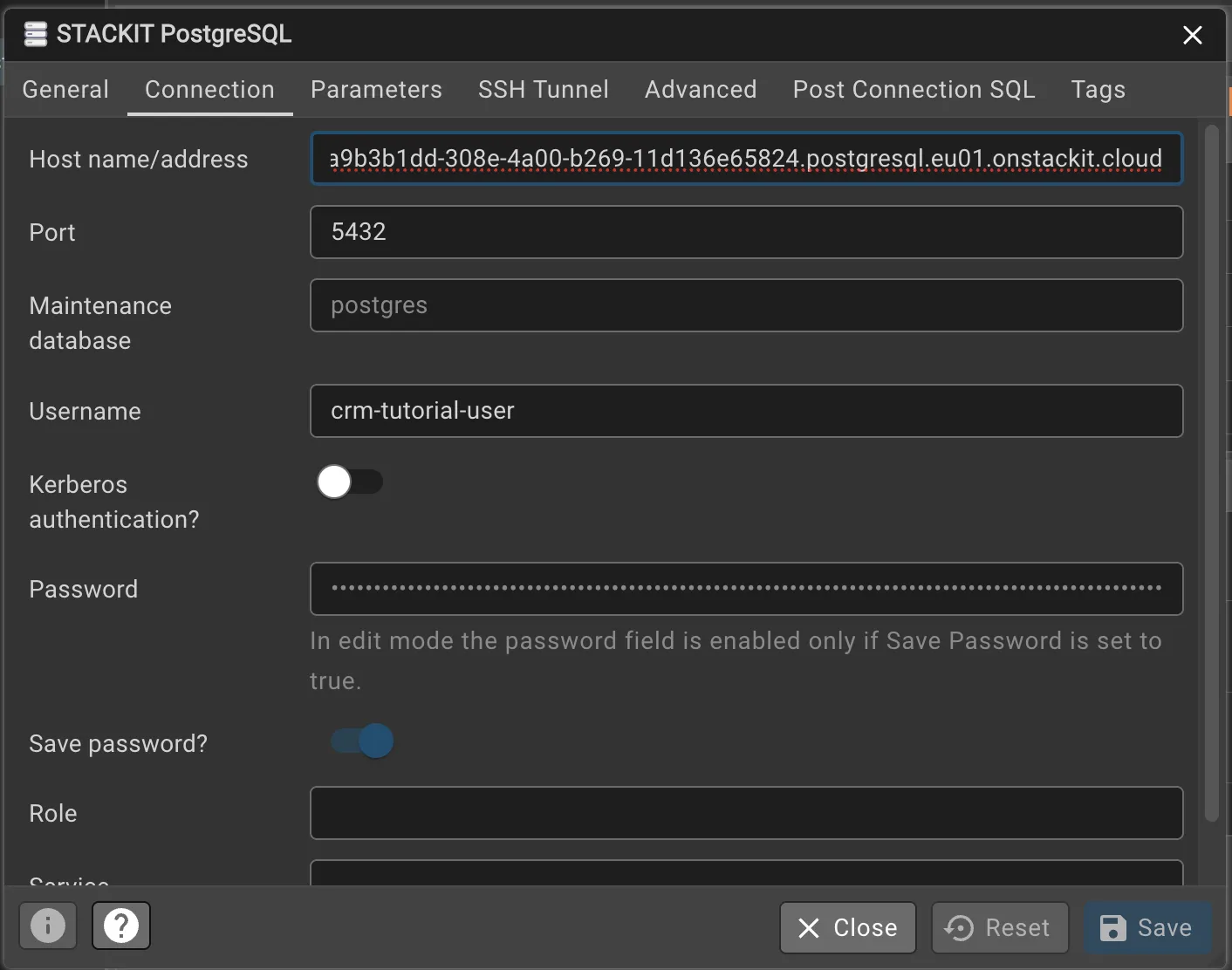
Wechseln Sie in den Tab Connection und geben Sie den Hostnamen und die Zugangsdaten ein: Fügen Sie bei Host name/address den Hostnamen ein, den Sie unter Einen Benutzer erstellen und die Zugangsdaten kopieren kopiert haben.
Verfahren Sie ebenso mit den Feldern Port, Benutzername und Passwort. Lassen Sie alles andere unverändert.
Klicken Sie auf Save.
-
Sobald Sie erfolgreich mit Ihrer Instanz verbunden sind, öffnet sich ein Dashboard.
-
Nachdem Ihr Client eine Verbindung hergestellt hat, öffnen Sie links den Query Tool Workspace und konfigurieren Sie die Verbindung: Wählen Sie unter Existing Server den von Ihnen erstellten Server aus.
Fügen Sie unter Database den Datenbanknamen ein, den Sie unter Datenbank erstellen festgelegt haben.
Möglicherweise müssen Sie das Passwort erneut eingeben. Klicken Sie auf Connect & Open Query Tool. Ein Abfragefenster öffnet sich.