Erstellen, Anzeigen und Löschen von Secrets
Zuletzt aktualisiert am
Voraussetzungen
Abschnitt betitelt „Voraussetzungen“Um die auf dieser Seite beschriebenen Schritte ausführen zu können, müssen die folgenden Bedingungen erfüllt sein:
- Ihr Unternehmen verfügt über ein Kundenkonto. (Siehe: Kundenkonto erstellen)
- Sie verfügen über ein Benutzerkonto mit den erforderlichen Berechtigungen. (Siehe: Erste Schritte, STACKIT IAM verstehen)
- Sie haben ein Projekt. (Siehe: Erste Schritte)
- Sie sind im STACKIT Portal angemeldet. (Siehe: Erste Schritte)
- Sie haben mindestens eine laufende Instanz eines STACKIT Secrets Manager. (Siehe: Einen Service im Secrets Manager erstellen)
Secrets anzeigen
Abschnitt betitelt „Secrets anzeigen“-
Navigieren Sie im STACKIT Portal zu Security > Secrets Manager.
-
Wählen Sie die gewünschte Secrets Manager-Instanz aus der Liste aus.
-
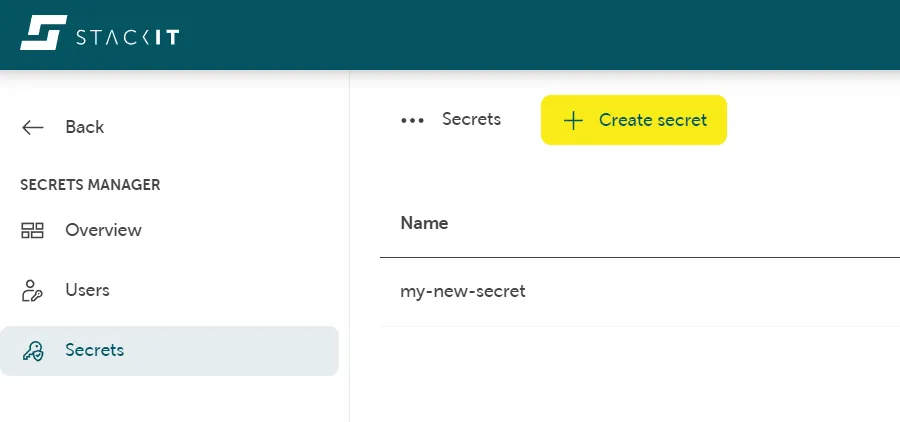
Navigieren Sie in der Sidebar auf der linken Seite zu Secrets.
Die Liste der Secrets innerhalb dieser Secrets Manager-Instanz wird angezeigt:
-
Um die Details eines Secrets in der Liste anzuzeigen, klicken Sie auf den entsprechenden Listeneintrag.
- Der Tab Übersicht zeigt allgemeine Informationen und enthält die Schaltflächen zum Erstellen einer neuen Version sowie zum Deaktivieren und Löschen der aktuellen Version.
- Im Tab Benutzer können Sie die Benutzer erstellen und anzeigen, die Zugriff auf Ihre Secrets haben.
- Der Tab Secret-Daten enthält eine Liste der Schlüsselwert-Paare des Secrets. Durch Klicken auf ein Schlüsselwert-Paar wird dessen Inhalt im Klartext angezeigt. Sie können auch einen Schlüssel oder seinen Wert in die Zwischenablage kopieren.
Ein Secret erstellen
Abschnitt betitelt „Ein Secret erstellen“-
Navigieren Sie zu Security > Secrets Manager und wählen Sie in der Liste einen Secrets Manager aus.
-
Wählen Sie über das Sidebar-Menü auf der linken Seite Secrets aus.
-
Klicken Sie auf die Schaltfläche Secret erstellen.
-
Geben Sie einen Namen für das Secret ein.
-
Optional Klicken Sie auf Schlüsselwert-Paar hinzufügen und geben Sie ein oder mehrere Schlüsselwert-Paare an. Sie können dies auch später tun.
-
Prüfen Sie die Preisgestaltung sowie die Allgemeinen Geschäftsbedingungen und klicken Sie auf die Schaltfläche Kostenpflichtig bestellen, um das Secret zu erstellen.
-
Das Secret wurde erstellt und wird nun unter Secrets aufgeführt.
Ein Secret löschen
Abschnitt betitelt „Ein Secret löschen“-
Stellen Sie sicher, dass das Secret nicht mehr benötigt wird.
-
Löschen Sie das Secret.
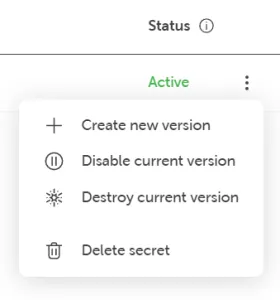
Navigieren Sie zu Security > Secrets Manager und wählen Sie eine Secrets Manager-Instanz aus der Liste aus. Klicken Sie im Sidebar-Menü auf der linken Seite auf Secrets. Über das Kontextmenü eines Secrets können Sie Secret löschen wählen:
-
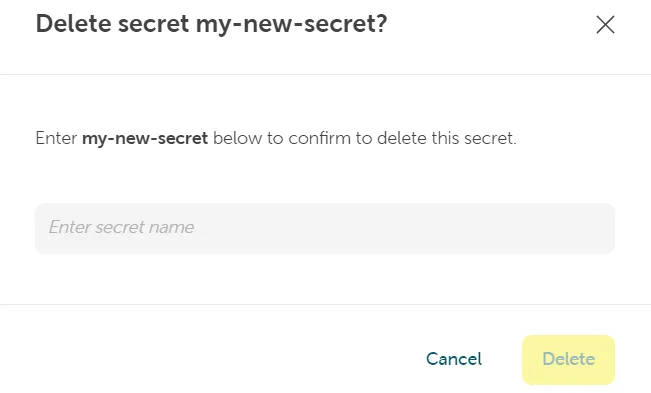
Bestätigen Sie die Löschung.
Geben Sie den Namen ein und klicken Sie auf die Schaltfläche Löschen, um das Löschen des Secrets zu bestätigen:
-
Das Secret ist nun dauerhaft gelöscht.