FOCUS report
State: Beta (GA is planned for H1/2026)
Understanding cloud cost and usage data is a key skill for effective cost management. At STACKIT, we help customers achieve this understanding by providing all cost and usage data in a standardised format: the FinOps Open Cost and Usage Specification (FOCUS). STACKIT currently supports FOCUS version 1.2.
What is FOCUS?
Section titled “What is FOCUS?”“The FinOps Open Cost and Usage Specification (FOCUS) is an open specification that defines clear requirements for billing data generators to produce consistent cost and usage datasets.” (see https://focus.finops.org/what-is-focus/)
Supporting this standard enables customers to integrate STACKIT cost and usage data directly into their well-defined processes and tools.
The FOCUS export provides fundamental data to perform FinOps practices such as:
- Accurate cost allocation: Assigning costs from the resource to the owners, for example teams, products, business units.
- Analysing cost data: Identifying cost trends and drivers.
- Cost monitoring: Setting alerts, tracking budgets, measuring cost metrics.
For more details about FOCUS, see https://focus.finops.org. For more information about FinOps, see https://www.finops.org/.
Feature overview
Section titled “Feature overview”- FOCUS version support: STACKIT supports FOCUS version 1.2
- Column compliance: All columns defined as MUST (mandatory) by the FOCUS specification are supported, ensuring compliance and comprehensive data delivery.
- STACKIT-specific extensions: Additional STACKIT-specific columns are available for enhanced detail and are clearly marked with the prefix
x_. - Reporting frequency: FOCUS reports can be created on a monthly or month-to-date base.
- Report format: The FOCUS report is provided as a compressed CSV file for efficient transfer and storage.
- Scope: Report creation is performed at the billing account level.
Getting started: generate a FOCUS report
Section titled “Getting started: generate a FOCUS report”Now that you understand the benefits of the FOCUS standard, here are the steps to create your first FOCUS report.
Prerequisites
Section titled “Prerequisites”Before you begin, ensure the following are in place:
- An enabled Object Storage service.
- A bucket created within the Object Storage instance.
- Access permissions configured for the Object Storage bucket.
High-level process overview
Section titled “High-level process overview”The process for enabling and receiving the FOCUS report involves the following steps:
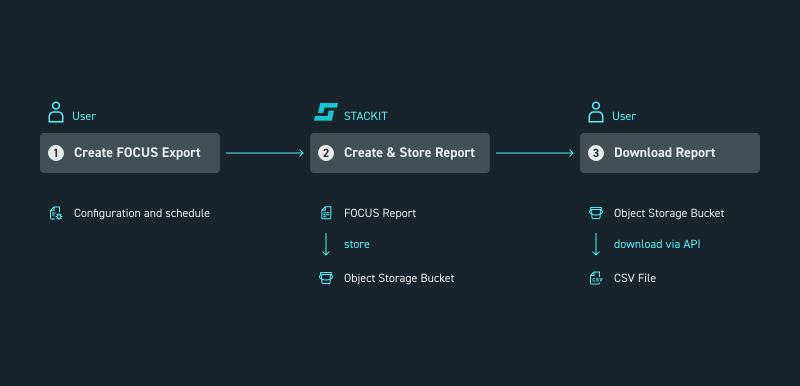
Picture 1: Process to enable the FOCUS report
- Create the FOCUS export schedule.
- STACKIT creates the FOCUS report according to the user’s settings and stores it in the user’s Object Storage.
- Download the report from Object Storage, for example via API.
Create the FOCUS export schedule
Section titled “Create the FOCUS export schedule”To receive the FOCUS report, create a FOCUS export schedule. This defines the parameters for report generation and delivery.
You will need the prerequisites mentioned earlier (Object Storage enabled, bucket created, and access granted).
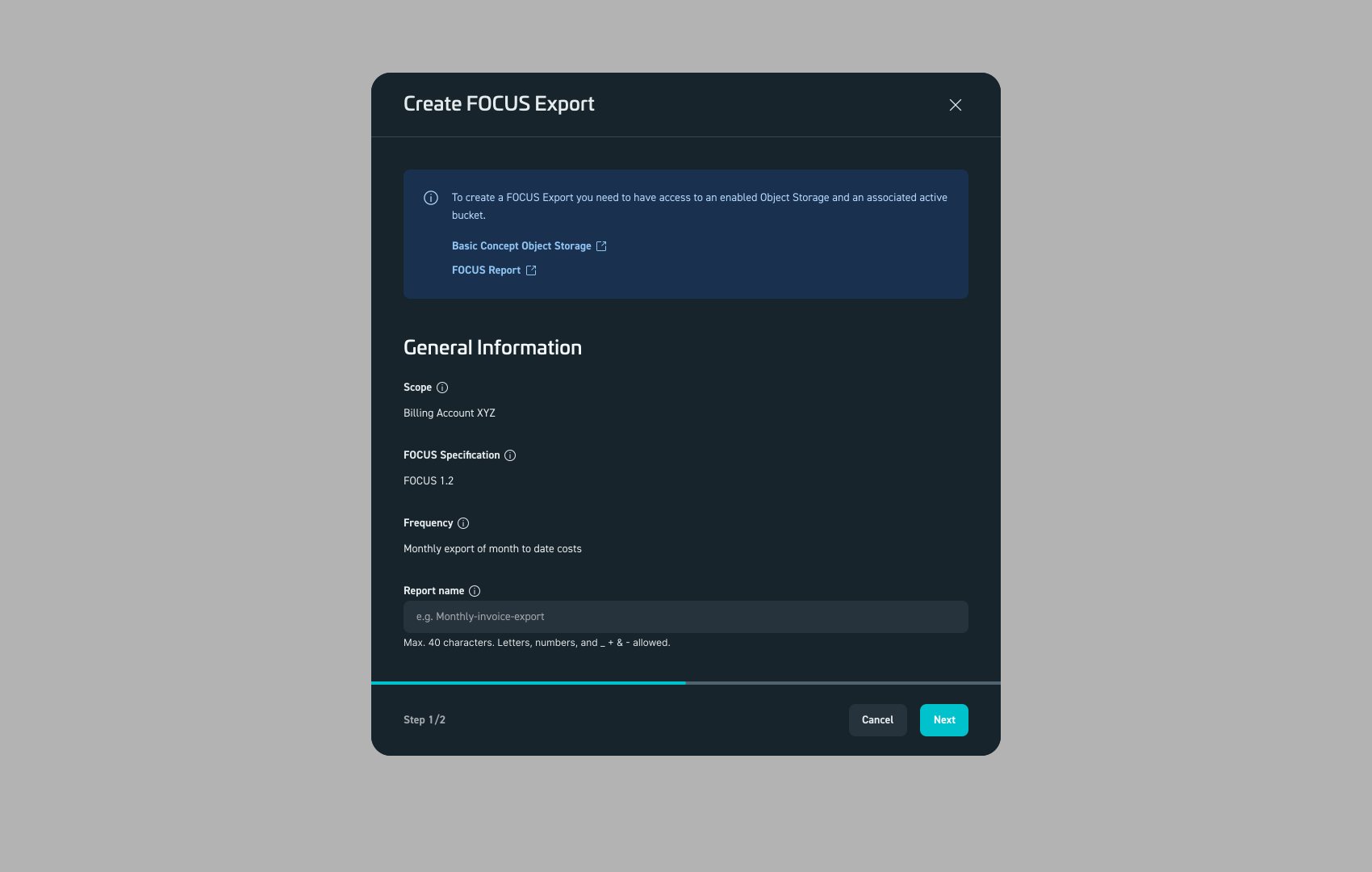
Picture 2: Step 1 – create the schedule for your billing account.
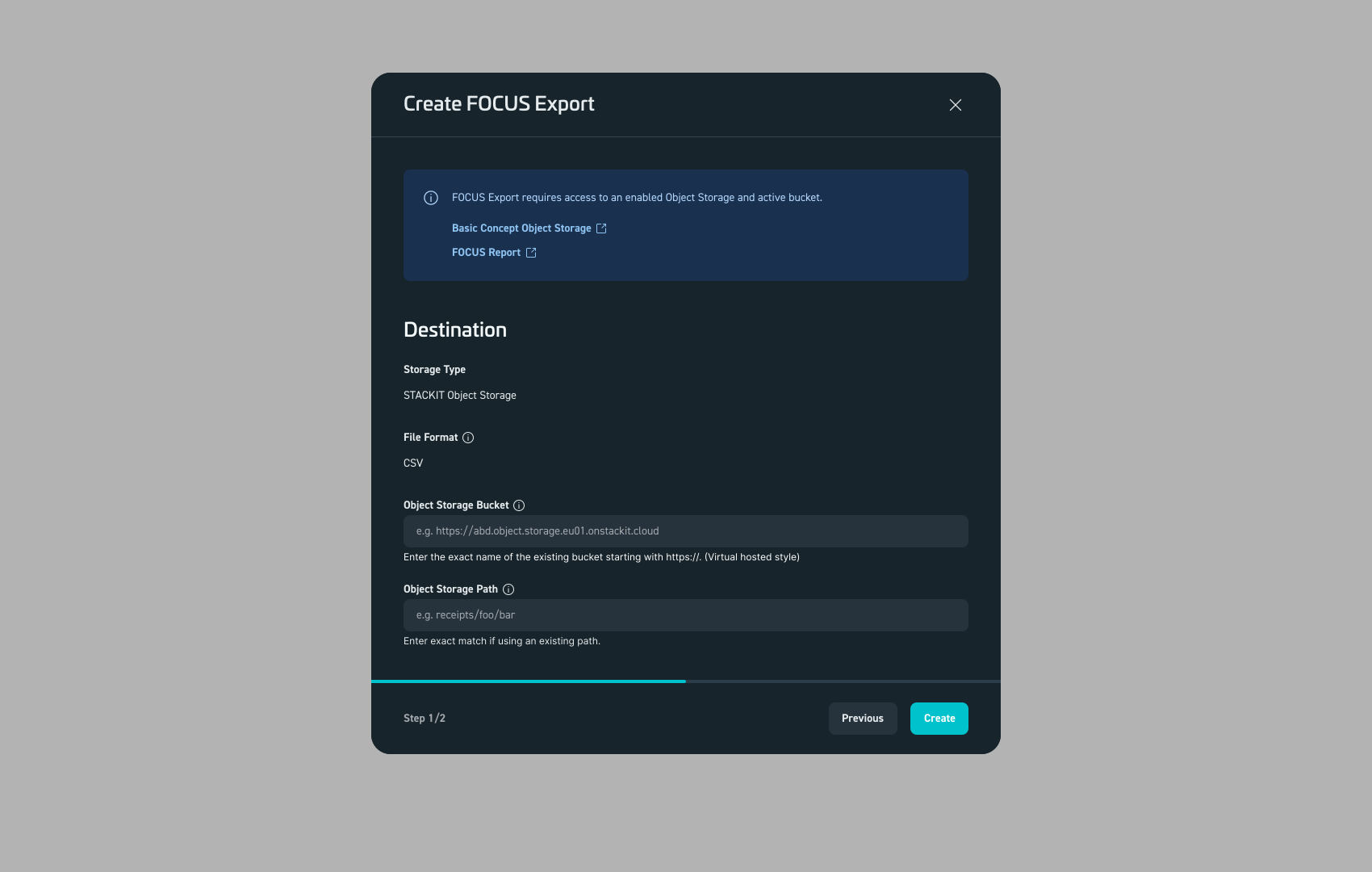
Picture 3: Step 2 – enter details to store the FOCUS report.
Once the schedule is created, the FOCUS report will be delivered the next day directly to your specified Object Storage bucket.
Download the FOCUS report
Section titled “Download the FOCUS report”Currently, direct file download via the STACKIT Cloud Portal is not available for FOCUS reports.
To access your report, connect to the STACKIT Object Storage instance and retrieve the file using, for example, a standard file transfer client that supports Object Storage protocols or over a programmatic way. The STACKIT Object Storage is S3 compatible.
The FOCUS report will be stored accordingly to your FOCUS schedule settings.
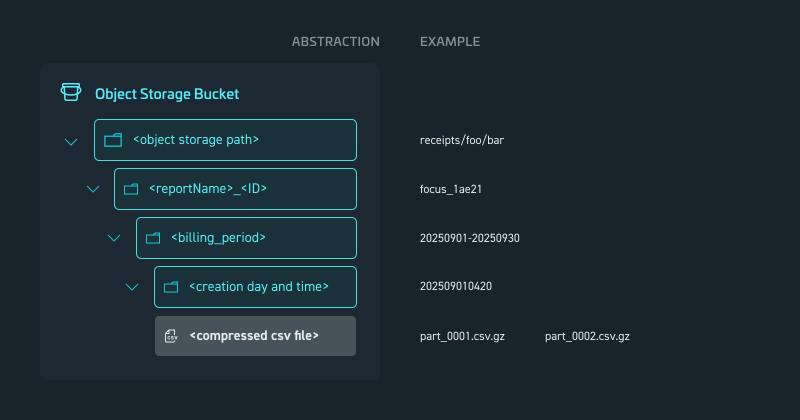
Picture 4: FOCUS Report storing schema
The following table explains the used placeholders:
| Placeholder | Description | Example |
|---|---|---|
<object storage path> | The bucket location defined by the user. | receipts/foo/bar |
<reportName> | A unique folder created for the scheduled report. The <reportName> is user-specified | focus |
<id> | Is a system-generated 5-digit alphanumeric ID to ensure uniqueness. | 1ae21 |
<billing_period> | Defines the period the report covers, using the format yyyymmdd-to:yyyymmdd. | 20250901-20250930 |
<creation day and time> | Specifies when the folder was generated, using the format yyyymmddhhmm | 202509010420 |
<compressed csv file> | The actual report file(s), which can be one or multiple compressed CSV files. | part_0001.csv.gz |
Example FOCUS report
Section titled “Example FOCUS report”To help you familiarise yourself with the structure and content of the report, an example FOCUS report is provided below. test
Download FOCUS example