Skip to content

Create NFS Shares

Last updated on

To create an NFS Share on a Resource Pool, click on the Resource Pool in the list that you want to create the NFS Share on. In our case, we will use “test_resource_pool_002”.
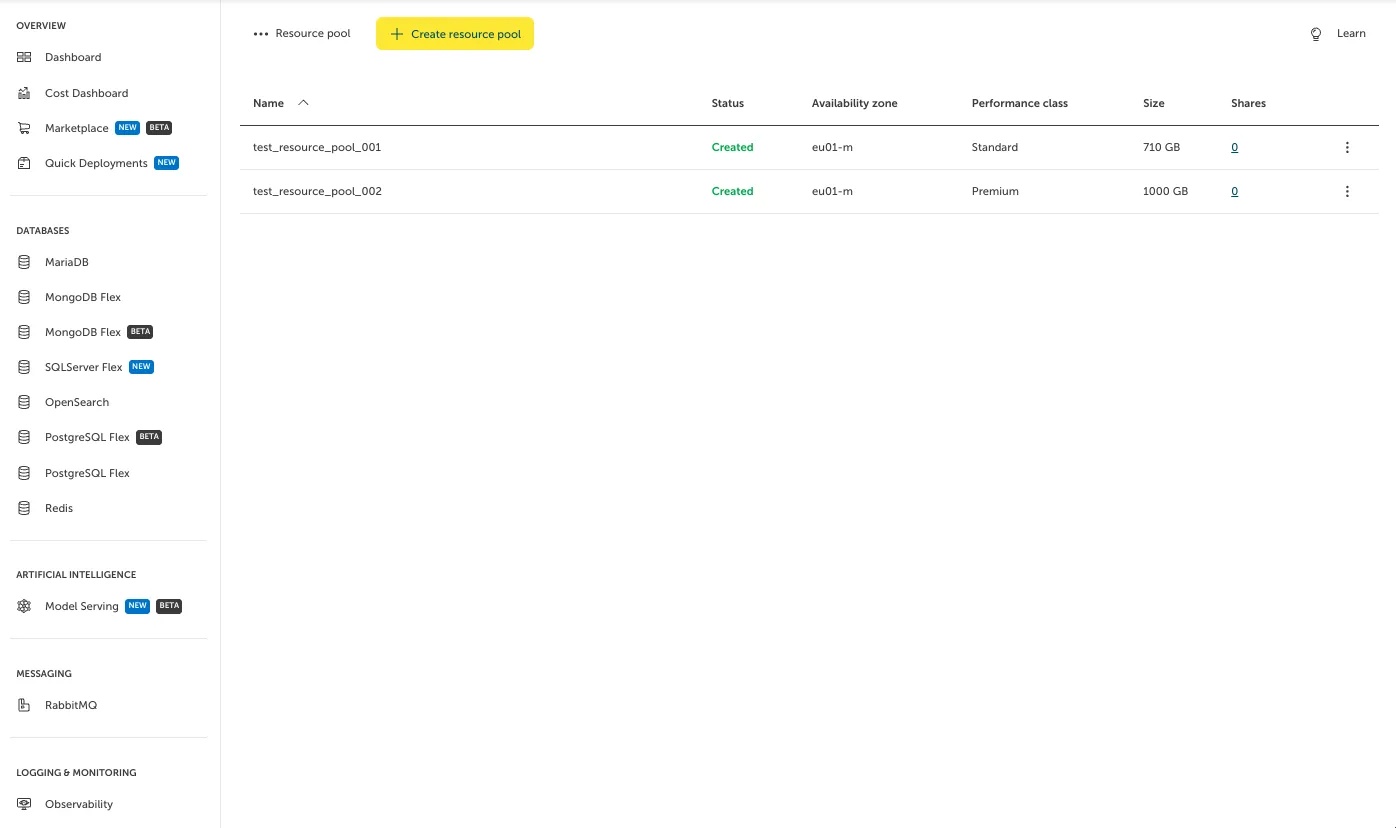
Screenshot of the "Resource pool" overview dashboard in the STACKIT Portal interface. The left navigation panel displays categories like Databases, Artificial Intelligence, and Messaging. The main area contains a yellow "Create resource pool" button and a table listing active pools named "test_resource_pool_001" and "test_resource_pool_002" with a "Created" status, located in availability zone "eu01-m". Their respective sizes are 710 GB (Standard performance class) and 1000 GB (Premium performance class), with each showing a clickable "0" link under the "Shares" column.

On the side, you can see and select “Shares”.
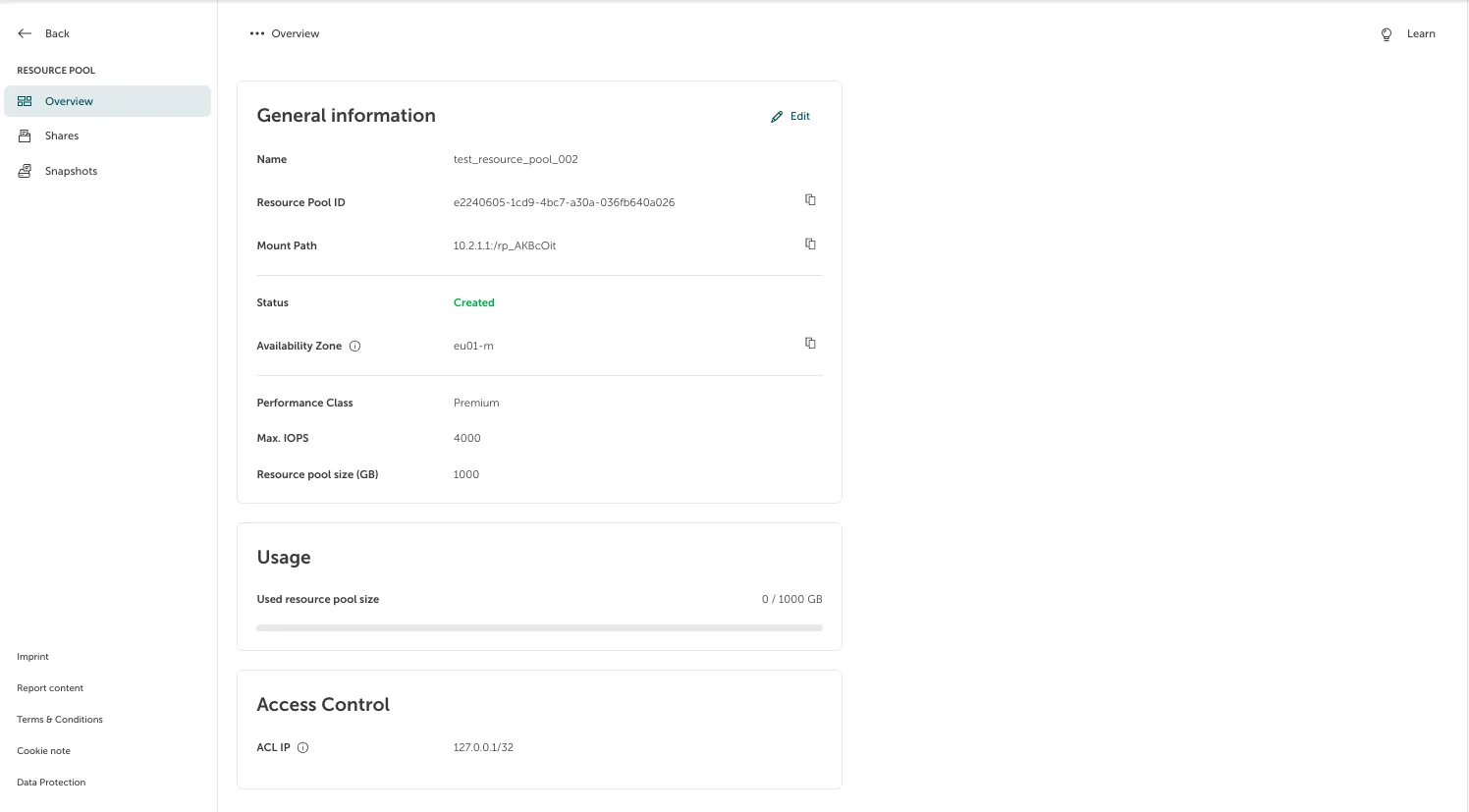
Screenshot of the detailed "Overview" section of the "RESOURCE POOL" management interface in the STACKIT Portal. The left side menu displays sub-links for "Overview", "Shares", and "Snapshots". The main workspace contains cards detailing the resource pool "test_resource_pool_002", including a "General information" card with an active "Edit" button, a "Usage" indicator showing 0 out of 1000 GB used, and an "Access Control" status box listing an ACL IP.

Now, click “Create”.

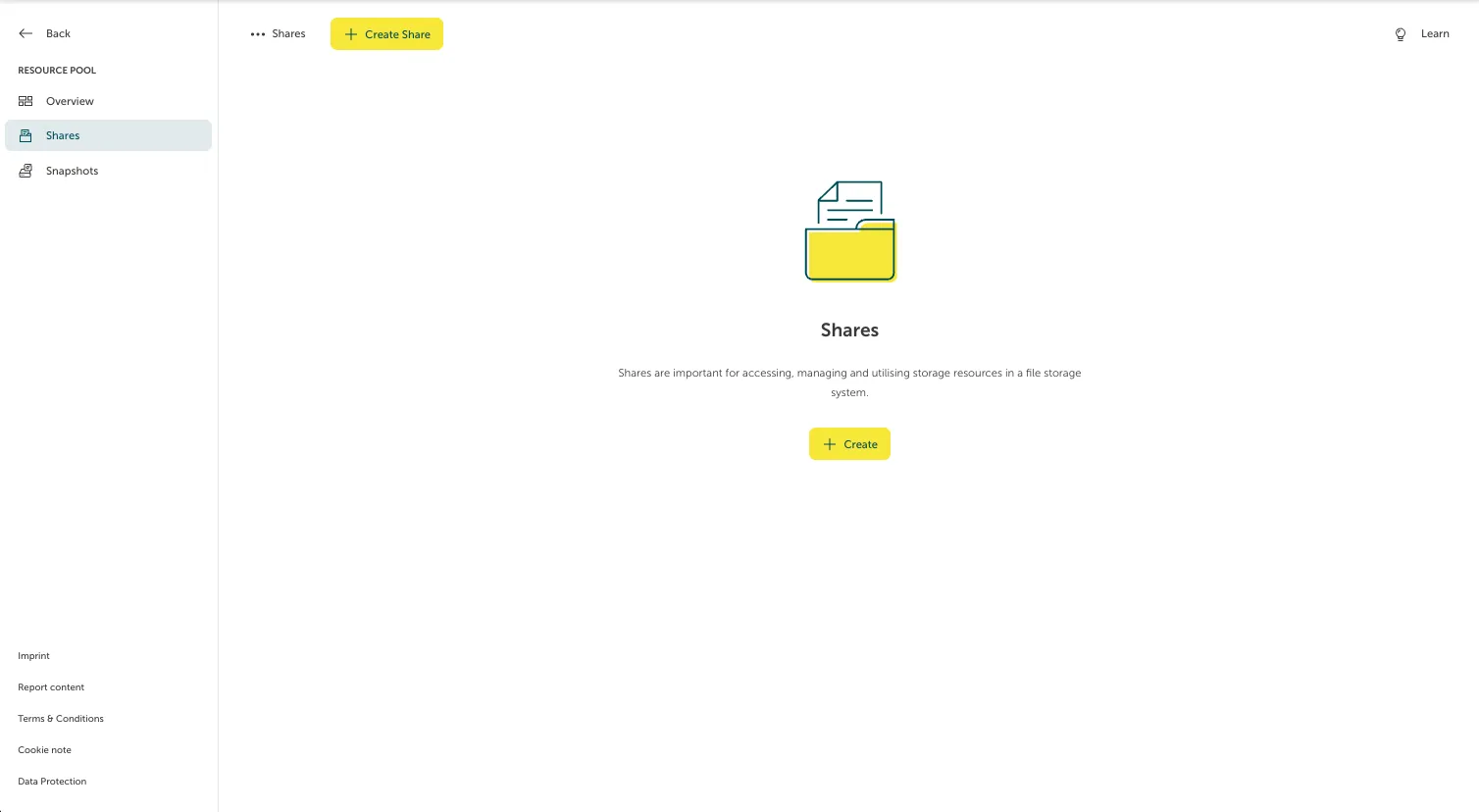
Screenshot of the initial empty "Shares" section within a resource pool configuration in the STACKIT Portal. The left navigation panel has the "Shares" tab selected. The main interface features a central folder icon, followed by a description about accessing and managing storage resources via shares. Two yellow buttons are available to proceed: a "Create Share" button at the top and a "Create" button located directly below the explanatory text.

A form will pop up where we can fill in the required data. After doing so, hitting “Create” will create the requested NFS Share.
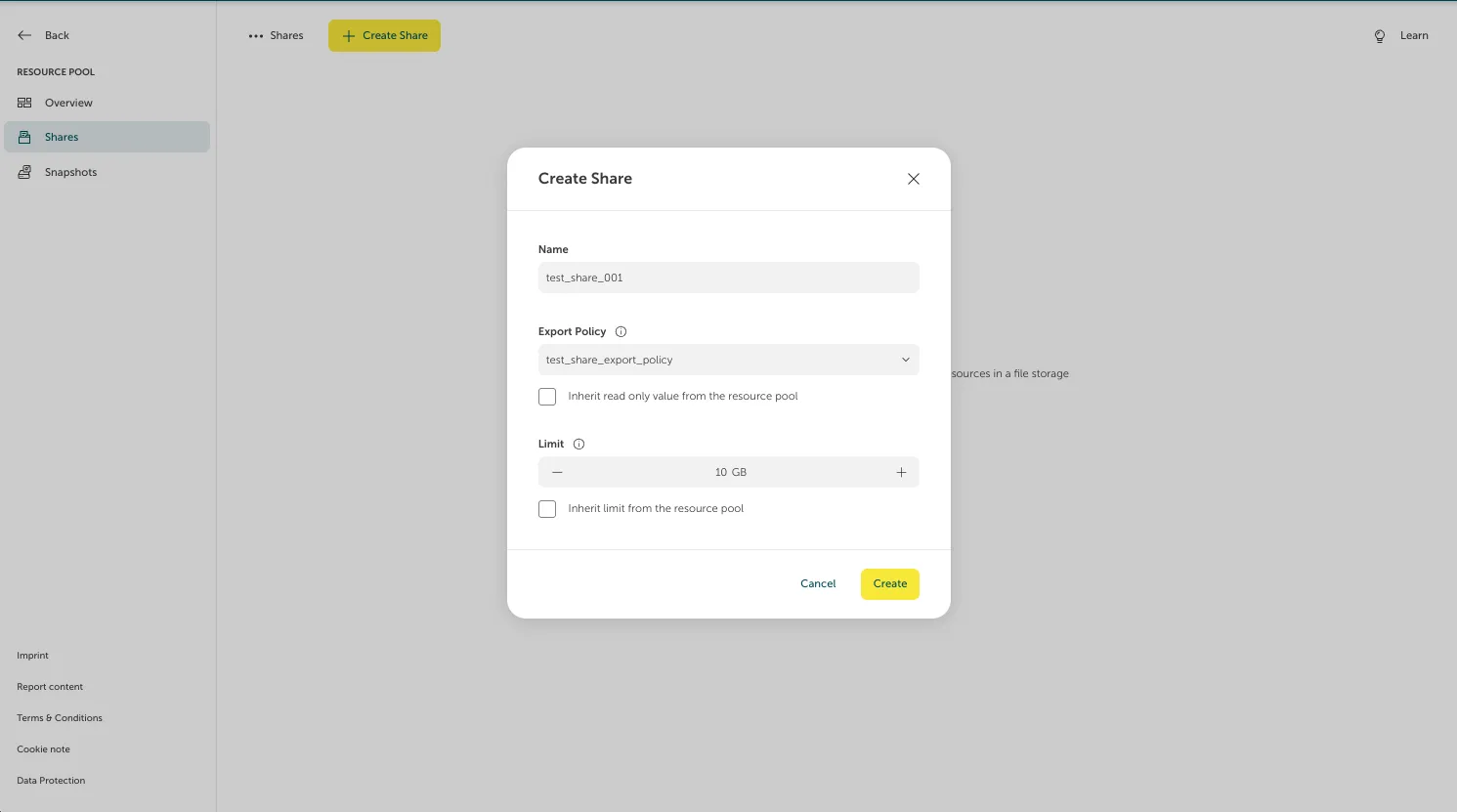
Screenshot of the "Create Share" modal configuration window in the STACKIT Portal. The form contains an input field for Name set to "test_share_001", a dropdown selection for Export Policy set to a test policy, and an adjustable Limit counter set to "10 GB". At the bottom right corner of the dialog, a green "Cancel" link and a yellow "Create" button are visible.