Skip to content

Update NFS Share

Last updated on

To update an NFS Share, select the respective NFS Share in the overview page (you can find this overview page by going to “File Storage > Resource Pools” and selecting the Resource Pool on which the NFS Share lives). In our case, we will take “test_share_002”.
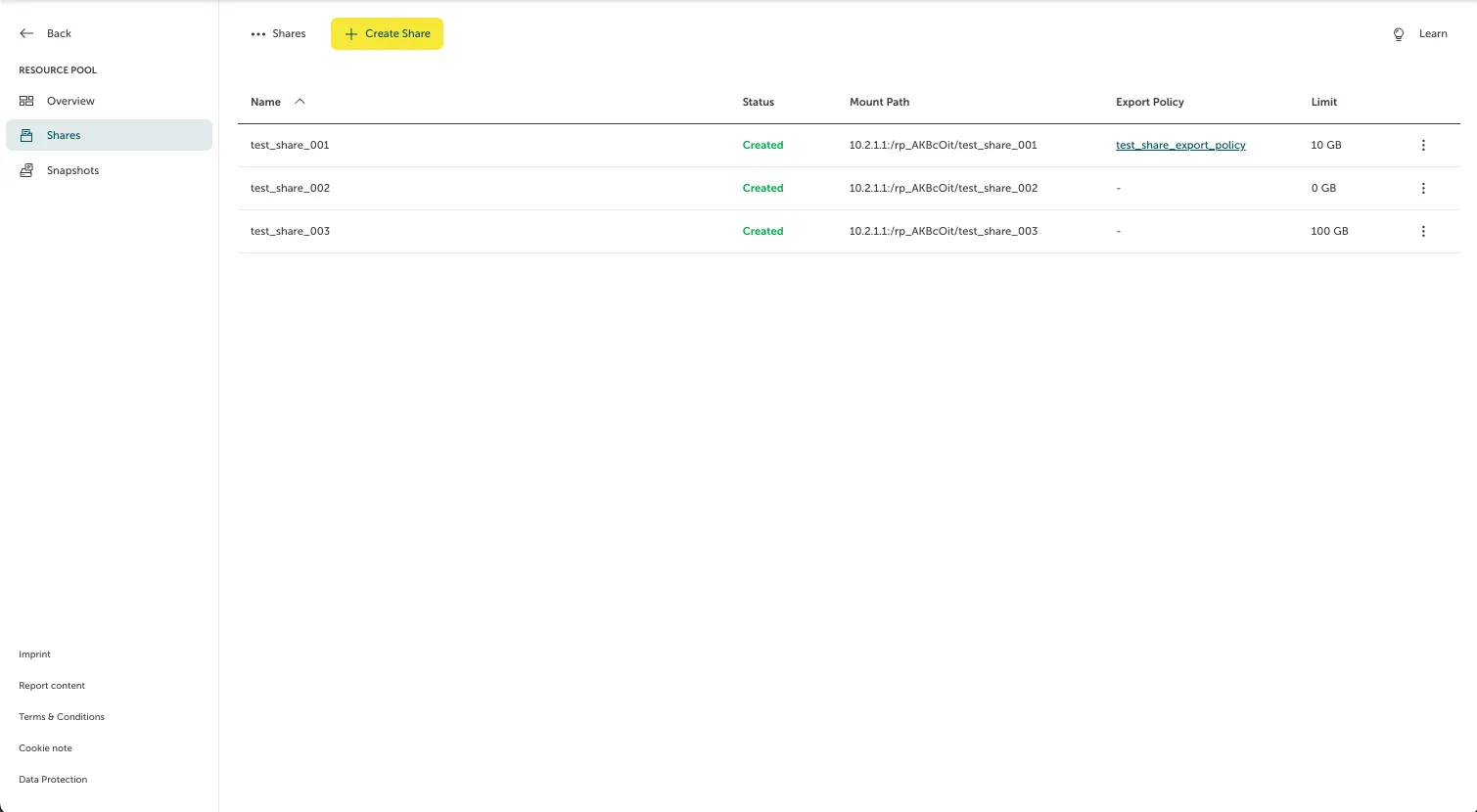
Screenshot of the "Shares" overview tab under a specific resource pool section in the STACKIT Portal. The interface contains a yellow "Create Share" button at the top and a table listing three active shares. All shares display a green "Created" status along with their full network mount paths. One of the shares has a hyperlinked export policy assigned and a limit of 10 GB, while the others show limits of 0 GB and 100 GB respectively.

A sidebar with the NFS Share information will pop up. Here, you can change the export policy or limit. After doing so, click “Save” to save the changes.
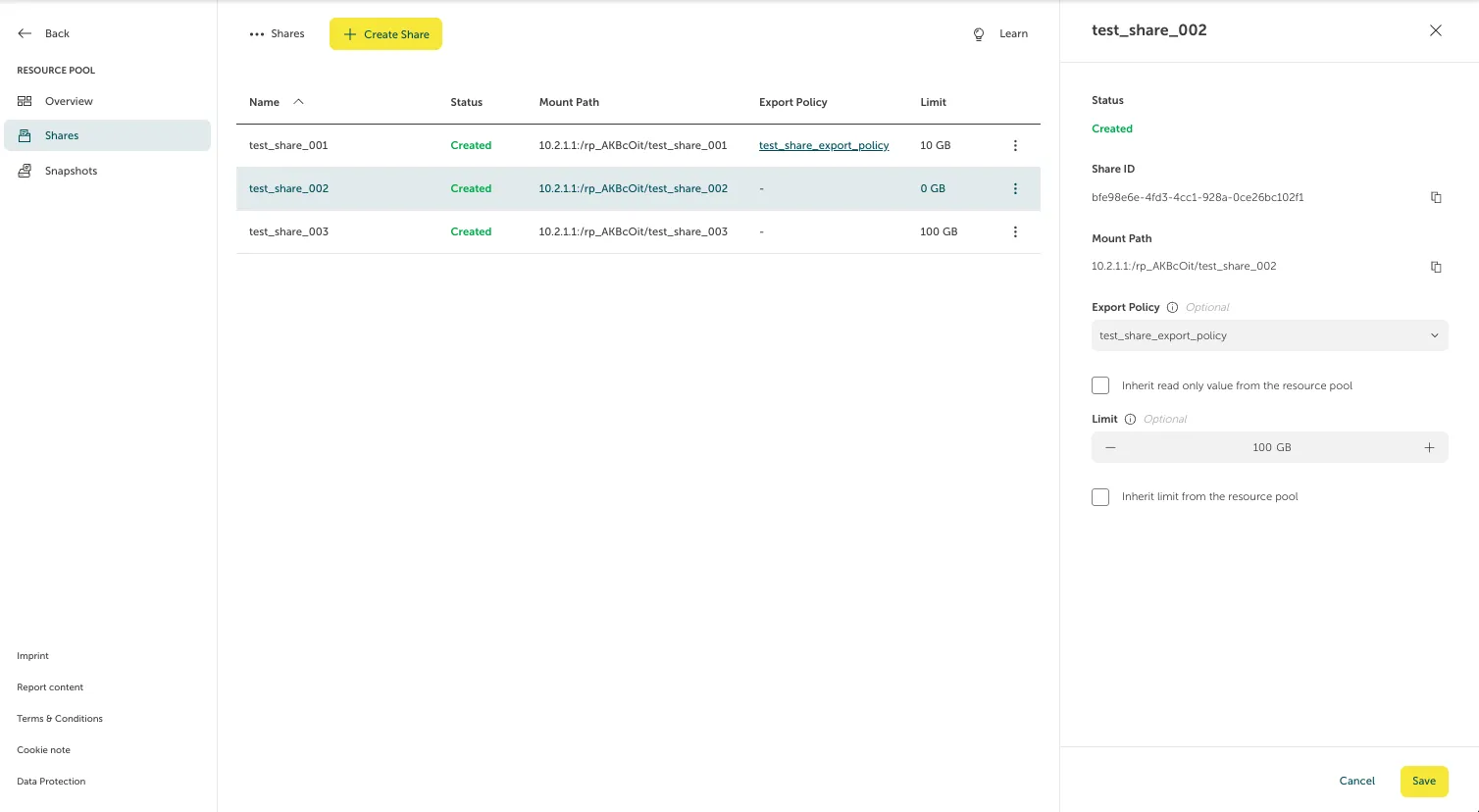
Screenshot of the STACKIT Portal showing the "Shares" overview page with an open configuration sidebar on the right side for the selected share "test_share_002". The sidebar displays status information, the Share ID, and the Mount Path, alongside editable fields. The "Export Policy" dropdown is set to a test policy, and the "Limit" field has been adjusted to "100 GB" using plus and minus controls. A yellow "Save" button is located at the bottom right corner to persist the changes.