Skip to content

Update Share Export Policies

Last updated on

To update a Share Export Policy, go to “File Storage > Share Export Policies” and choose the desired Share Export Policy (in our case test_share_export_policy_002).
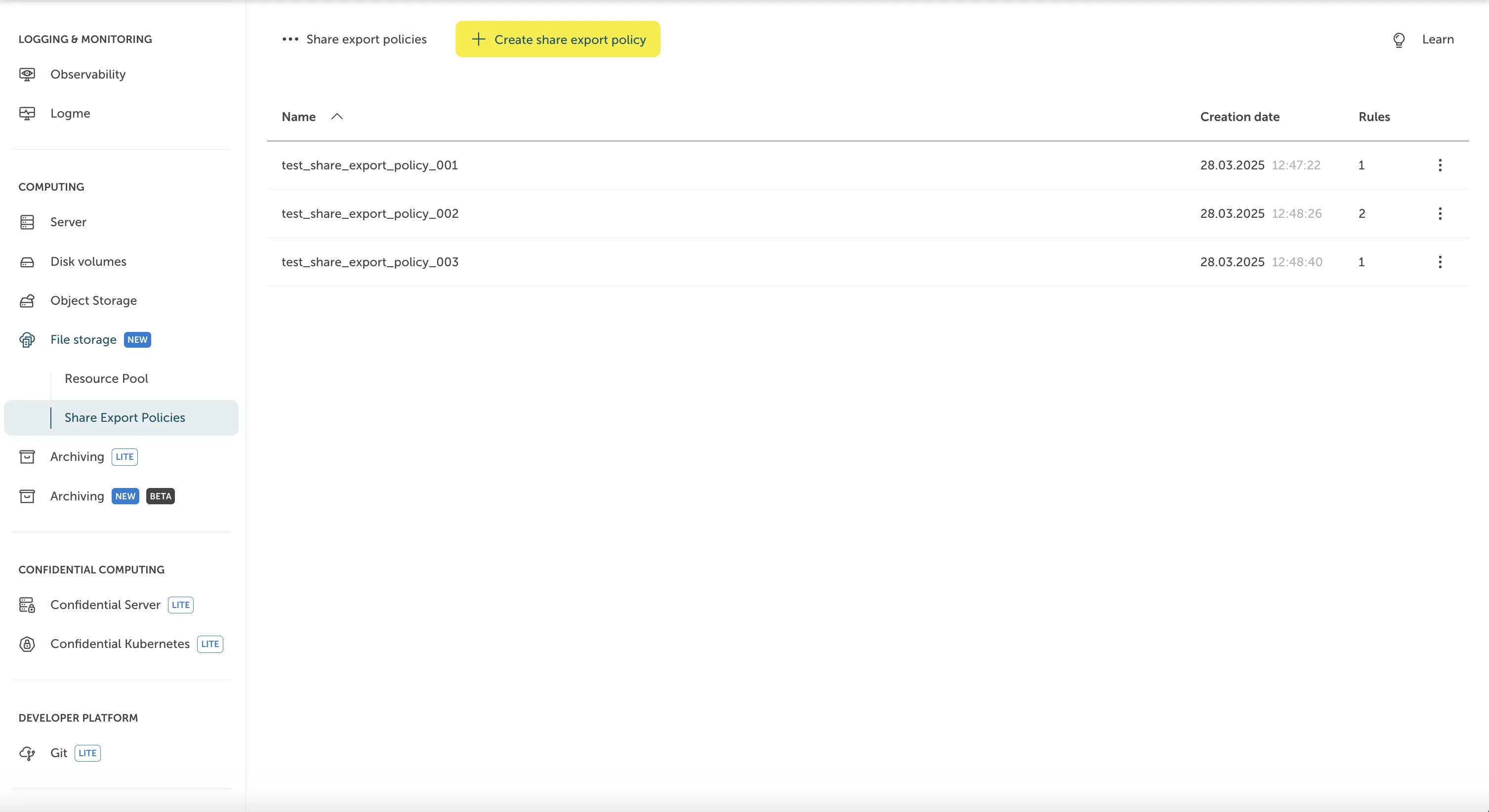
Screenshot of the "Share export policies" overview dashboard in the STACKIT Portal. The left-hand navigation pane shows "Share Export Policies" selected under the "File storage" section. The main table lists three active policies, each showing its creation date, and the number of configured rules. At the top, a yellow "Create share export policy" button is available.

After clicking on the desired Share Export Policy, a sidebar will open where you can change the selected Share Export Policy. After doing all changes, you can apply them by hitting “Save”.
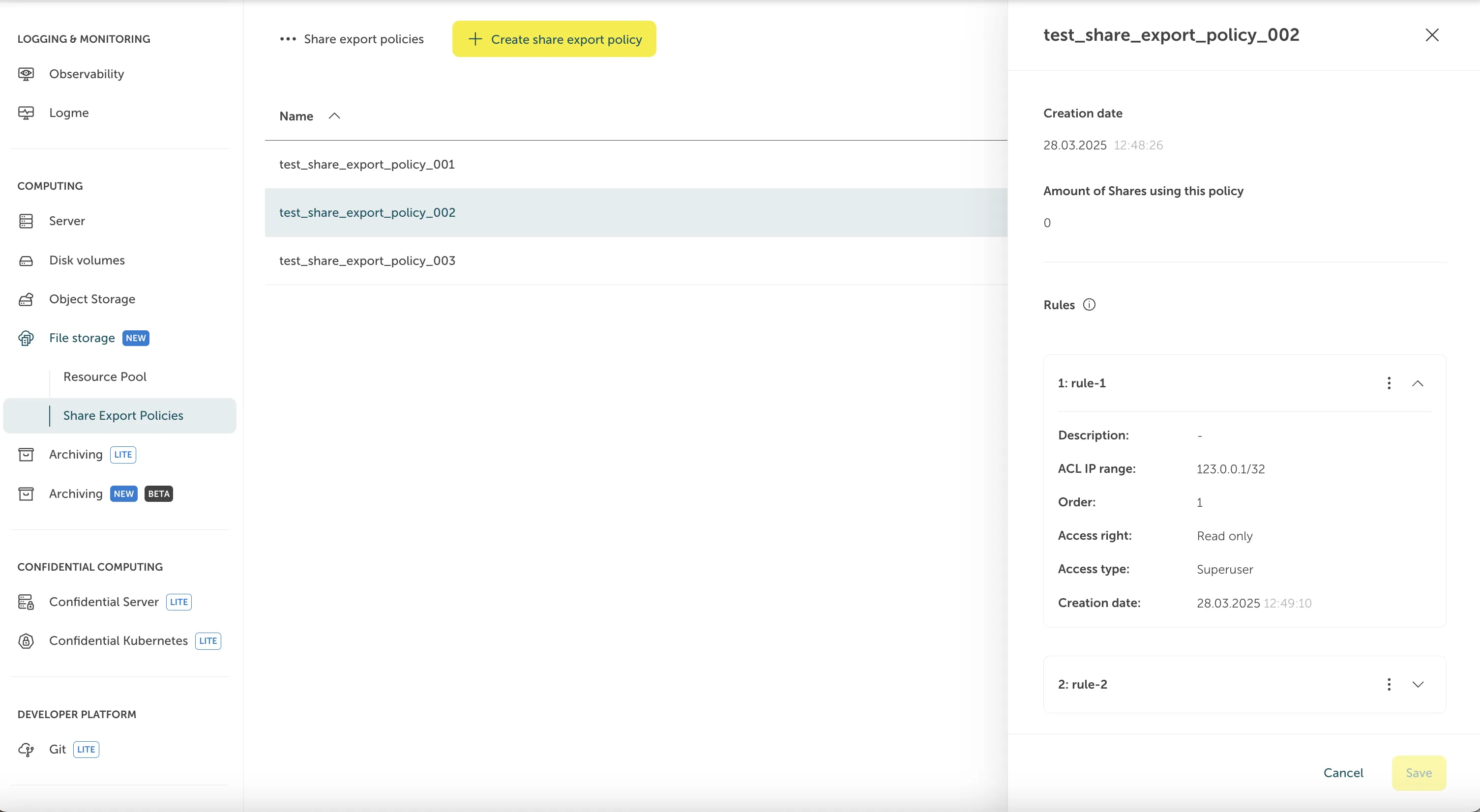
Screenshot of the STACKIT Portal showing the "Share export policies" overview with an open configuration sidebar on the right side for the selected policy "test_share_export_policy_002". The sidebar displays meta-information such as the creation date and shows that 0 shares are using this policy. Below, under the "Rules" section, an accordion item for "1: rule-1" is expanded, showing details like ACL IP range, Read only access rights, and Superuser access type. A yellow "Save" button is located at the bottom right corner.