Repository Permissions
Last updated on
When you invite collaborators to join your repository or when you create teams for your organization, you have to decide what each collaborator/team is allowed to do.
You can assign teams different levels of permission for each unit (e.g. issues, PRs, wiki).
Repository Visibility
Section titled “Repository Visibility”The visibility of your repositories depends on the visibility of your profile, as well as whether you have marked a repository as private.
- If your profile’s visibility is set to Limited, all of your non-private repositories will only be visible to logged in users.
- If your profile’s visibility is set to Public, all of your non-private repositories will be shown to everyone.
- If you do not want anyone (apart from your fellow collaborators) to see your repositories, mark your repository as Private.
The visibility of your profile can be changed in the Privacy settings.
Collaborators
Section titled “Collaborators”There are four permission levels: Read, Write, Administrator and Owner.
By default, the person who creates a repository is an Owner.
The table below gives an overview of what collaborators are allowed to do when granted each of these permission levels:
| Task | Read | Write | Admin | Owner |
|---|---|---|---|---|
| View, clone and pull repository | ✅ | ✅ | ✅ | ✅ |
| Contribute pull requests | ✅ | ✅ | ✅ | ✅ |
| Push to/update contributed pull requests | ✅ | ✅ | ✅ | ✅ |
| Push directly to repository | ❌ | ✅ | ✅ | ✅ |
| Merge pull requests | ❌ | ✅ | ✅ | ✅ |
| Moderate/delete issues and comments | ❌ | ✅ | ✅ | ✅ |
| Force-push/rewrite history (if enabled) | ❌ | ✅ | ✅ | ✅ |
| Add/remove collaborators to repository | ❌ | ❌ | ✅ | ✅ |
| Configure branch settings (protect/unprotect, enable force-push) | ❌ | ❌ | ✅ | ✅ |
| Configure repository settings (enable wiki, issues, PRs, releases, update profile) | ❌ | ❌ | ✅ | ✅ |
| Configure repository settings in the danger zone (transfer ownership, delete wiki data / repository, archive repository) | ❌ | ❌ | ❌ | ✅ |
The permissions for teams are configurable. You can specify which repositories a team has access to; therefore, you can specify for each unit (code access, issues, releases) a different permission level.
Each unit is configured to have one of these 3 permission levels:
- No Access: Members cannot view or take any other action on this unit.
- Read: Members can view the unit, and do standard actions for that unit.
- Write: Members can view the unit, and run write actions that unit.
When a team is configured to have administrator access, you cannot change units. The team will have admin permissions (See the admin column under Collaborators).
Blocking a user
Section titled “Blocking a user”Blocking another user might become necessary if they are acting maliciously or are spamming your repository (for instance by adding unsolicited comments in issues).
When you block a user, STACKIT Git does not explicitly notify them, but they may learn through an interaction with you that they are blocked.
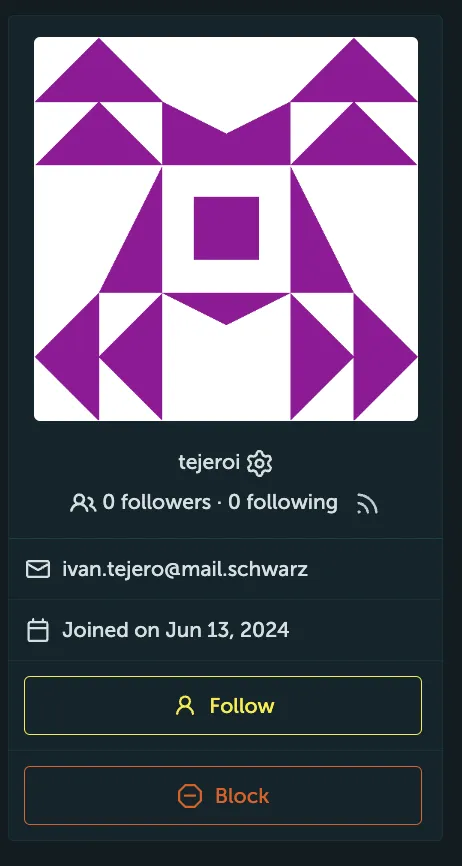
- Go to the profile page of the user which you want to block.
- Click the Block button.
A popup will show.
- Please read carefully what blocking a user implies, and if you accept the implications, click Yes.
List of blocked users and unblocking
Section titled “List of blocked users and unblocking”- To see the list of users you blocked, navigate to your user profile in the top-right corner and click Settings.
- Select Blocked Users in the menu.
This navigates you to the page where the users you’ve blocked are listed. - To unblock someone, click on the Unblock button next to their name.