Git - Invite users to your repository or instance
Last updated on
This guide explains how to invite other users to your repositories on STACKIT Git.
Here’s how to invite users:
-
Share the STACKIT Git instance URL: Provide the URL of your STACKIT Git instance to the users you want to invite.
-
User Account Creation: When users access the instance URL and log in through the STACKIT IDP, a new user account will be automatically created for them.
-
Invite Users to Repositories: Once users have created their accounts with one click, you can invite them to your repositories:
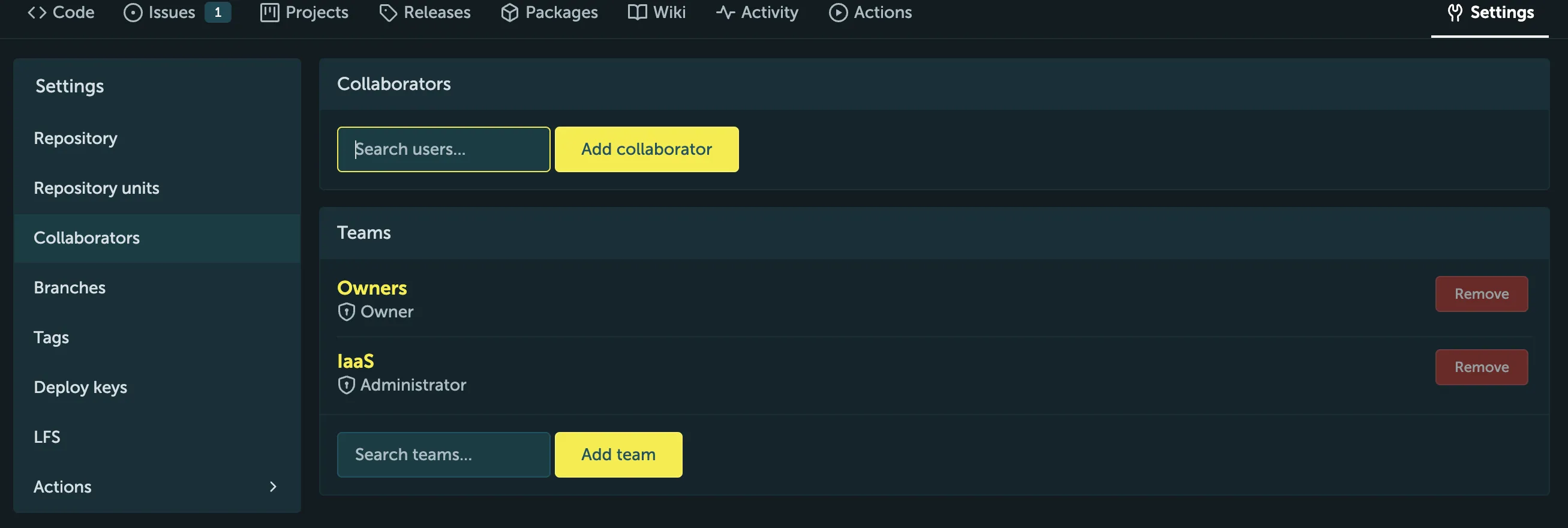
- Navigate to the repository settings: Go to the repository you want to invite users to and click on the “Settings” tab.
- Type in the “Collaborators” name: It should correspond to the first part of their email address
- Add collaborator: Click on the “Add collaborator” button and enter the username of the user you want to invite.
For any further assistance, please contact the STACKIT Git support team.