Microsoft Entra ID Enterprise App
Last updated on
Use the Microsoft Entra ID Enterprise App to integrate Microsoft Entra ID with STACKIT IdP. This is the recommended path for most Microsoft Entra ID customers because it reduces manual setup compared with custom integrations.
When to use this option
Section titled “When to use this option”Use this option if:
- You use Microsoft Entra ID and want the simplest setup path.
- You want to steer customers to a standard integration path.
- The STACKIT Enterprise App is available to your tenant in Azure App Gallery.
Before you start
Section titled “Before you start”Before you begin, make sure that you have:
- An active STACKIT customer account.
- Administrative access to your Microsoft Entra ID tenant.
- Decided whether you need federation (SAML), provisioning (SCIM), or both.
Choose your setup path
Section titled “Choose your setup path”The Enterprise App supports three configurations:
- Recommended: SAML + SCIM. Complete
Common setup, thenConfigure federation (SAML), thenConfigure provisioning (SCIM)in that order. - SAML only. Complete
Common setupandConfigure federation (SAML), then stop. - SCIM only. Complete
Common setupandConfigure provisioning (SCIM), skipping the federation section.
For all paths, start with the common setup below.
Prerequisite:
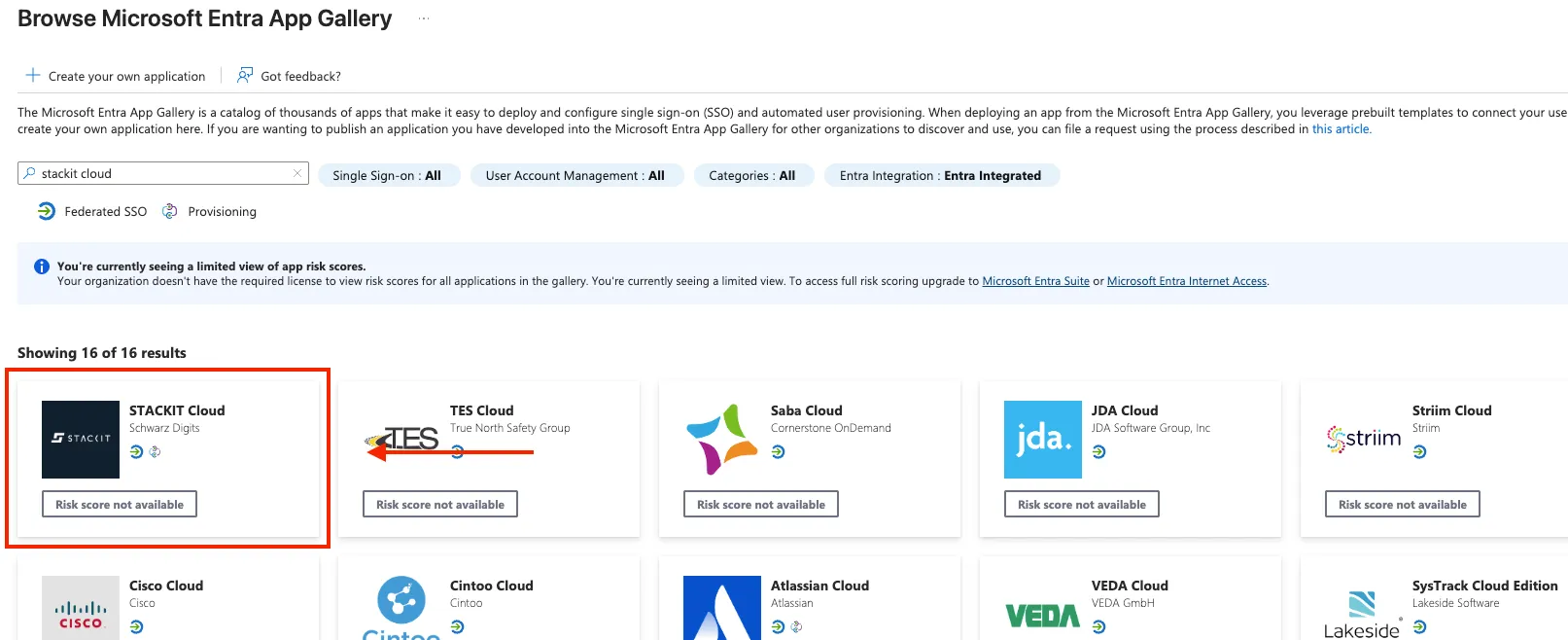
Section titled “Prerequisite:”- Add the STACKIT Enterprise App from Azure App Gallery.
Configure federation (SAML)
Section titled “Configure federation (SAML)”Complete this section if you want to use Microsoft Entra ID for sign-in. Required for the SAML + SCIM and SAML only paths.
User account creation behavior
Section titled “User account creation behavior”Federated sign-in through the Microsoft Entra ID Enterprise App can be configured to create users automatically at first successful login (also known as JIT user creation), depending on your onboarding requirements.
- Auto creation enabled: Users are created on first successful SAML login if they don’t already exist.
- Auto creation disabled: Users must already exist (for example, through SCIM provisioning or manual setup) before they can log in.
Define your preferred mode during onboarding so the federation can be configured accordingly.
-
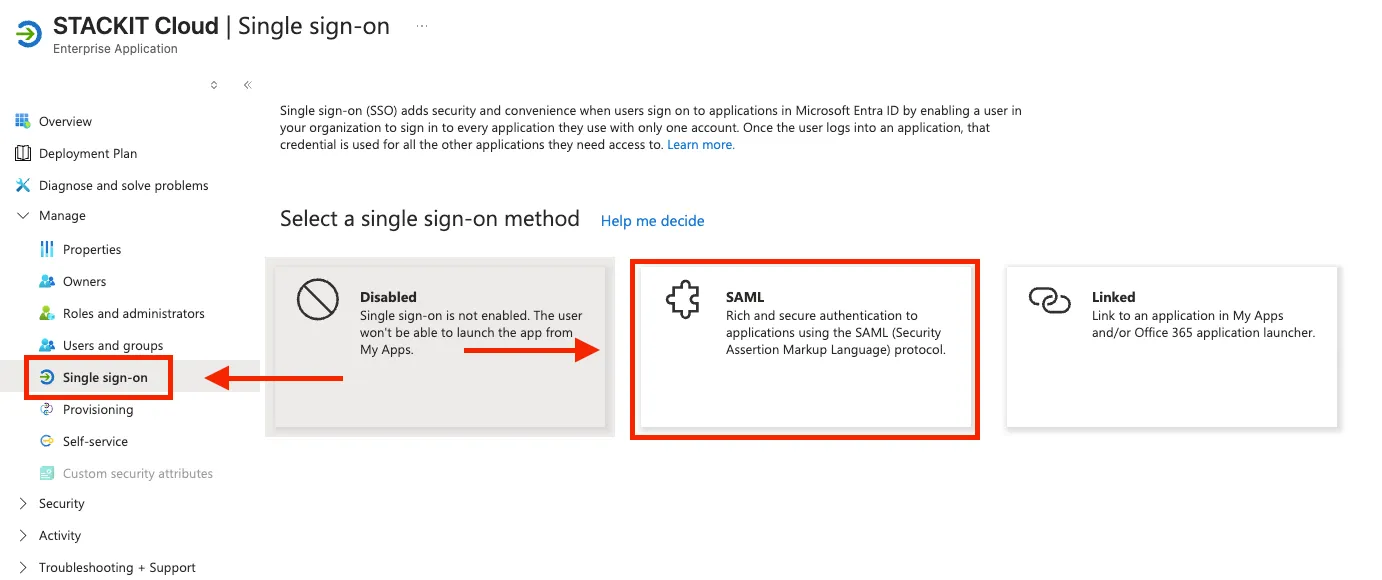
Go to Single sign-on and select the SAML option.
-
Click Edit inside Basic SAML Configuration and enter a temporary placeholder URL in the Identifier (Entity ID) field. This enables downloading the SAML metadata with the final certificates. Use any URL matching the pattern
https://accounts.stackit.cloud/idps/*, for examplehttps://accounts.stackit.cloud/idps/dummy. Include the Sign on URL if your tenant requires it, leave the Reply URL ashttps://portal.stackit.cloud, and click Save.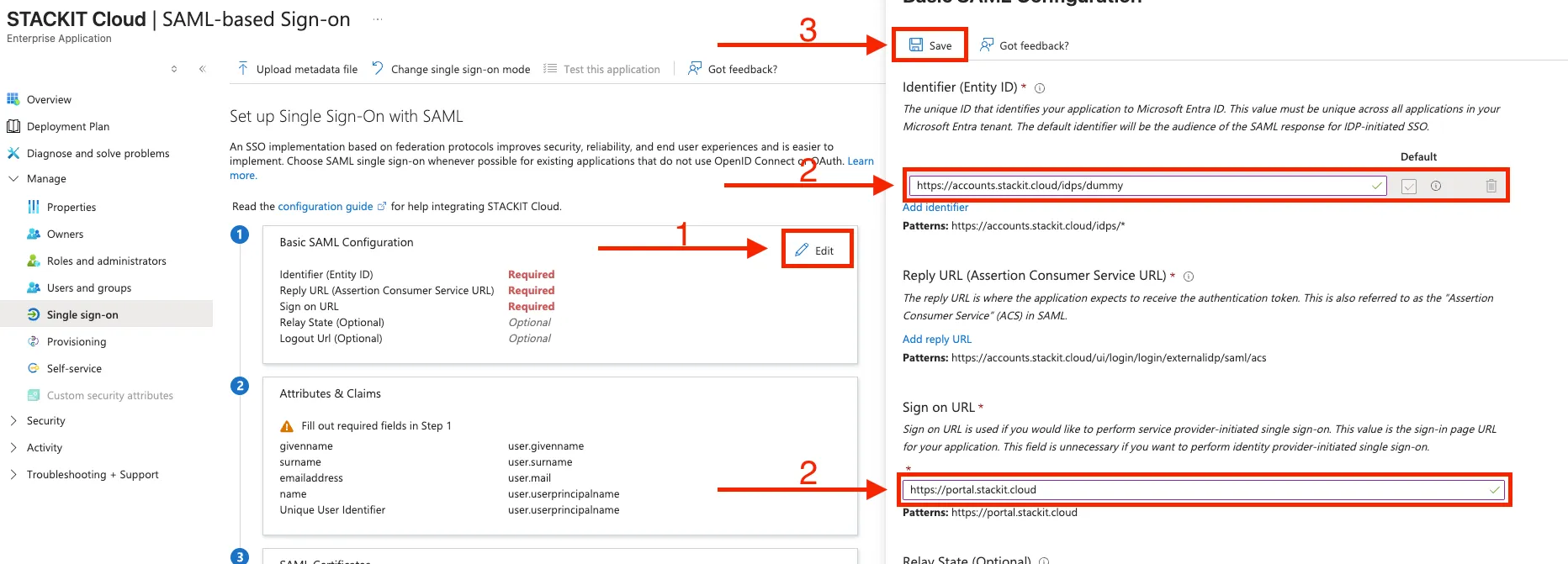
-
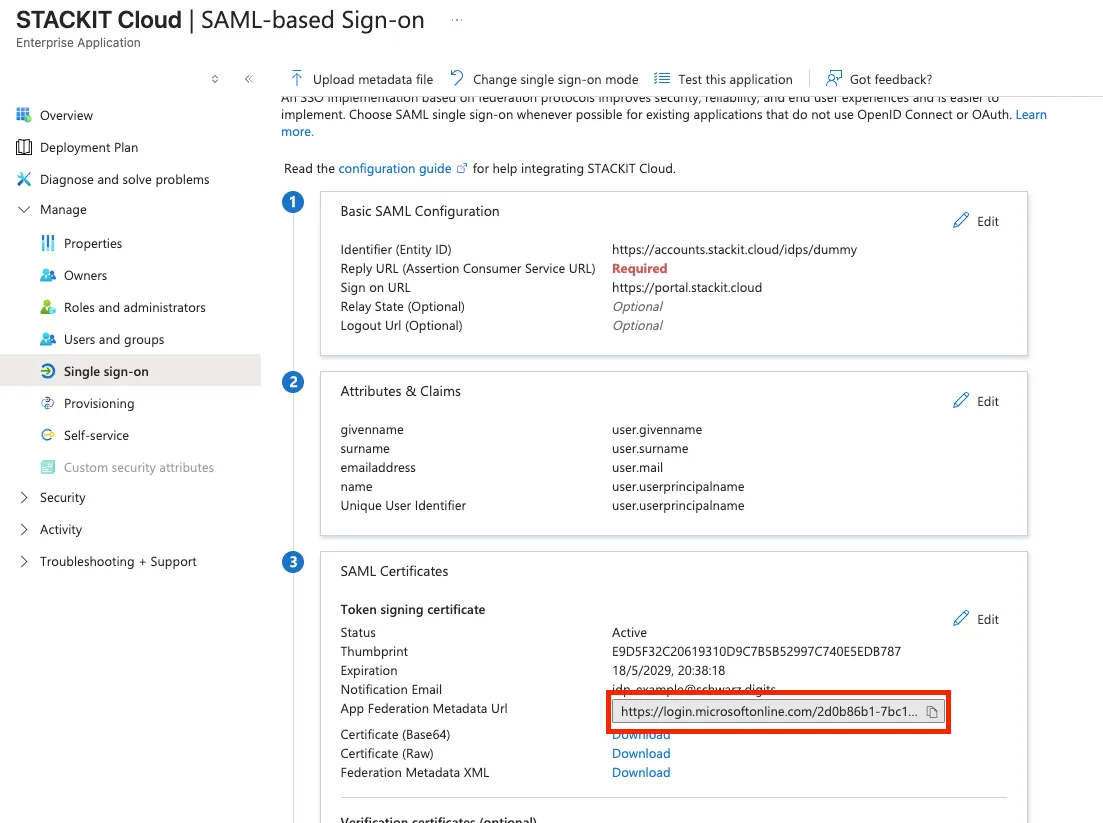
Copy the value of the App Federation Metadata Url field. STACKIT uses this URL to retrieve the information needed to configure the federation.
-
Open a support ticket with the information below:
- Federation type: Microsoft Entra ID Enterprise App
- Metadata URL: The URL you copied in step 3
- Email domains: All primary and secondary email domains your employees use with Entra ID, for example
@example.organd@foobar.com - User account creation mode:
Auto creation enabledorAuto creation disabled
If you also plan to enable SCIM provisioning, request the SCIM Client ID and Client Secret in the same ticket.
-
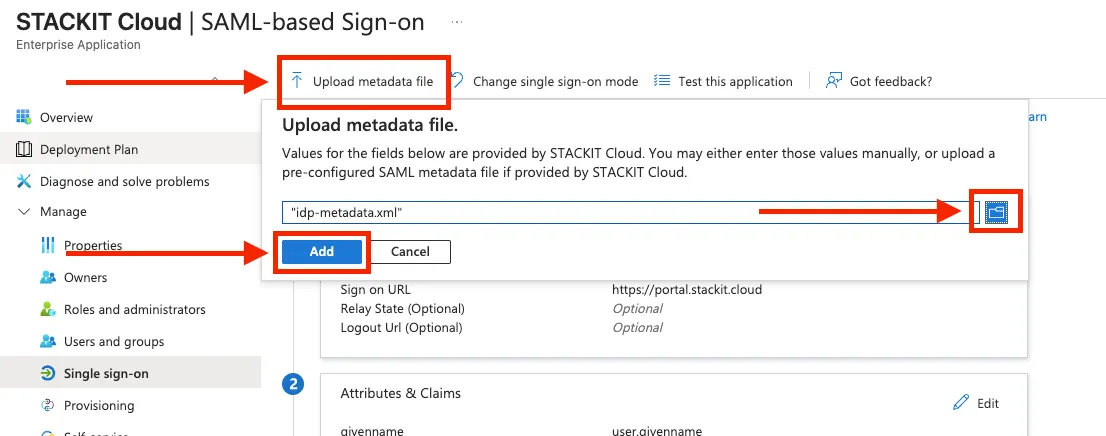
Once you receive the STACKIT metadata URL, download the metadata file and upload it in Entra ID by clicking Upload metadata file and selecting your file.
-
Confirm to STACKIT Support that you have uploaded the metadata file. STACKIT will then enable the federation for your domain, which enforces that all users with email addresses in the configured domains authenticate using Microsoft Entra ID.
If you only need federation, you can stop here.
Configure provisioning (SCIM)
Section titled “Configure provisioning (SCIM)”Complete this section if you want Microsoft Entra ID to provision users and groups automatically. Required for the SAML + SCIM and SCIM only paths.
-
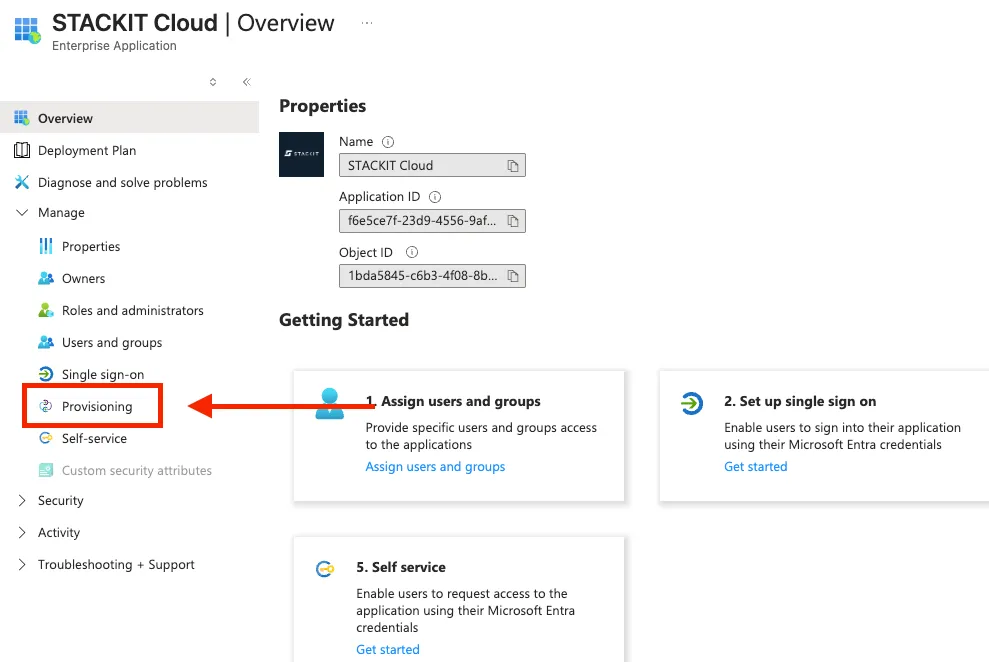
Go to Provisioning.
-
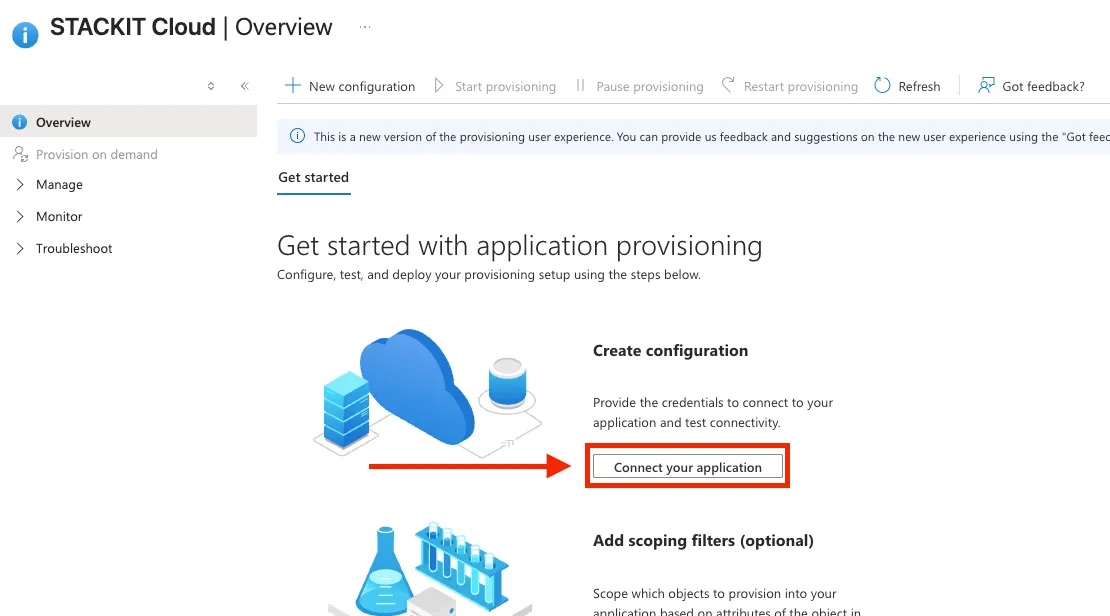
Click Connect your Application.
-
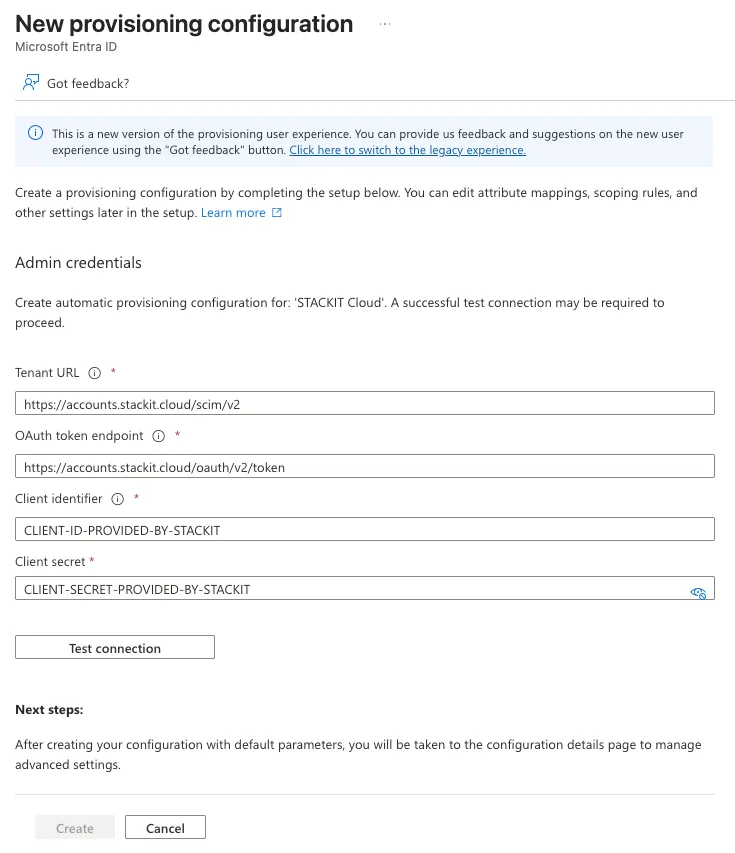
Enter the following values and click Test Connection. If the test passes, click Save.
- Tenant URL:
https://accounts.stackit.cloud/scim/v2 - OAuth token endpoint:
https://accounts.stackit.cloud/oauth/v2/token - Client identifier: Client ID provided by STACKIT Support
- Client secret: Client secret provided by STACKIT Support
- Tenant URL:
-
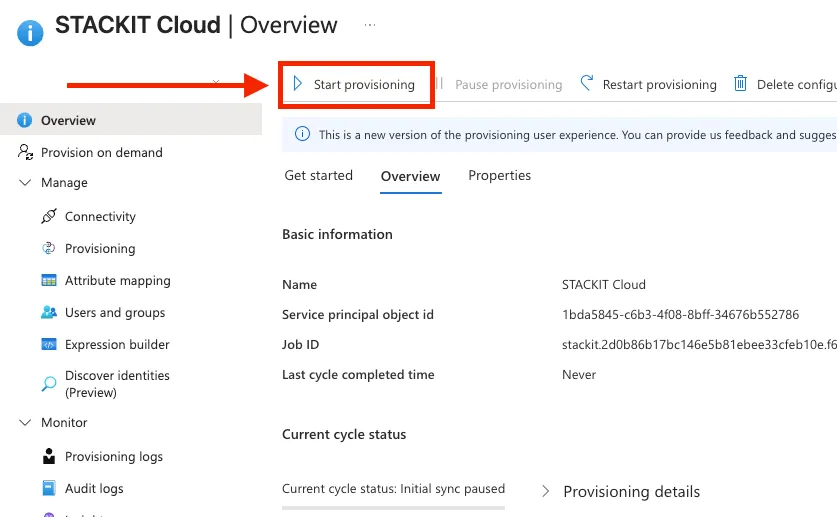
Click Start provisioning to enable automatic synchronization. Microsoft Entra ID will keep users and groups in STACKIT IdP up to date from this point on.
What happens next
Section titled “What happens next”After the relevant sections are configured, your users can log in to STACKIT services using their Microsoft Entra ID credentials.
You can control which users and groups are synchronized to STACKIT IdP by using Microsoft Entra ID’s group-based assignment features. Assign only the users or groups that should access STACKIT to the Enterprise App to limit the provisioning and login scope.
Alternative Microsoft Entra ID options
Section titled “Alternative Microsoft Entra ID options”Use these guides only if you can’t use the Enterprise App or have requirements it doesn’t cover:
- Microsoft Entra ID custom OIDC federation guide: use this if you need a custom application registration or want to use OIDC instead of SAML.
- Microsoft Entra ID custom SCIM provisioning guide: use this if you need a custom provisioning setup instead of the Enterprise App flow.